

9 Best Wireframing Tools in 2026: Tested and Ranked by Use Case
We tested and reviewed 9 best wireframing tools: AI-powered wireframe generators, design platforms, prototyping tools and visual collaboration tools.
See the best prototyping tools in 2026, from AI-driven to high-fidelity options. Find which tool is best suited for your team.
Your PM just pinged you: "Can we see the prototype by Thursday?" But it's Tuesday, and you've only got a half-formed idea, three tabs open, and a 2 pm meeting that's definitely going to derail your afternoon.
Sounds like a common nightmare? We know! Getting from an idea to a clickable prototype used to take days, and sometimes a full sprint. But now in 2026, between AI prototype generators, smarter collaboration, and direct-to-Figma workflows, it doesn't have to. Good prototyping tools can get you there in a few hours. The great prototyping tools? Under ten minutes.
We created an overview of all the best prototyping tools (a brief description of how they work), and identified the best use case for each one as well as some characteristics that make them fun or frustrating.
Since comparing multiple software products with different strengths/weaknesses can be overwhelming, we have taken the time to create comparisons for price, AI capabilities, collaborative features, and workflow fit.
This will help you quickly eliminate options based on your own specific needs rather than having to open 12 web pages.
Our goal here is to be helpful and give you a clear view of the pros and cons of today’s top prototyping tools and solutions, and not just to say that any tool is the best option for every user.
Prototyping tools allow you to take an idea and convert it into something users can click on, tap on, and engage with before you have to invest in creating the final product.
A rough wireframe to test a product concept; A high-fidelity app flow for user testing; A fully functional web experience that looks like the final version of a product or website — all of these qualify as prototypes.
Many prototyping tools accept a prompt, reference image, or product requirement(s), and then generate a usable user interface. Most tools are focused on collaboration, animations, and advanced interactive functionality. Prototypes provide learning opportunities prior to investing in developing a full solution.
This also means that your teams can now spend less time getting an initial concept onto the screen and more time testing, reviewing, and improving the idea.
Prototyping tools can look impressive on paper but still be frustrating once you actually try to use them. So, we looked beyond feature lists. We did not focus simply on what features each tool has; instead, we were looking at how each tool works within a real workflow.
When evaluating these tools, there are four key items we took into account:
Our goal isn't to find one tool that wins at everything, but it's to show each tool's strengths & weaknesses, where it falls short, and which workflow is best suited to before writing a single line of code.
Here's a quick-reference version before we get into the details.
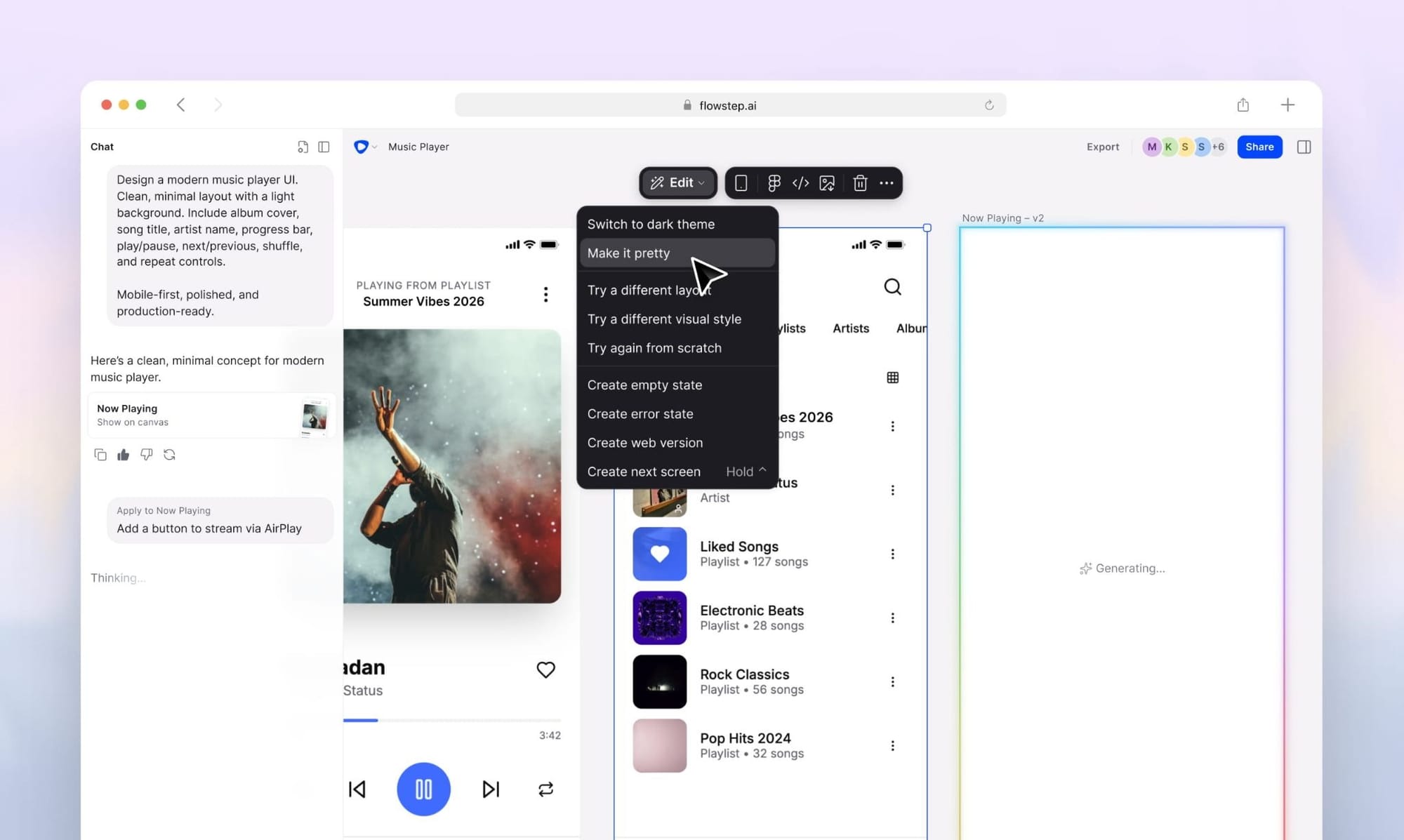
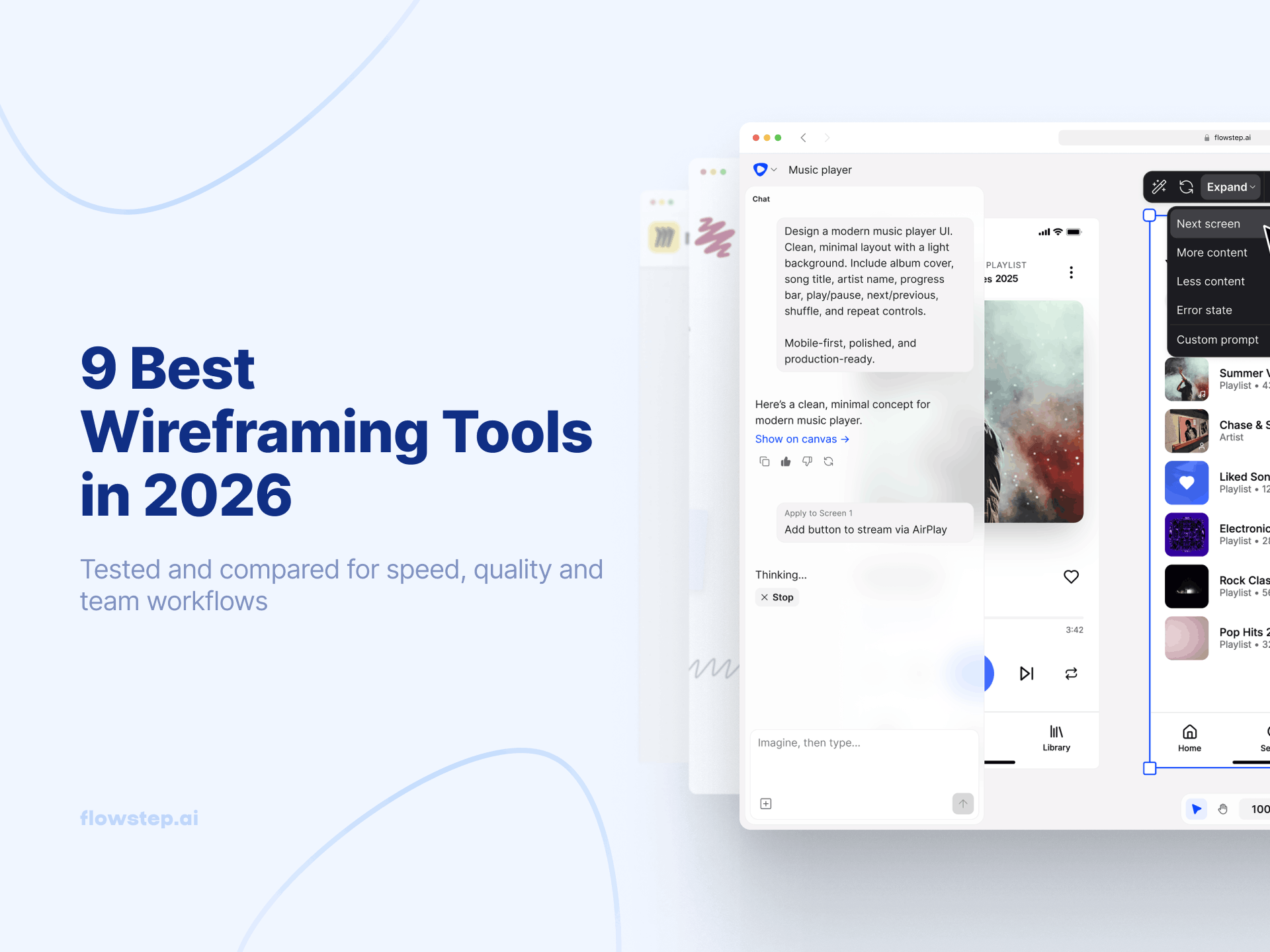
Flowstep is an AI design tool that generates real UI from simple text prompts. Just describe what you need, and see it appear on an infinite canvas. You can also edit with prompts or manually.
What makes it different from other AI tools is the canvas model. Instead of one screen at a time, you're building a full user experience from one prompt.
With Figma integration, it lets you copy and take designs to replicate them. Simply copy the designs using ⌘C & ⌘V on your keyboard, and they are then automatically laid out and edited with all components still intact.
Code exporting is another great feature of Flowstep. Most AI software will only allow you to create a UI that appears perfectly normal, and when you go to view the code produced, it is completely nonfunctional. But Flowstep exports React, TypeScript, and Tailwind CSS that's production-ready, 1:1 with the design. Your engineers finally don't have to rewrite it from scratch.
Best for: Designers, engineers, and product builders who want to get prototypes with code export from a single prompt.
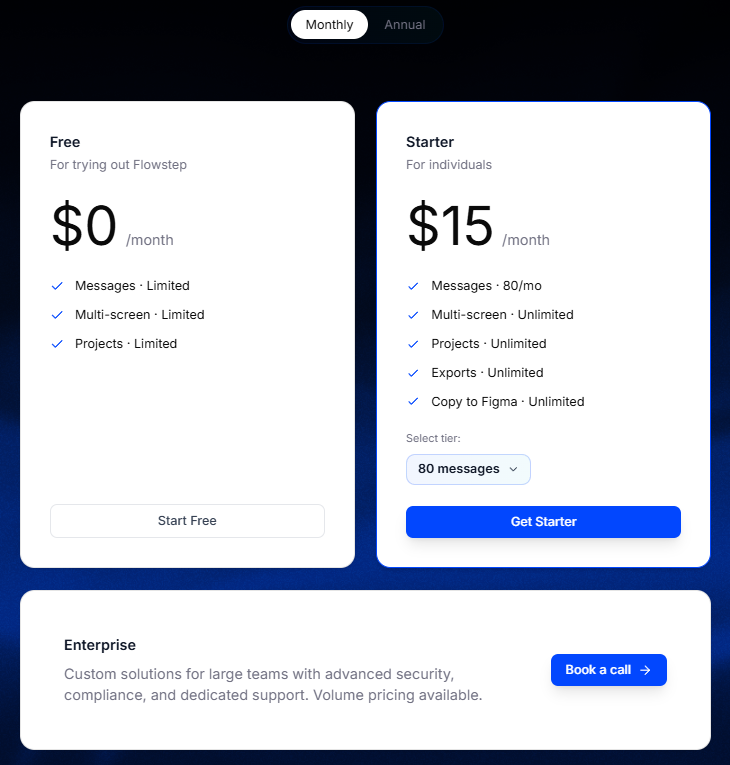
Flowstep on G2: 5/5. Users love that Flowstep bridges design to dev workflow with fast multi-screen UI and clean React export.
Flowstep on Reddit: Users love that Flowstep focuses on getting multi-screen UI fast and pushing straight to Figma.
Start generating prototypes with Flowstep for free →
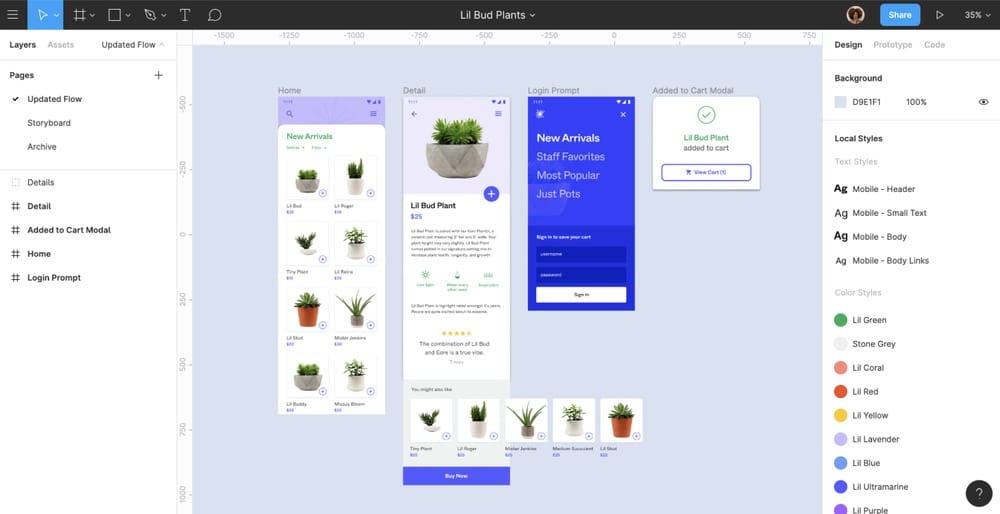
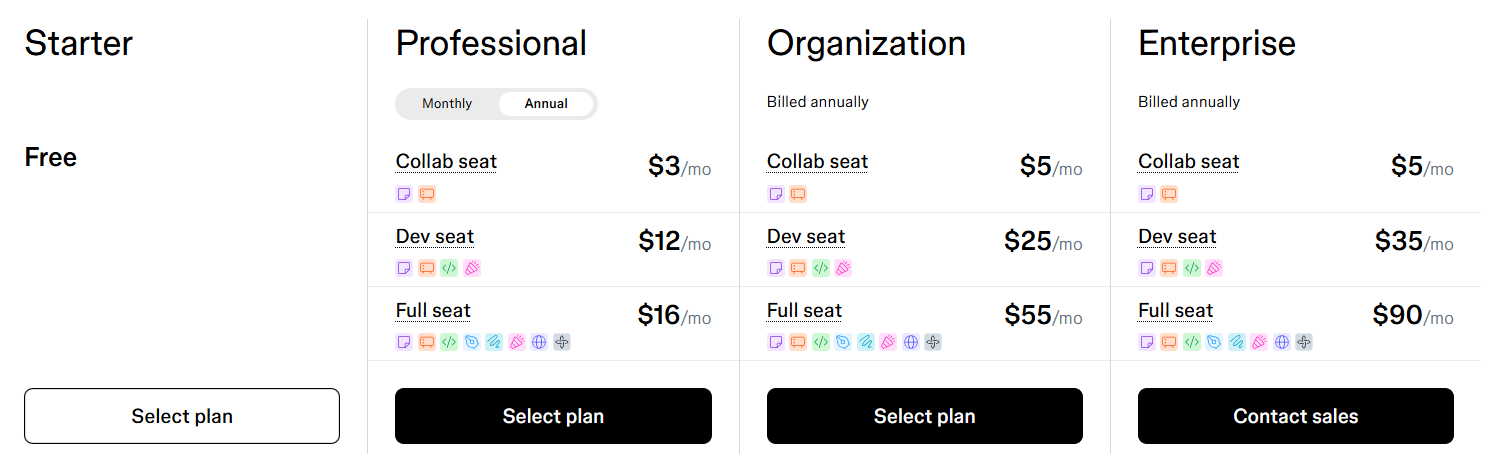
Most product teams use Figma to make comments about their product and its design in order to pass off work to other people at the company. This is because Figma has real-time collaboration capabilities, a plug-in ecosystem, and a "Dev Mode" that allows engineers to view and manipulate designs so they can get the necessary coding information and well-designed design systems.
Figma’s AI functionality helps with tasks such as generating prototype flows based on prompts provided by designers. It can also rename layers of designs and provide suggestions during copy. But it is more of an enhancement tool rather than being central to the product itself.
So, if you are looking to purchase a product specifically for AI prototyping, Figma may not provide enough functionality that you might need.
For more information about the Figma product ecosystem, see our Figma Make pricing and best Figma plugins guides, or if you're considering switching, the Figma alternatives article is a good starting point.
Best for: Teams using Figma for their design-to-development process and looking for an advanced version of Dev Mode, a large collection of plugins, and full-scale, real-time collaboration.
Figma on G2: 4.7/5. Users praise Figma's real-time browser collaboration, flexible design systems, and seamless developer handoff.
Figma on Reddit: Users love Figma for speeding up digital asset iteration and managing complex UI design systems via auto-layout and shared components.
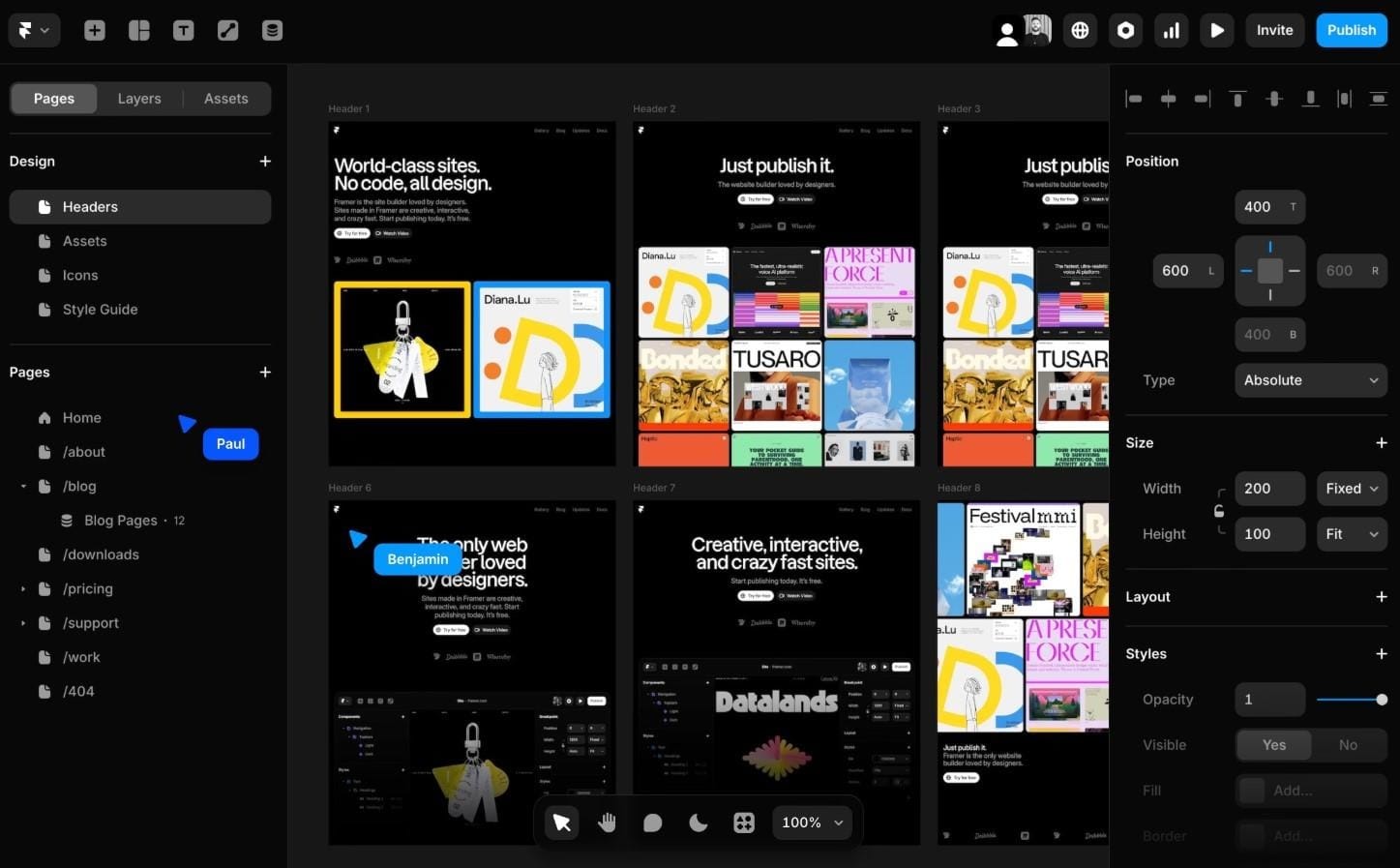
Framer started as a code-based tool for rapid prototyping. Over time, it evolved into a no-code model and now is a complete site builder.
Nowadays, Framer allows users to go from drawing on a blank canvas to a fully interactive, live, and published site all by themselves without fully needing a developer. It has very realistic animated prototype capabilities with transitions and interactions, allowing users to build a realistic experience for their end-users.
There are many components available in the library, so users do not have to start each new project from scratch. It can be one of the best tools for designers who can write React to create interactions that other tools will never be able to achieve.
While Framer has been developed to be strictly focused on web development, if you are trying to find mobile application prototyping tools, Framer is not your best choice. This is because there is currently no way to publish your Framer prototype to the Apple App Store.
Using Framer does not require writing code at any point, but having basic knowledge of how to use React can definitely help you when creating more complex experiences.
See also: Best vibe coding tools
Best for: Teams that want to go from prototype to a live, published website without handing anything to an engineer.
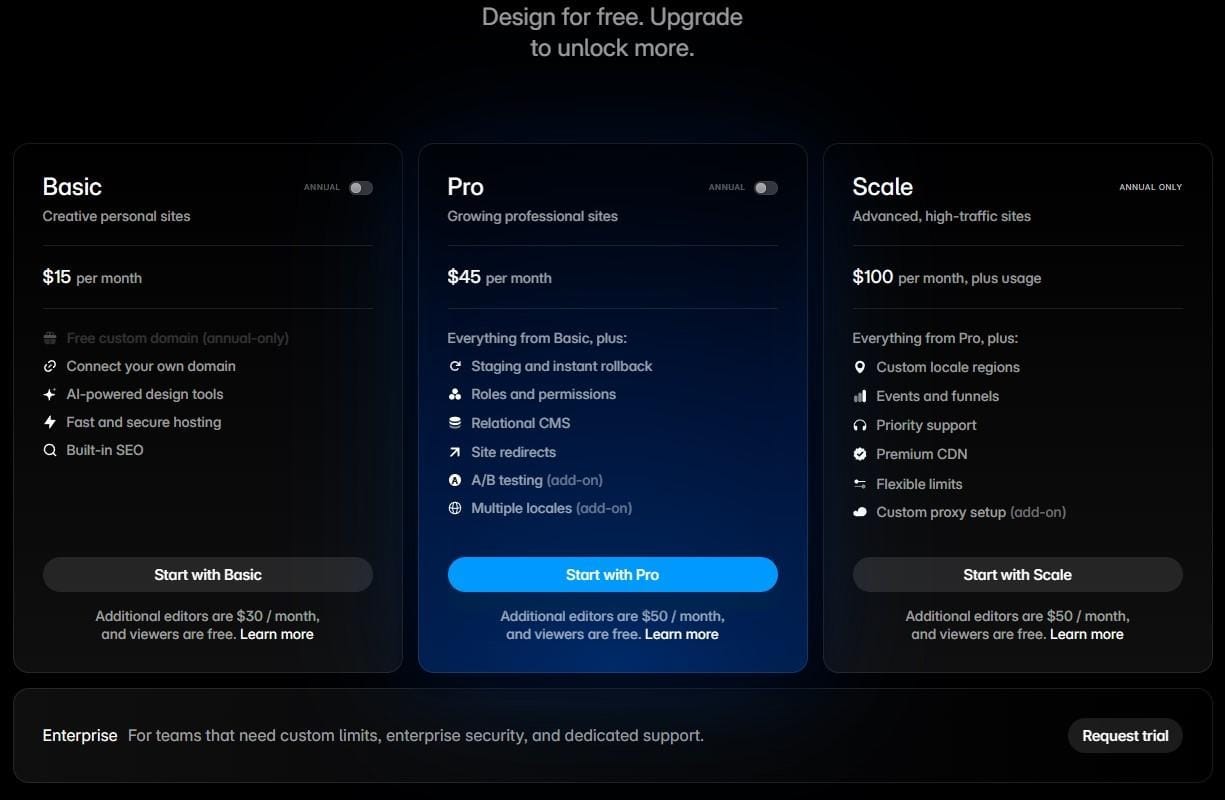
Framer on G2: 4.5/5. Users love Framer for having a seamless Figma-to-web workflow, allowing designers to quickly go straight from canvas to published site with smooth animations.
Framer on Reddit: Users love Framer for its Figma-like interface, rapid publishing, and ability to build interactive sites much faster than Webflow without wrestling with code.
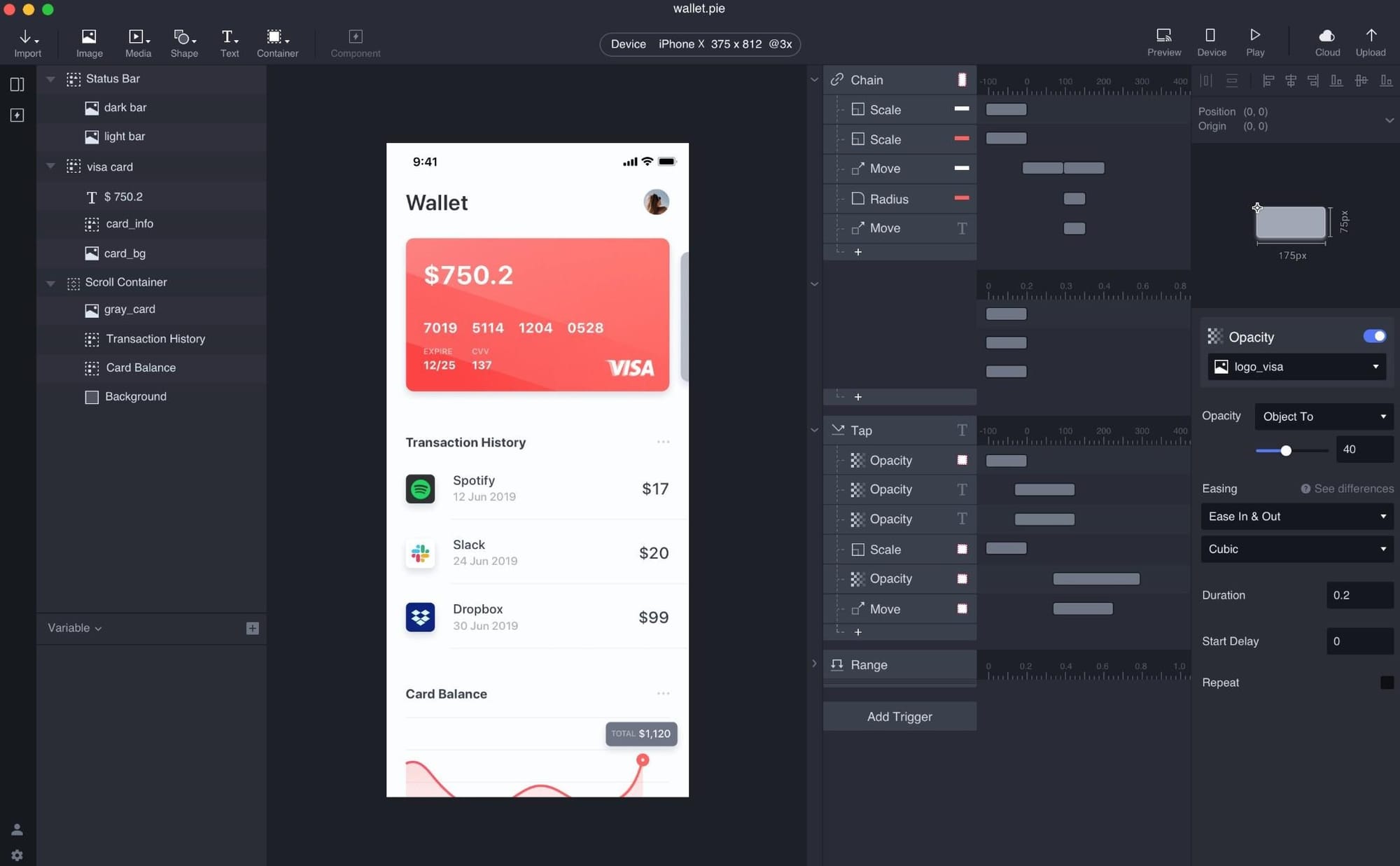
ProtoPie can provide support for multiple device communications (e.g., two phones communicating). It can also handle multi-orientation communication (e.g., screen orientation changes), gyroscopes, cameras, etc.
If you need a prototype tool with these types of capabilities, ProtoPie is your best choice. This is because the majority of prototyping tools allow users to create interactive layouts with simple transitions. ProtoPie allows designers to create prototypes that act similarly to a final product (including complex logic).
The downside is that ProtoPie cannot be used as a stand-alone design application. Designers are required to create wireframes and hi-fi screens somewhere else, and then export files into ProtoPie where they can be enhanced by adding an interactive layer.
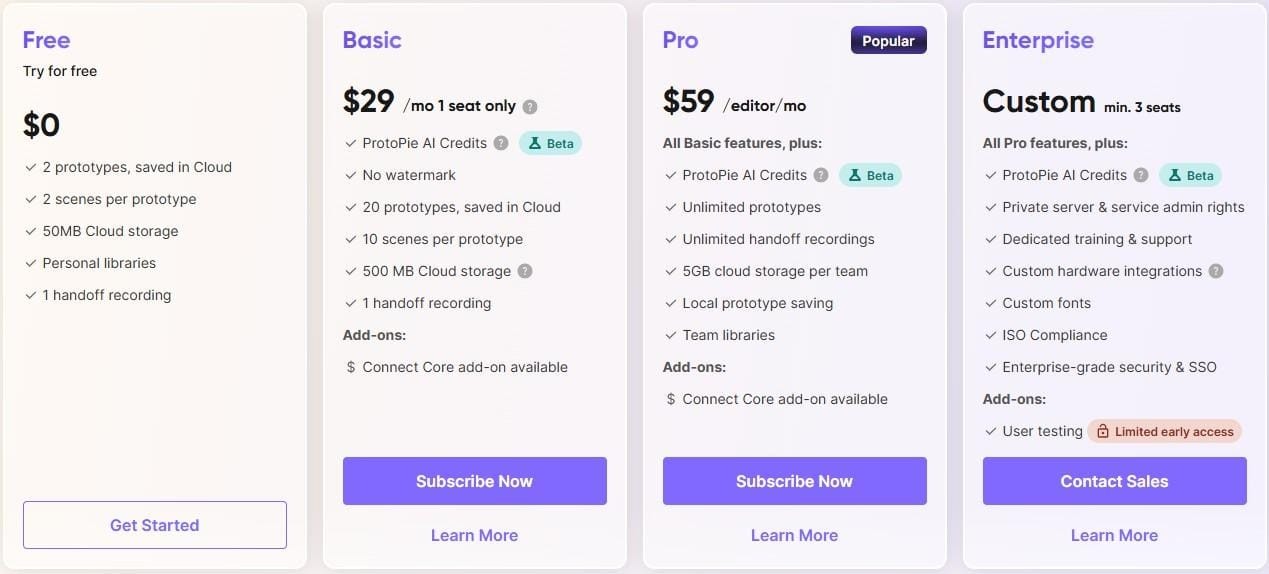
Best for: Teams that need multi-device or sensor-based interactions such as voice, gyroscope, and camera. Also for those who are willing to pay a premium for that depth.
ProtoPie on G2: 4.4/5. Users praise ProtoPie for its ability to build realistic, sensor-driven micro-interactions, custom logic, and multi-device prototypes without writing code.
ProtoPie on Reddit: Users love ProtoPie for testing advanced interactions like drag-and-drop mechanics or device-to-device communication, though many criticize its high subscription cost.
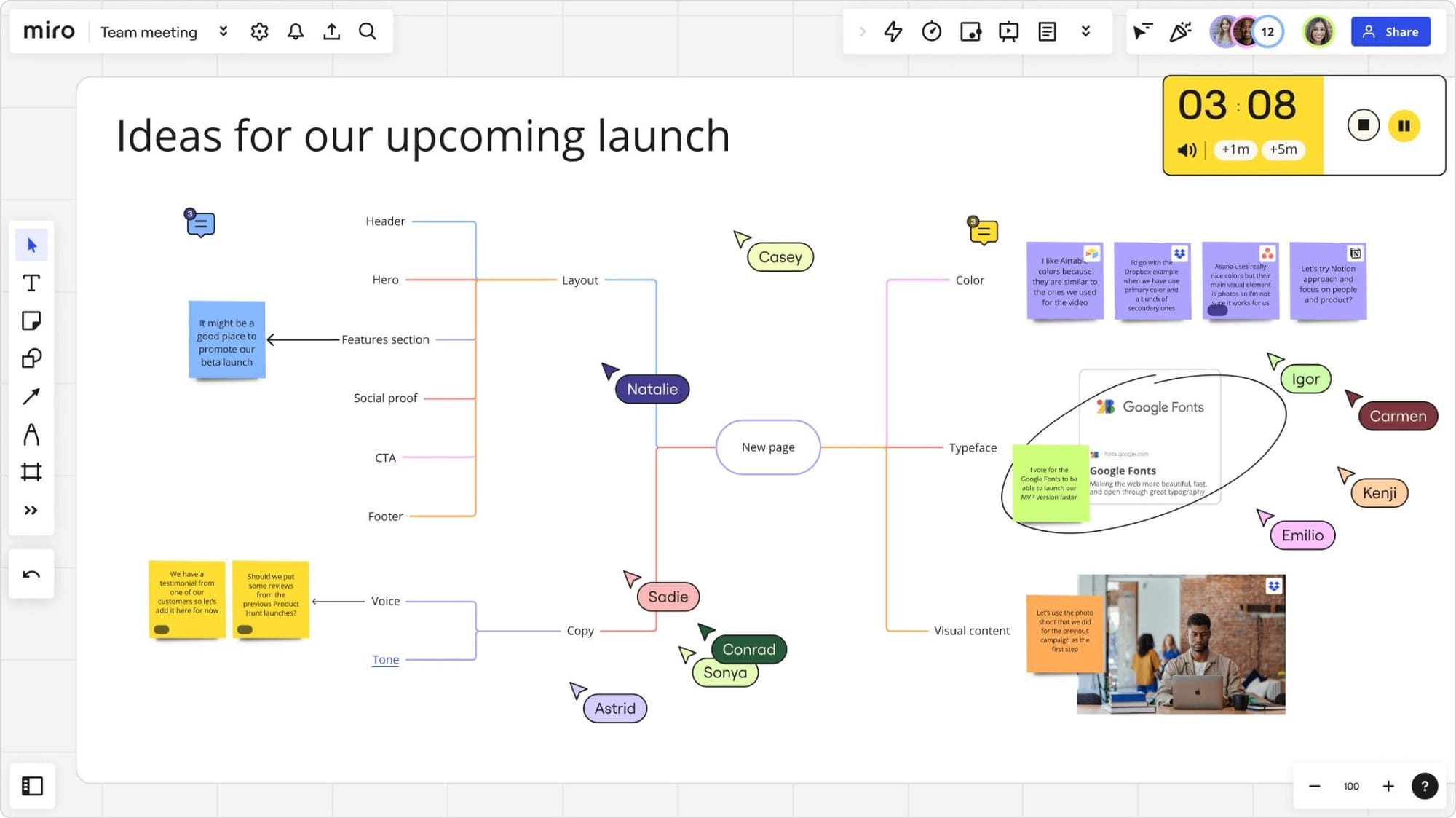
Miro is meant for the whiteboard stage of collaboration, as it can create a wireframe (that you can edit) using conversation inputs.
With Miro's artificial intelligence, it can have some good utility. And using AI features inside Miro allows users to select sticky notes and text prompts, then generate an editable wireframe. The workshops/brainstorming session output can now be used as a visual reference for prototype direction without firing up another app/tool.
Although Miro is not a high-fidelity design assistant, it can be a great tool for creating wireframes and exploring product direction with your team. However, if you need to build functional components and pixel-perfect user experience flows, there are much better tools available.
Our AI wireframe generator guide covers this in more depth.
Best for: Cross-functional teams doing early brainstorming and flow-mapping before anything gets built in a dedicated design tool.
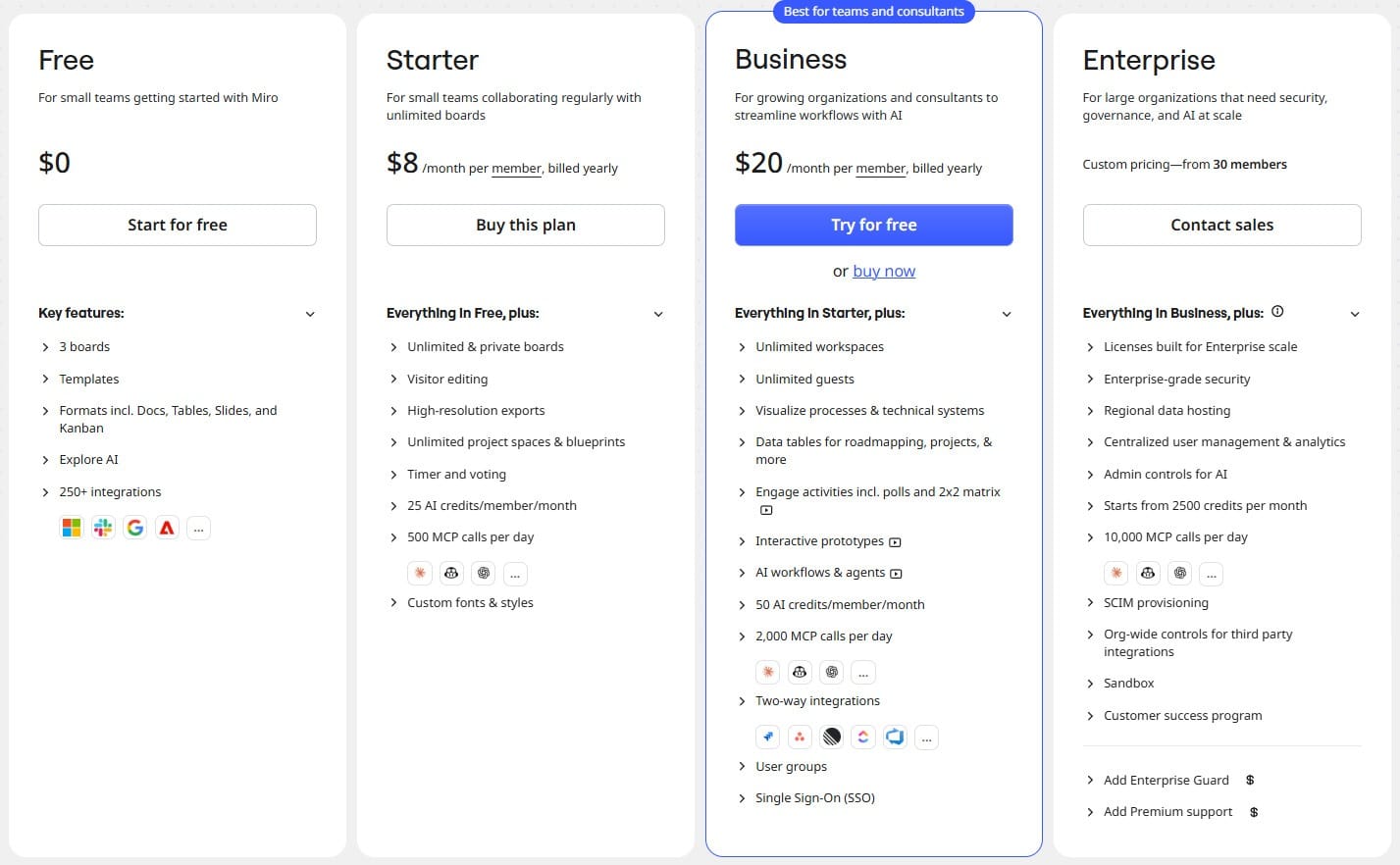
Miro on G2: 4.6/5. Users love that Miro provides an infinite collaborative canvas for real-time brainstorming, visual planning, and seamless remote teamwork with easy-to-use templates and sticky notes.
Miro on Reddit: Miro has a vast ecosystem of app integrations and flexible digital whiteboarding, though many criticize its high corporate subscription tiers and lag on large boards.
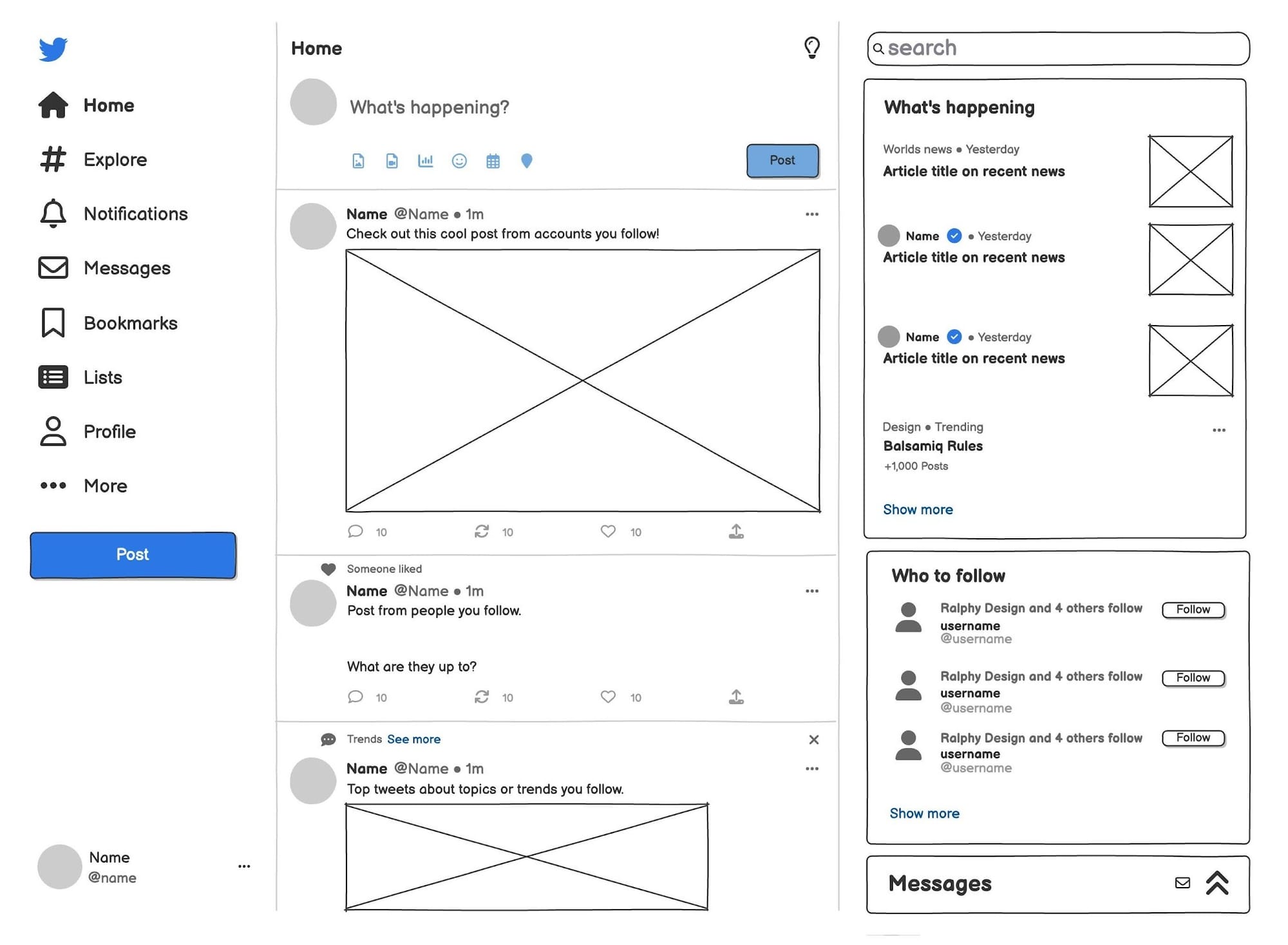
Balsamiq, with its "hand-drawn" or "sketch style" look, is intended to help you avoid spending too much time on bike-shedding (designing) before your product strategy is defined.
When all designs are in some sort of rough draft form, your conversations regarding user experience will be more straightforward and less distracted by design considerations.
While Balsamiq can be intentionally unattractive, it has an extremely intuitive drag-and-drop interface. Simply create a new project, drag elements onto a canvas, connect multiple screens to one another, and share the URL with others.
The most obvious feature limit with Balsamiq is its lack of scalability. There isn't a high-fidelity option to transition to, and it can be seen as a first-generation tool. Most people use Balsamiq only to create a basic idea mock-up, receive rapid feedback, and then migrate to a more powerful prototyping tool.
If you're interested, we have a wireframing tools guide that you can explore. You can also read our guide on how to write effective wireframe AI prompts.
Best for: Getting a general idea in front of stakeholders fast before people fight over visual polish and design details.
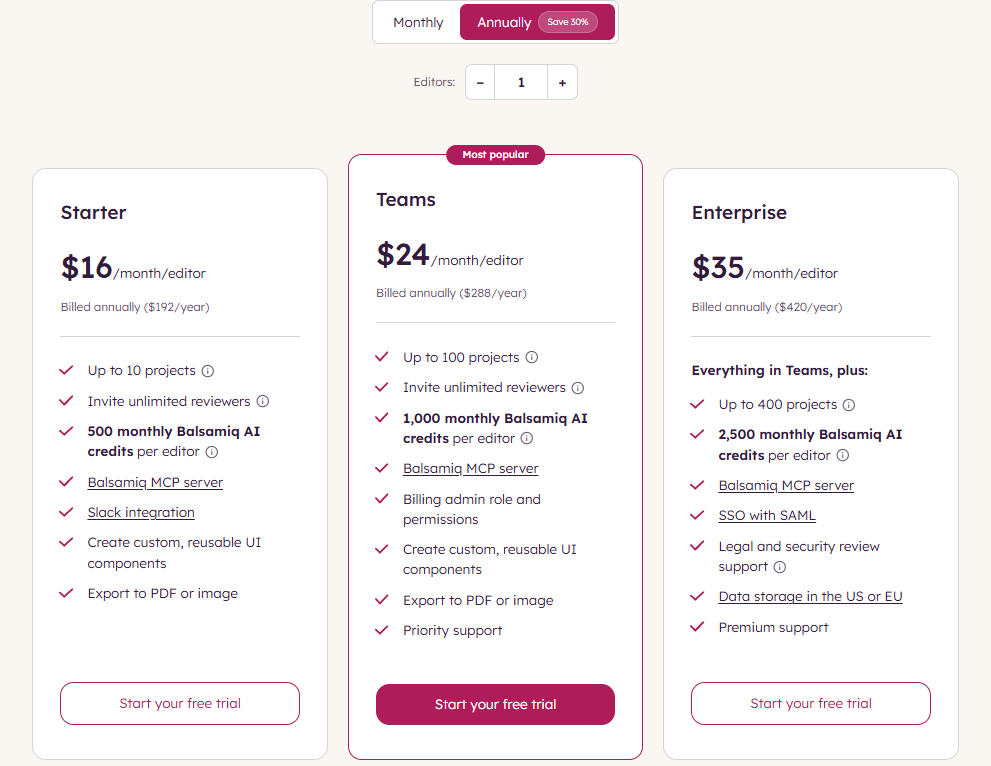
Balsamiq on G2: 4.2/5. Users praise Balsamiq's drag-and-drop simplicity and low learning curve for rapidly producing clean, low-fidelity wireframes without getting bogged down in visual details. But not everyone is accustomed to a simplistic style, and it may not be suitable for high-fidelity designs.
Balsamiq on Reddit: Users appreciate Balsamiq for its intentionally sketchy, low-stakes aesthetic, but many criticize its hand-drawn look as outdated, lacks advanced interactive logic, and costs more compared to modern free alternatives.
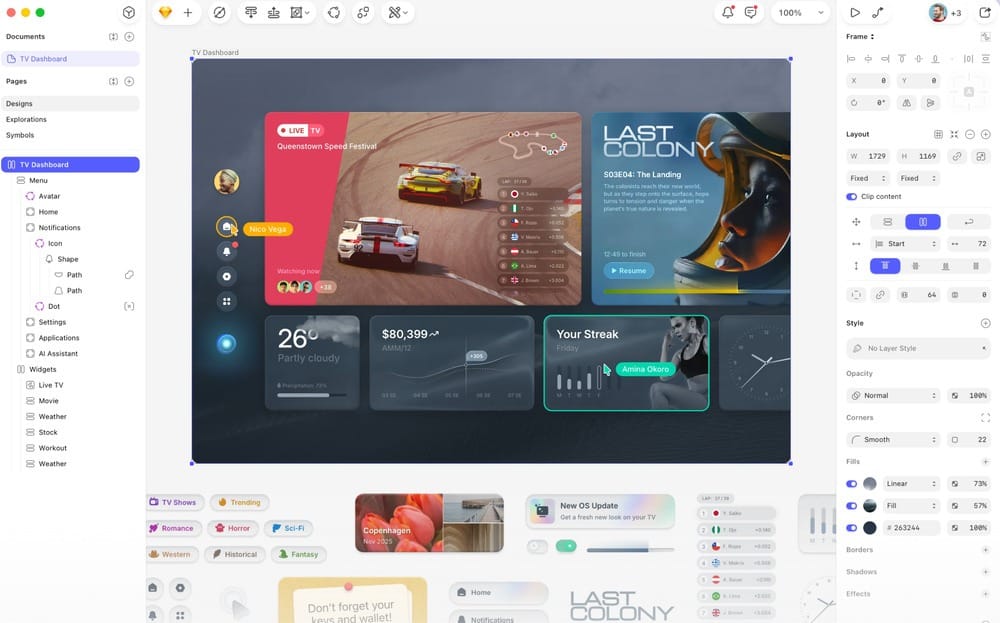
Sketch is one of the best prototyping tools for people using a Mac PC, especially if they are looking to have an application-based design solution (that has no web component) vs. a browser-based design solution.
Since Sketch is Mac OS only, it does present a number of challenges for teams with multiple operating systems. Excluding other team members from the edit process may be a viable option.
Native editing in Sketch can be very precise and has a well-thought-out symbol system. There is also a robust community of plugins available to help fill in the gaps created when a feature is missing natively.
Sketch's native prototyping is functional but basic. You can link artboards, create flows, and share them as clickable prototypes, but if you’re looking for anything beyond this point, you will need to use another special-purpose tool.
See more in our best AI tools for designers guide.
Best for: Mac-based teams with an existing Sketch design system that don't need real-time co-editing.
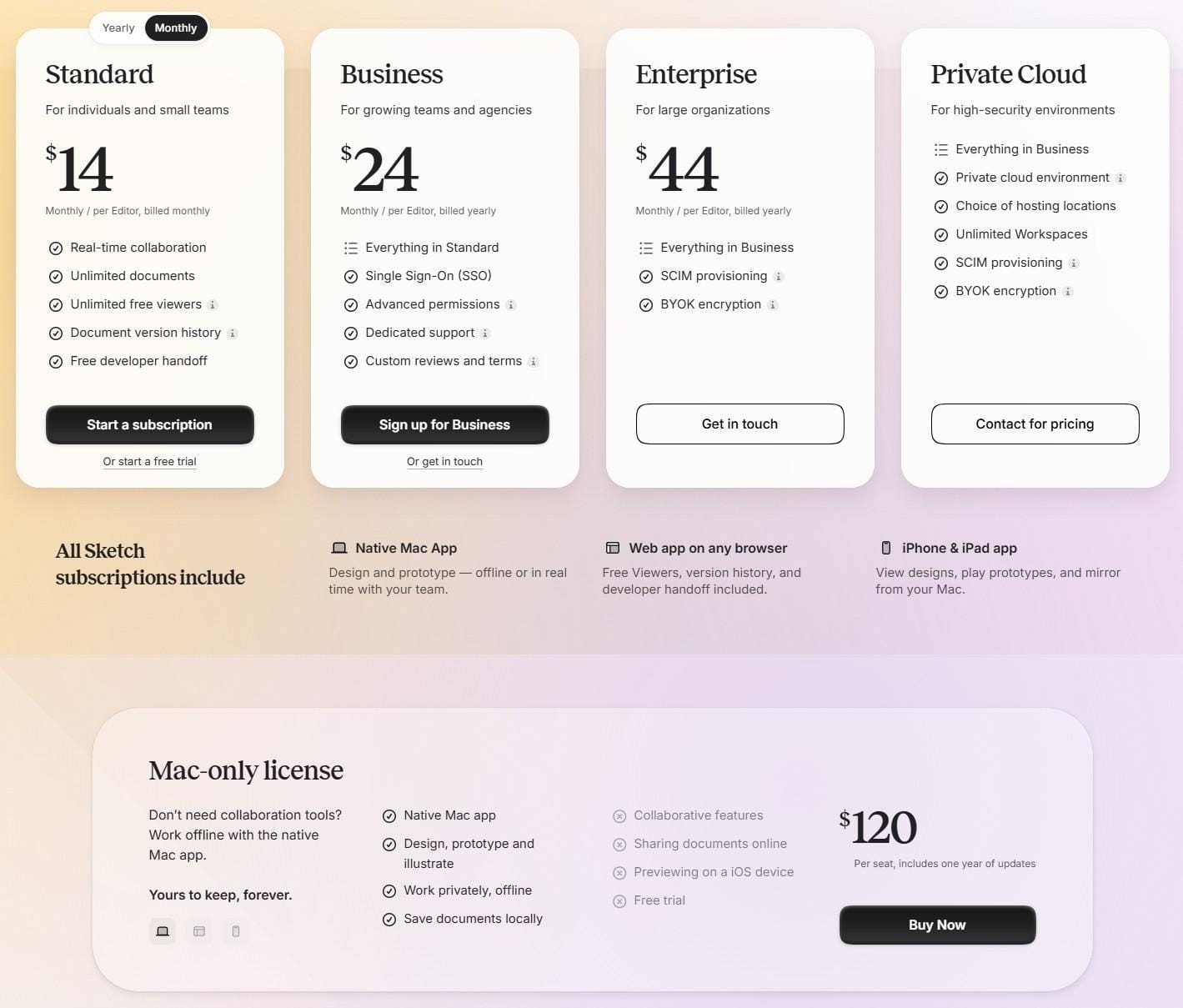
Sketch on G2: 4.5/5. Users love that Sketch offers a fast, lightweight, and offline-capable vector design environment built natively for Mac, making native UI/UX design and asset creation effortless.
Sketch on Reddit: Users appreciate Sketch for its smooth macOS integration and offline capabilities, though it has lost significant market share to Figma due to limited real-time collaboration and restricted platform access.
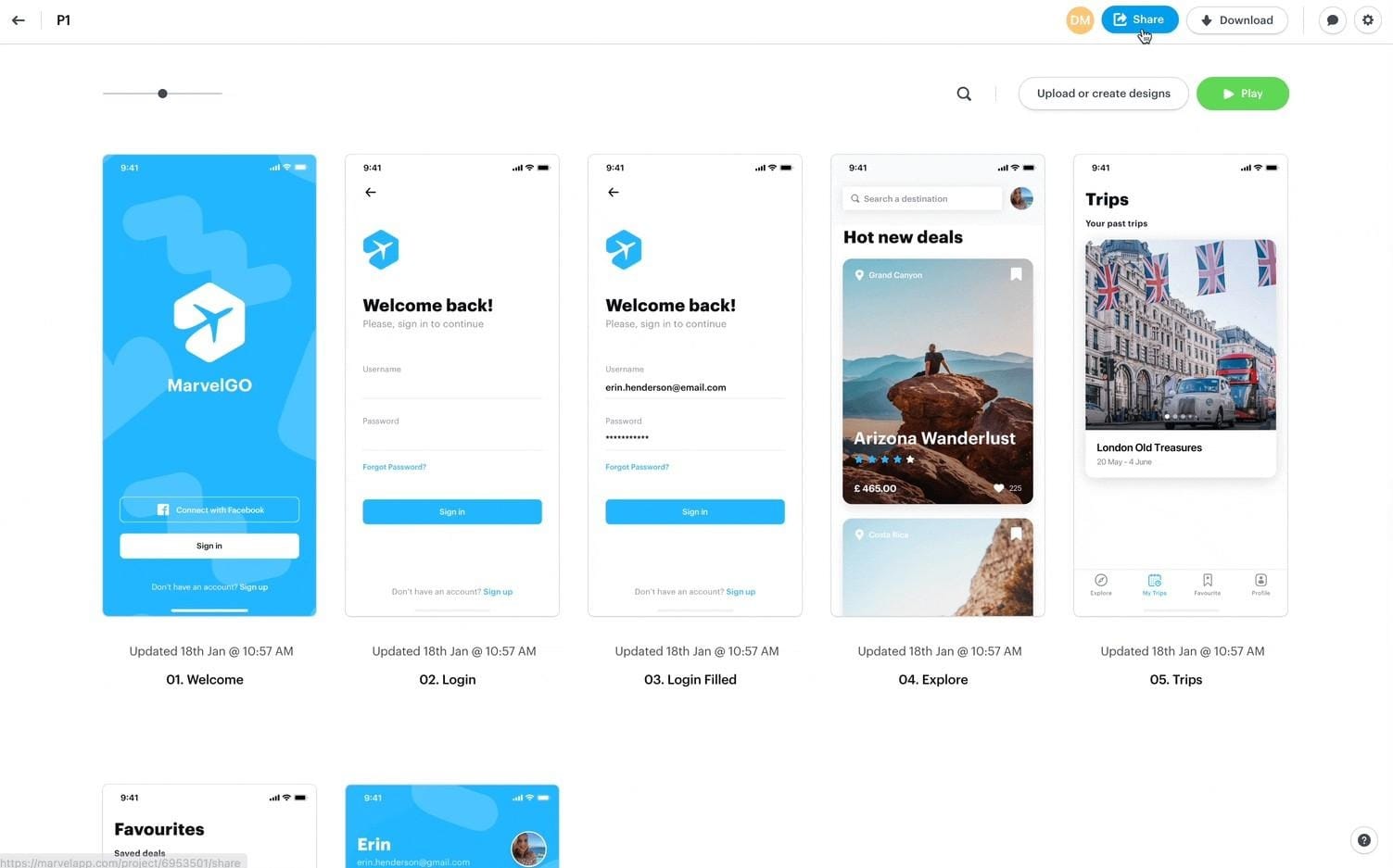
Marvel is an easy-to-start, no-code prototyping tool. The built-in user testing tools mean you can share your prototype with testers and get annotated feedback without exporting anything, creating a separate account somewhere, or switching tools mid-workflow.
The downside is that it feels a bit static compared to alternatives. It doesn't have serious AI coding tools or smart prototyping features. For complex logic or sensor-based interactions, you may have hit the limit.
See our best AI tools for businesses article for the most popular AI workflows.
Best for: Freelancers or small teams that want something fast and no-code but without advanced logic or sensor-based interaction.
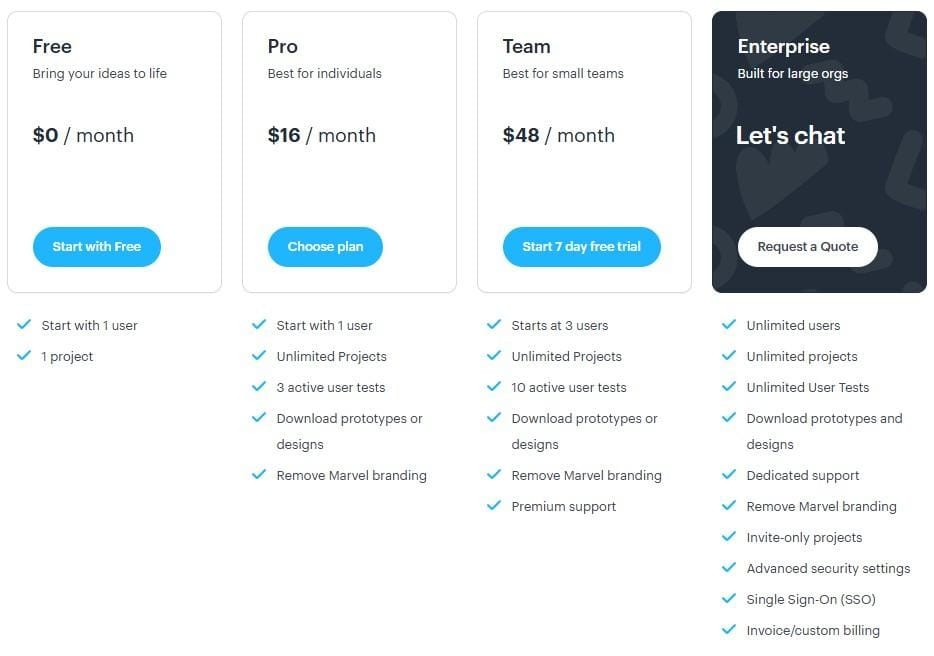
Marvel on G2: 4.4/5. Users love that Marvel provides an intuitive, user-friendly platform for fast interactive prototyping and effortless team collaboration without a steep learning curve.
Marvel on Reddit: Users of Marvel enjoy its straightforward interface that makes fast user-flow testing and sharing easy, but it lacks modern dynamic interaction logic and feels feature-restricted.
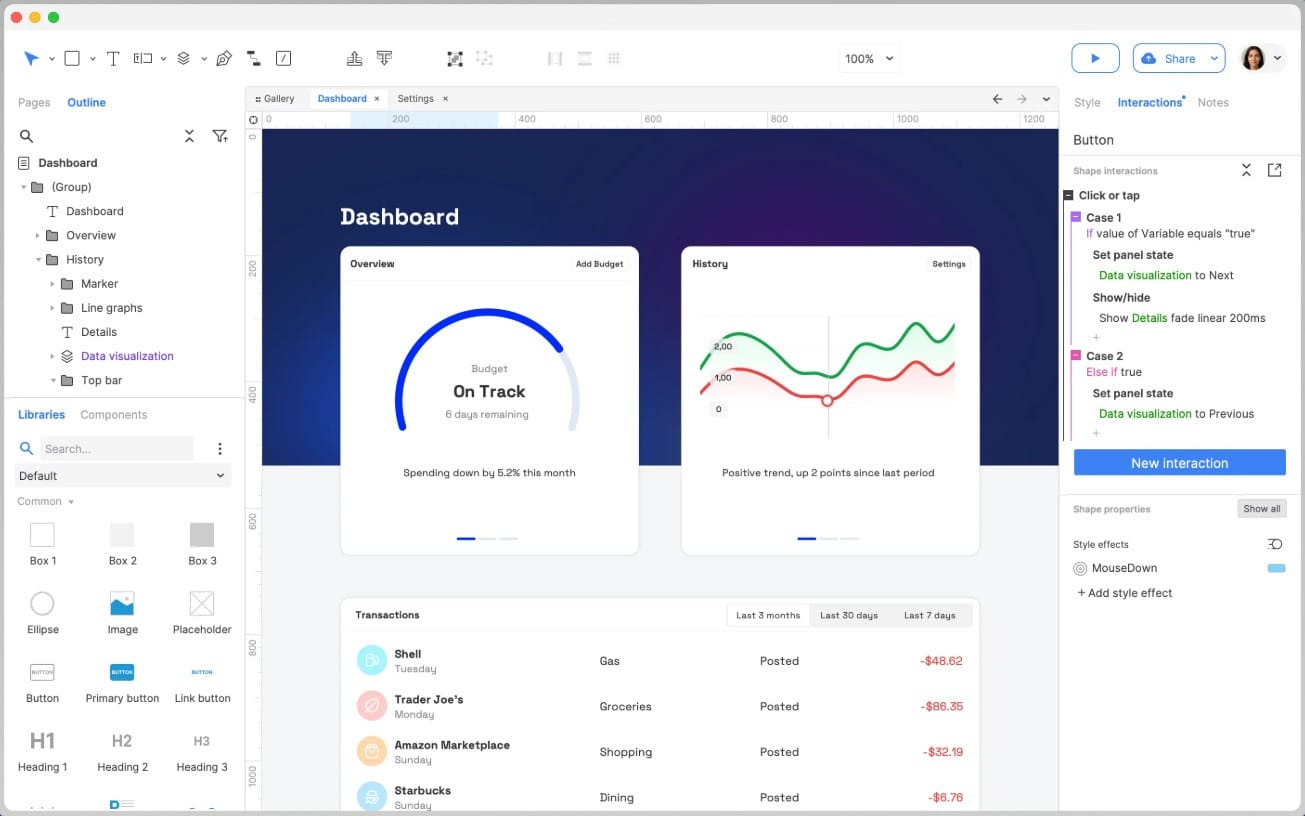
Axure RP is one of the best prototyping tools for teams that need to rapidly prototype, test, and validate complex product UI. Axure is used by designers, agencies, developers, and project managers. When testing complex workflows such as multi-step forms, checkouts, config wizards, dashboards, etc., Axure RP is the ideal solution.
This platform offers many of the same capabilities as other solutions like Sketch and Adobe XD but provides more robust prototyping features, including conditional logic, variables, dynamic panels, repeatable widgets for table and grid data entry, and adaptive views.
Axure RP is compatible with both Windows and Mac OS operating systems. Published prototypes are hosted in Axure Cloud, which allows reviewers to access them through their web browser. However, this cloud service is not an instance of the Axure RP authoring environment.
Best for: Teams who require rapid prototyping of complex software behaviors and/or conditional workflows such as those associated with enterprise processes, dashboards, and data-driven UIs.
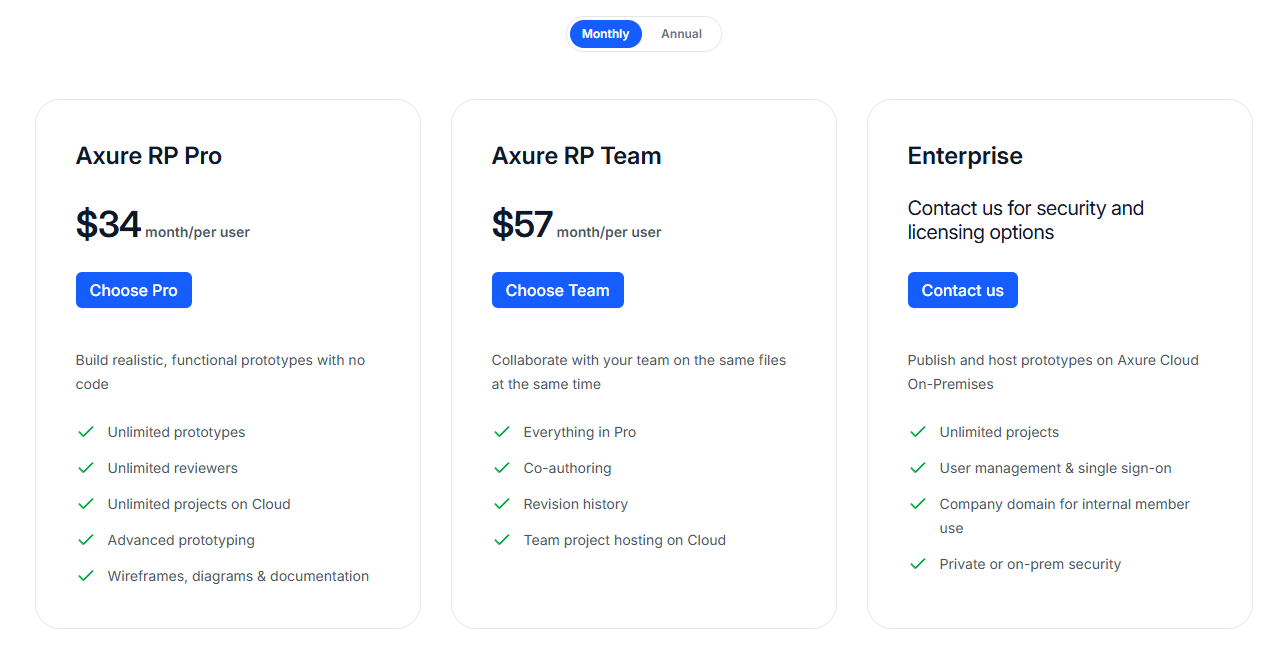
Axure RP on G2: 5/5. Users rave about Axure RP for being able to quickly build out logic-based prototypes that include complex dynamic flows using Axure RP without having to write code.
Axure RP on Reddit: While users agree that Axure RP is still the best option for creating complex logic and dynamic data prototyping experiences, they also mention that it can be very difficult to learn and has outdated collaboration tools compared to Figma.
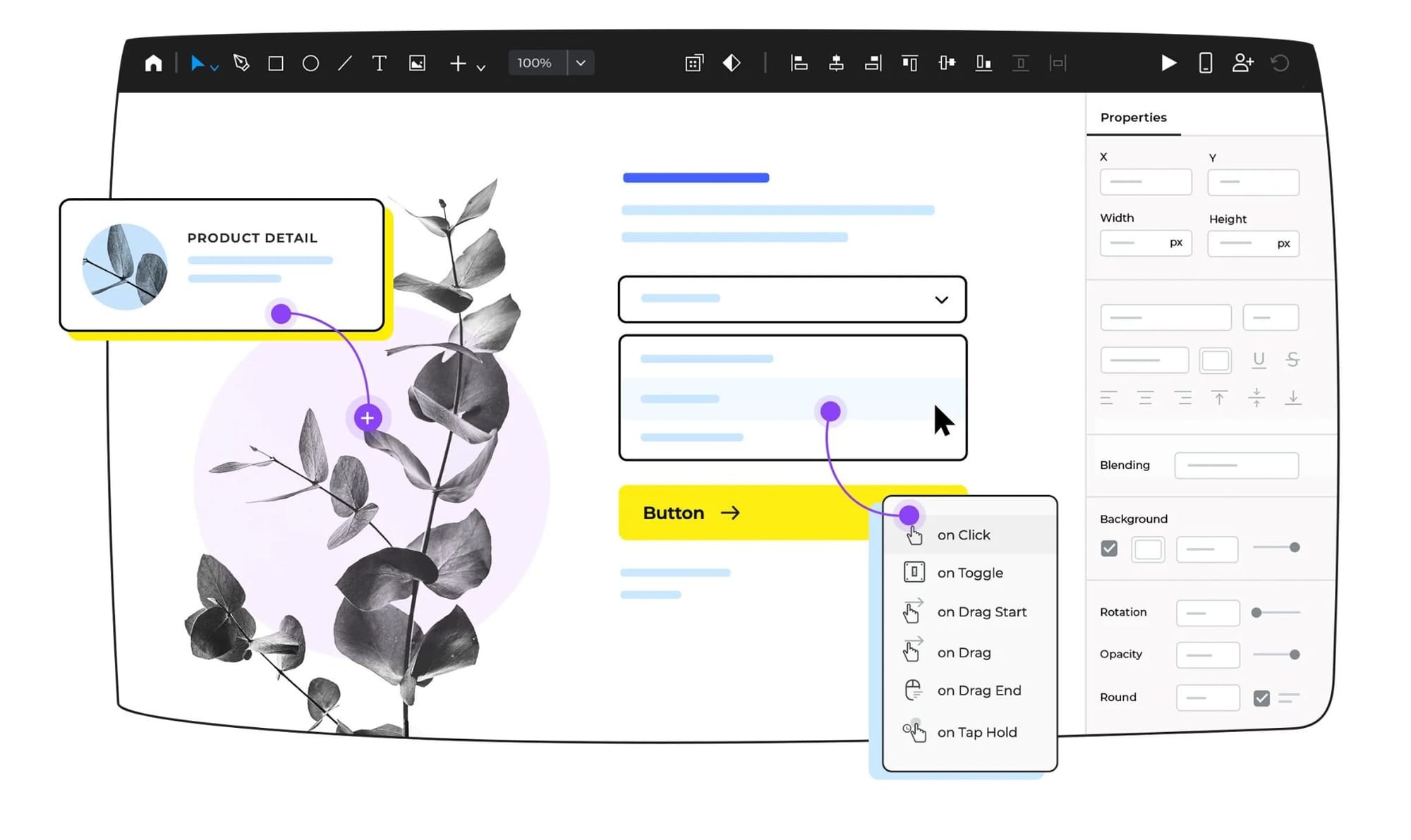
Justinmind offers something in between what Axure has in terms of logic and what Figma offers in terms of simple use. The application is designed as a desktop-based User Interface design tool (macOS and Windows) specifically for creating prototypes of Web and Mobile Applications.
Justinmind is best suited for situations where a team wants to see how forms, dashboards, mobile interactions, or other conditional states will interact before frontend coding starts. Users may also view their prototype on a mobile device; they may share and review the prototype within a browser.
However, there is no browser-based version of the product, and users are capped at a single project under the free account option. New users will experience a steep learning curve due to the fact that Justinmind uses "real" logic to provide interactivity prior to development.
Best for: Teams who need to have Axure-level interaction logic for mobile-heavy projects and would like to test their prototype on an actual device.
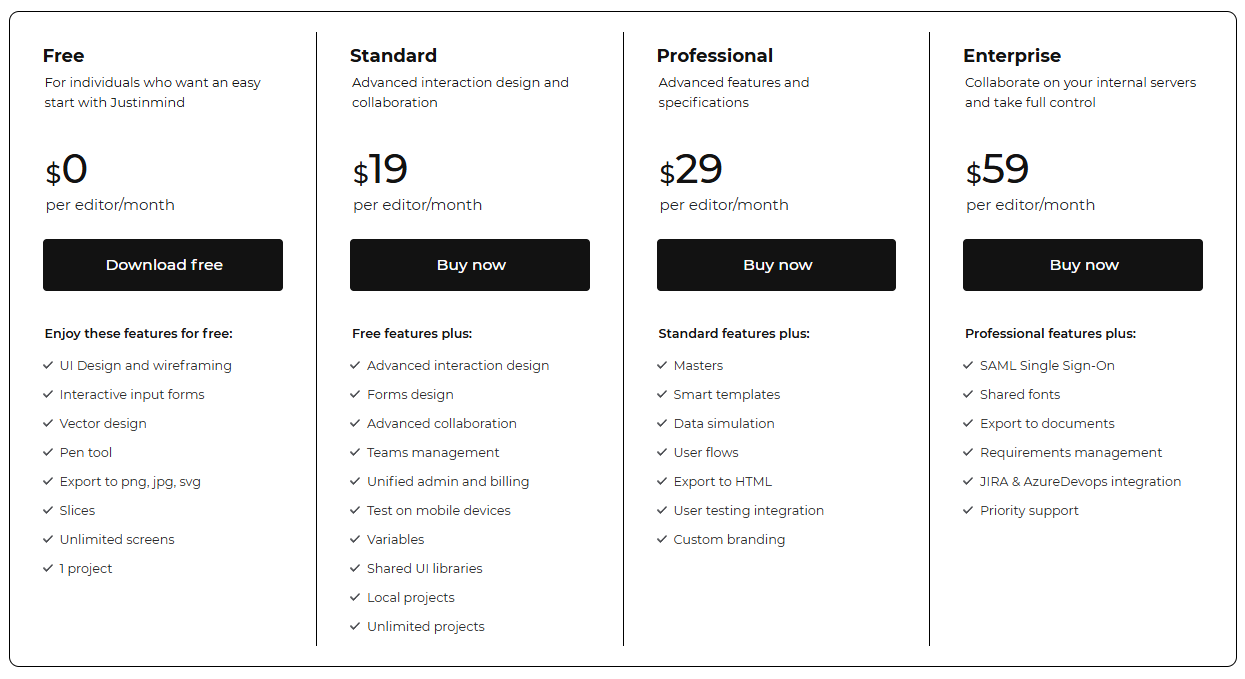
Justinmind on G2: 4/5. Users like Justinmind as they can quickly create high-fidelity interactive prototypes and mock-ups offline using intuitive UI libraries.
Justinmind on Reddit: Users appreciate how well Justinmind handles complex interactions when compared to other products such as Figma by allowing form inputs based on real data entry, dynamic state views, and condition-based logic for more realistic prototype testing.
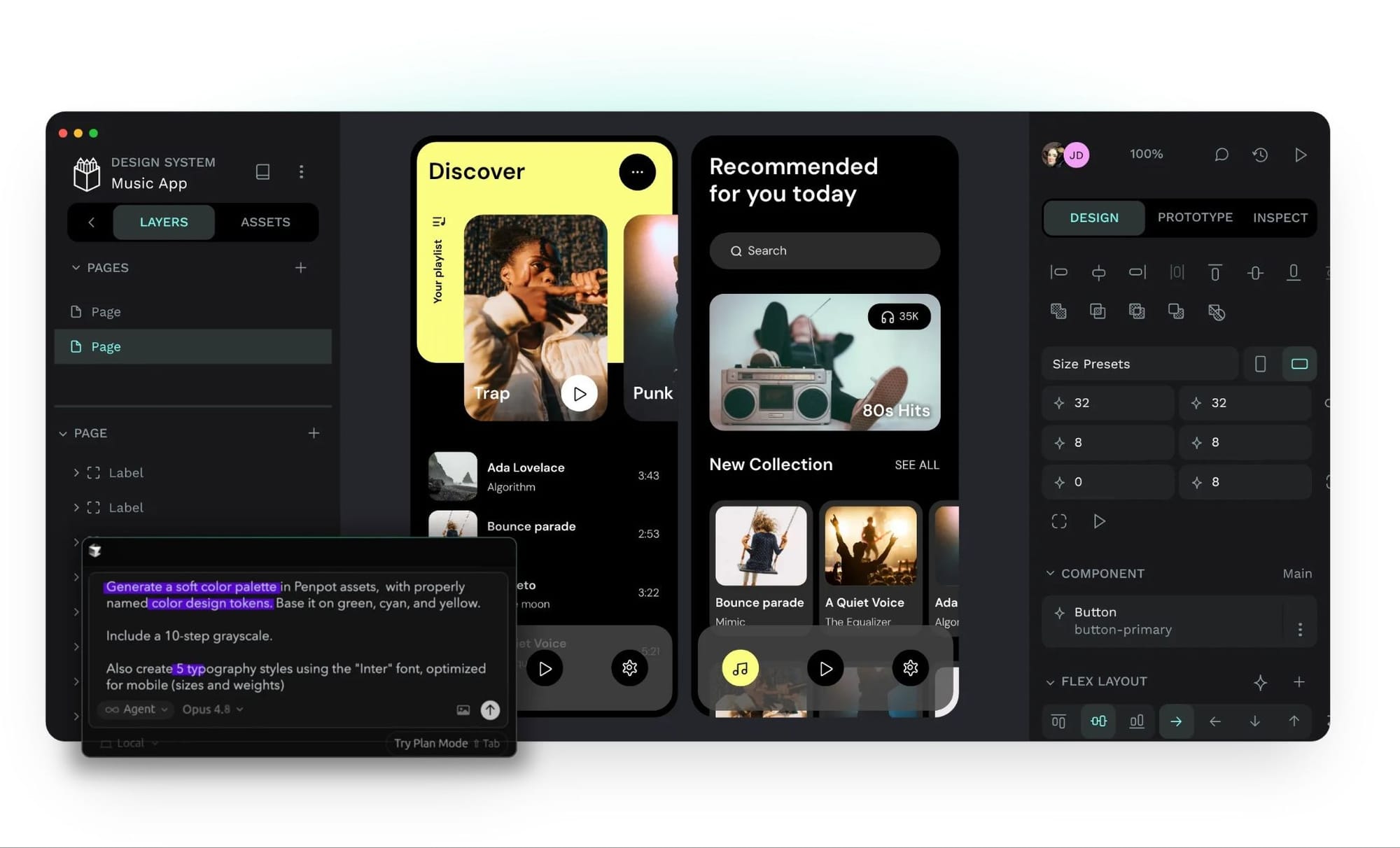
Penpot is the odd one out on this list: it's free, open-source, and the only prototyping platform in this list that you can self-host on your own servers instead of someone else's cloud.
Released under the MPL 2.0 license, this makes design files easier for developers, systems, and AI agents to read directly. It is less like a Figma clone than an alternative to Figma for teams unwilling or unable to hand over their design data to another company's cloud.
Organizations must still provide all other necessary resources such as their own Linux server, Docker environment, storage, backup, security, and technical support in order to use this software. Plus, the number of available plugins in the plugin library for this software is significantly fewer than those of Figma.
Big files will also make it slow to perform tasks. And because of the nature of self-hosting and therefore the lack of a central host, the time it takes to have multiple users collaborate in real-time may not be as fast as desired.
Best for: Teams working with an Open-Source model, budget-constrained entities, developers who are involved with the design process, and those who want to have more control of their company's design data sovereignty, hosting, and regulatory compliance.
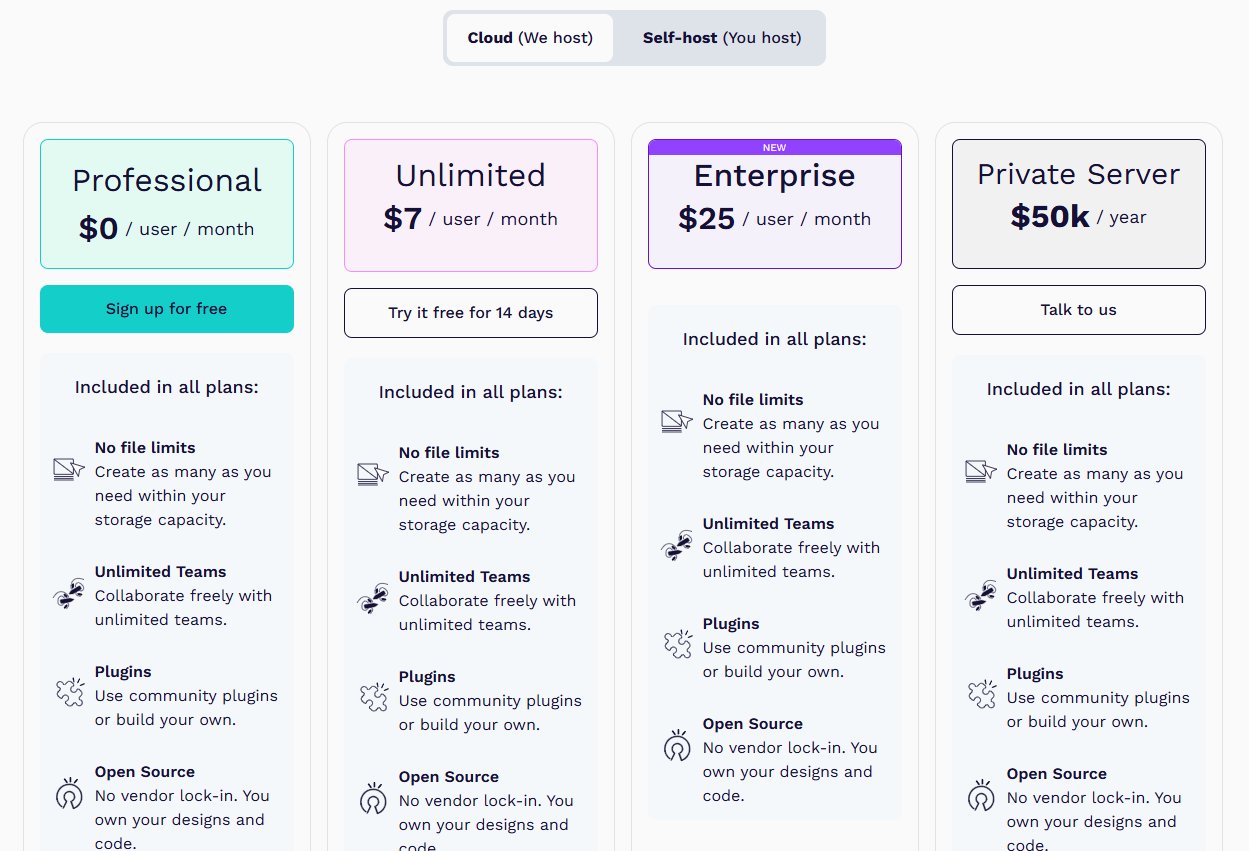
Penpot on G2: 4.5/5. Users love that Penpot is a free, open-source Figma alternative that streamlines design-to-developer handoff using web standards like SVG, CSS Grid, and HTML.
Penpot on Reddit: Users love that Penpot offers full self-hosting control and native CSS-based layouts for seamless developer handoff.
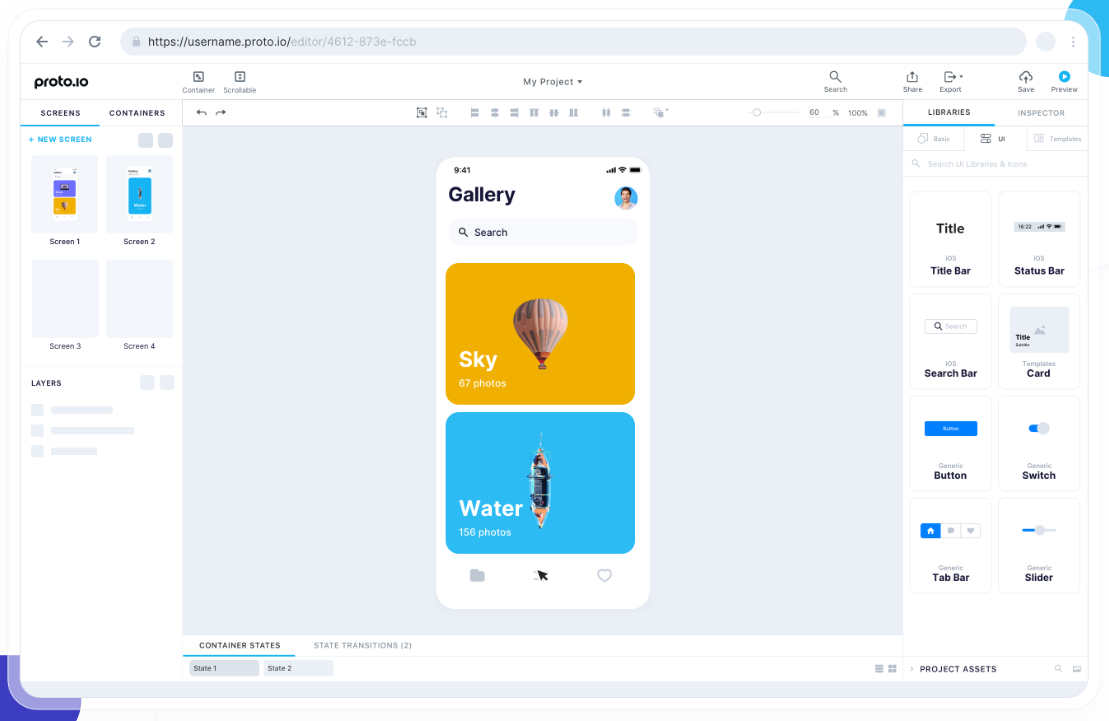
Proto.io is an entirely web-based tool used for developing interactive web and mobile prototypes without coding.
Proto.io offers a variety of prototype development options ranging from initial wireframe designs all the way to fully developed prototypes featuring animations, transitions, gesture support, audio/video, and real-world-like user interaction.
This makes Proto.io an excellent option for anyone (designers, product team members, customers, etc.) interested in viewing how a particular mobile/web application works instead of just looking at static screenshots.
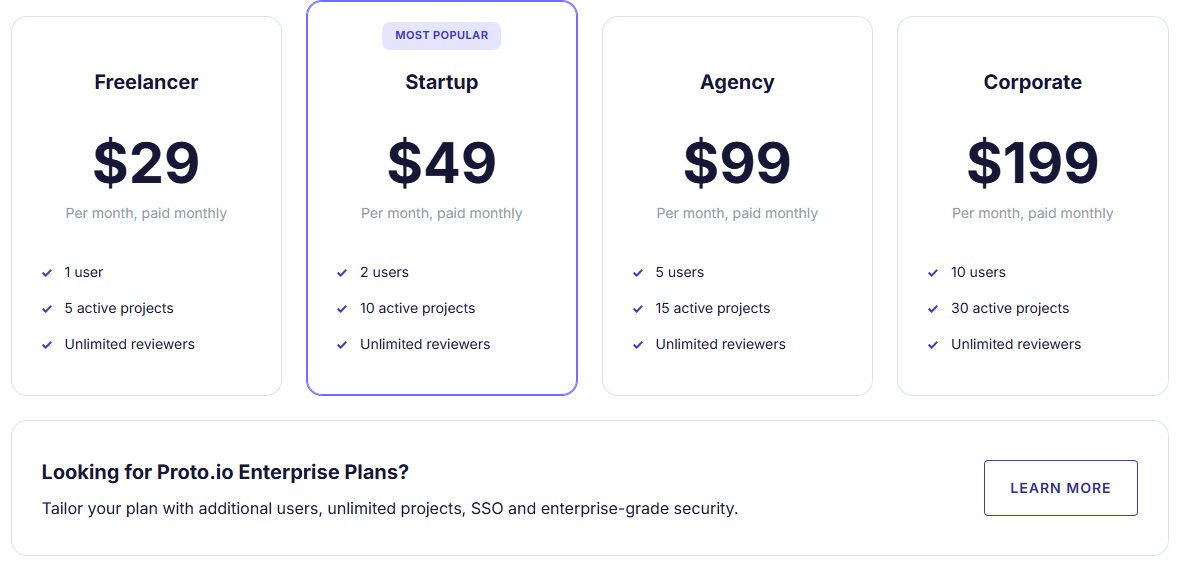
The only free version available is a trial version, and the flat-rate versions can be quite expensive. However, if you truly believe this will help meet your needs regarding mobile, then it may be worth the cost.
Best for: Freelancers/teams developing mobile applications who need their testers to feel like they are testing the real thing.
Proto.io on G2: 4.1/5. Users love how easy it is to build high-quality, interactive mobile prototypes quickly with Proto.io due to its intuitive drag-and-drop interface and large variety of component libraries.
Proto.io on Reddit: Proto.io is a favorite among users who enjoy using the application's capabilities with regard to complex (beyond simple) prototype development. This is because of its support for advanced conditionality, dynamic variable usage, and multiple screens.
The best prototyping tools do not turn you into a good designer. Instead, they eliminate the time-consuming portions of design. This allows you to think about how to implement your ideas rather than spending all of your thinking power on the trivial aspects of design.
If you want to get from idea to testable UI without staring at a blank canvas, Flowstep is your best tool for prototyping. It is the quickest route from having an idea to testing your UI without having to stare at a blank whiteboard.
Simply describe what you are looking for, create your entire workflow using an unlimited space, copy it into Figma with just two clicks, and export production-ready code once you're ready to build.
Sign up for Flowstep and start building
Wireframes are essentially static layouts of where elements are placed on a screen. They do not allow users to interact with them. Prototypes, however, provide interactive functionality such as allowing users to tap buttons, navigate to another screen, etc., simulating a real user experience. While wireframes help designers plan out their structure, prototypes assist in testing if the planned structure will function effectively.
Depends on the tool you’re using. For example, Figma provides developers with code snippets and specifications; it won’t give you code ready for deployment. On the other hand, Framer allows developers to deploy fully functional web applications. If production-ready code is the goal, Flowstep goes furthest. It has the ability to generate production-ready code and export React, TypeScript, and Tailwind CSS as one-to-one representations.
It may take approximately 30-45 minutes to develop a simple wireframe within Balsamiq. But developing a complex multi-screen flow in Figma may take anywhere from a few hours to a whole day or longer, depending on how much time is spent developing each screen. Creating a very detailed/high-fidelity interactive prototype with several pieces of advanced logic within ProtoPie could require a full day or even multiple days based on complexity. Using a design software like Flowstep, which uses artificial intelligence, creating a multi-screen prototype from scratch with many screens can be completed in less than 10 minutes.
There are four important factors to consider: fidelity (how much polish will my prototype require at this point in time?), accessibility by all members of your team (is it possible for anyone who has the ability to contribute to the project to also have access to the tool?), how well the tool fits into the overall workflow of your projects (will using the tool help or hinder productivity and/or collaboration with other tools), and how quickly I can iterate through versions once I realize something isn’t working as expected.