

9 Best Wireframing Tools in 2026: Tested and Ranked by Use Case
We tested and reviewed 9 best wireframing tools: AI-powered wireframe generators, design platforms, prototyping tools and visual collaboration tools.
Before you choose Figma, read this. This Figma review uncovers real costs, strengths, weaknesses, and the cases where an alternative may be the smarter pick.
Your PM just dropped a hand-drawn sketch in Slack. Your designer is buried in another sprint. Your dev lead needs a preview of what to build. And nobody has time to open a blank canvas and figure out where to start.
Most teams reach for Figma by default—it's the tool everyone's heard of, the one that replaced Adobe XD for many teams, the one most designers already know how to use. None of that is the same as it being the right tool for you.
This article covers what you get for what you pay, Figma reviews from real users, and when you might be better off with a Figma alternative.
Figma is a browser-based UI/UX design platform. Figma developed its core product around one idea: what if your design files worked more like Google Docs, with multiple designers in the same file at once, live? It's not that novel anymore, but it was in 2016.
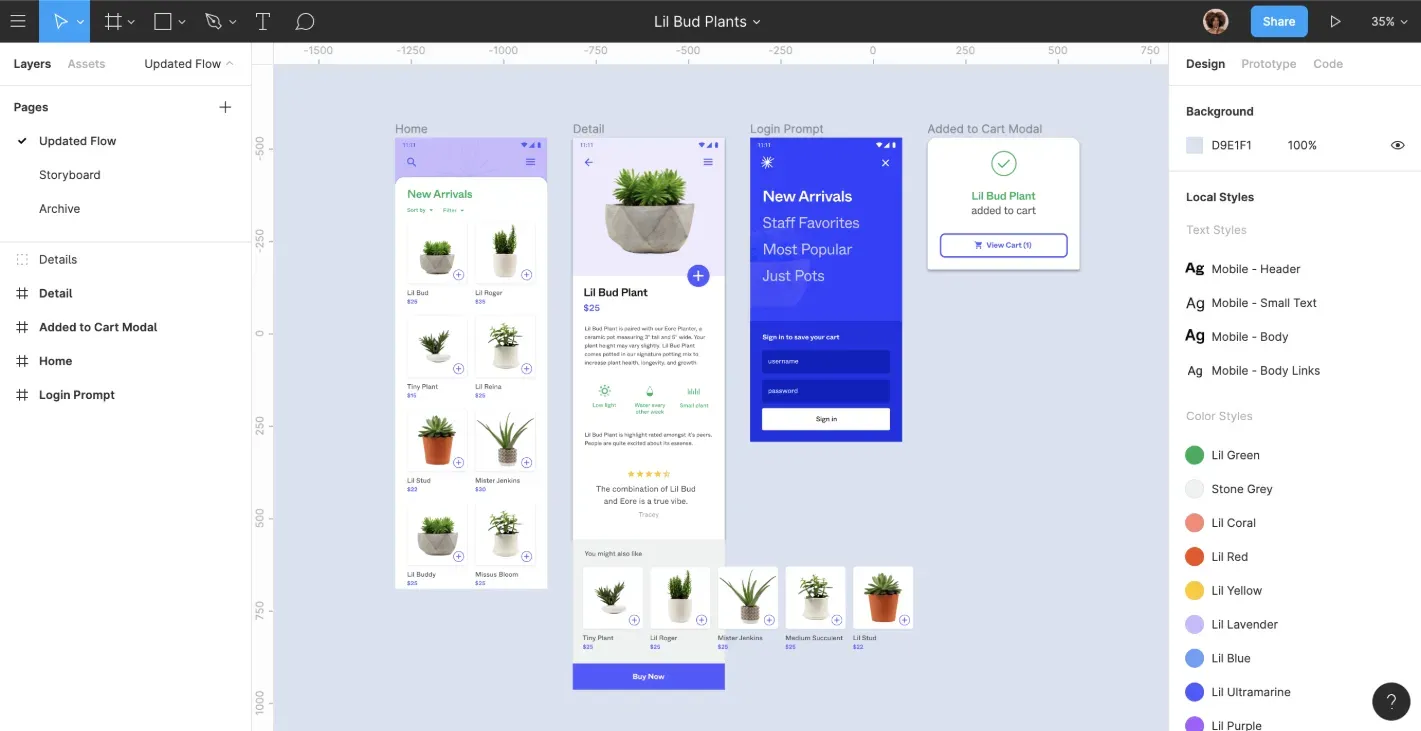
The product has since expanded well beyond that original canvas. Figma Design, FigJam, Figma Slides, Dev Mode, Figma Make, Figma Draw, and two newer additions: Figma Sites and Figma Buzz. It's mostly used by professional designers, UI/UX teams and product organizations that need a comprehensive, scalable tool for web app design, mobile interfaces, web design and design system work.
While it's the dominant design tool, it for sure isn't the only one.
There's a lot here. Some of it is genuinely impressive, some of it is still maturing. Here's an honest breakdown of the key features:
Using Figma at full capacity takes time, skill and a team that's actually invested in learning it.
Figma has three seat types—Full, Dev and Collab—across four plan tiers, with prices ranging from free to $90/month per user. Monthly billing is only available on Professional. Paid add-ons include AI credits and Governance+ (advanced security features). Sounds complicated? Here's a clear breakdown:
A five-person product team—two designers on Full seats, two developers on a Dev seat each, one PM on a Full seat—on the Professional plan adds up to over $70/month. Scale that to 20 people with a mixed seat structure, and you're somewhere between $300–$900/month, depending on how you've allocated seats. You're also about three headaches deep into calculating what this will cost you.
A few things that catch people off guard on their Figma cost:
The free Starter plan is fine for solo work or light exploration. The Professional account is where most serious teams land. But the jump to the Organization plan is steep, and the annual-only commitment on top of that is a real constraint for teams in flux.
Figma makes sense for professional designers and mature design teams with established systems and organizations where designers run the workflow end-to-end.
Figma is the wrong starting point for PMs who need to visualize ideas fast, non-designers who want to create something workable without a design background, and teams whose bottleneck is getting from zero to first draft—not from draft to production-perfect.
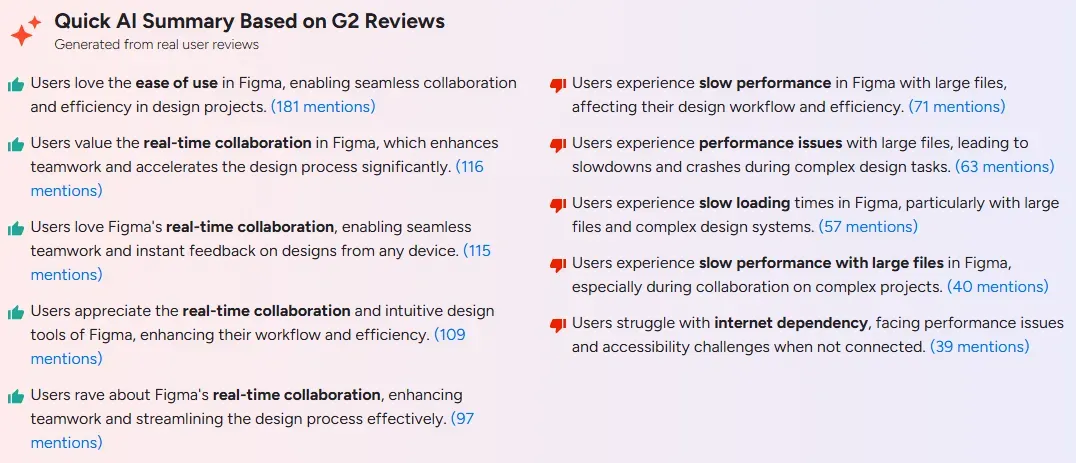
The real-time collaboration is as good as the reputation suggests. Users consistently highlight that the platform allows multiple users to work simultaneously, streamlining feedback, reducing version conflicts, and easily staying on the same page.
The version control and unlimited version history are solid. You can restore previous versions of any file, review previous design decisions, and track adoption across design projects. The ability to restore previous versions without losing work sounds basic, but it has saved entire projects.
The design systems work at scale with shared assets, team libraries, and component consistency across design files are reasons professional designers stay loyal even when the pricing frustrates them. It has plenty of advanced features that come in handy, as long as you have the experience or the patience to go through Figma Learn to be able to use them.
Performance. Working with very large files or complex design systems can cause slowdowns, and many core features rely on being online, limiting functionality when internet connectivity is unstable.
Plus, not everyone can use it productively. Figma was designed for professional designers. Auto layout, components, constraints, vector networks, etc., aren't concepts you absorb in an afternoon. Non-designers face a real barrier. Product managers trying to sketch out a new feature, engineers who want a visual reference, and founders with an idea but no Figma literacy tend to either quit or spend three hours making a mediocre box diagram.
The AI credits situation—usage limits enforced at the seat level, add-on packs for heavy users, different allocations by seat type—adds planning overhead for teams trying to embed AI into their day-to-day flow. If AI-generated UI is a core workflow for you, purpose-built tools can handle generation more reliably.
External collaborators are another friction point. Getting clients or contractors into Figma files without paying for additional costs requires careful seat management, and the line between a viewer and someone who needs to comment or edit can blur quickly.
Figma and Flowstep aren't competing for the same job. Figma is a professional design suite. Flowstep is an AI design tool that generates real UI from a text prompt—designed from day one for the whole product team, not just the designer.
While Figma hands you a blank canvas and expects you to know what to do with it, Flowstep gives you a finished first draft in seconds. Describe your web app (see our AI prompts guide for better results), the user flow you're mapping, and the dashboard you want to prototype—Flowstep generates complete, editable UI on an infinite canvas. Multiple screens, full flows, not just isolated mockups. Attach a PRD, paste a reference URL, or upload an image; the AI works with actual context rather than generic patterns. Edit with AI prompts or manually—the second option doesn't use up credits. You can even generate multiple design variants from one prompt, which is a great help with brainstorming visual concepts.
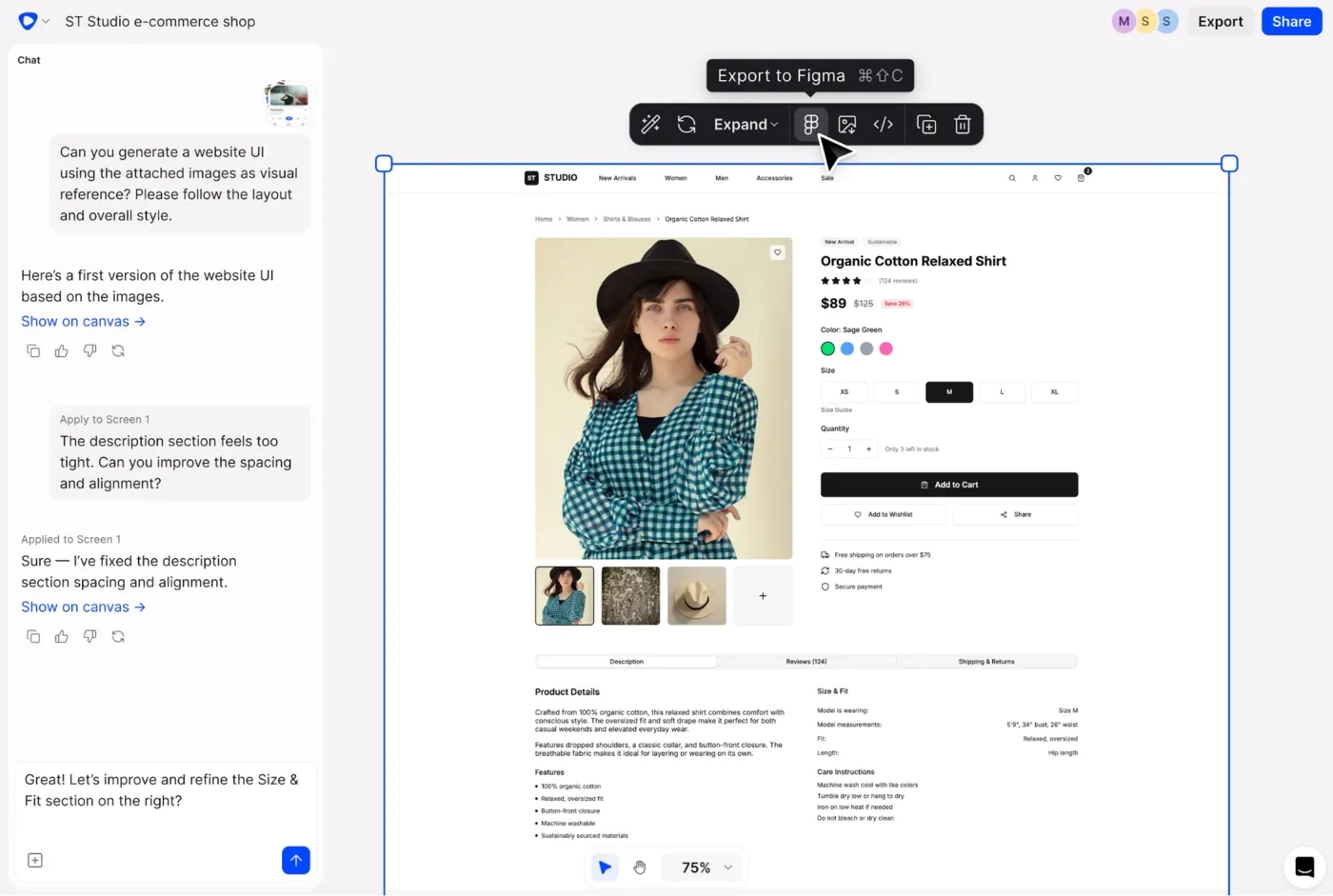
Select any design in Flowstep and paste it directly into Figma with ⌘C and ⌘V. Layers intact. No export step. You go from AI-generated draft to Figma refinement without friction, which means product teams can use both tools in sequence rather than choosing between them. For more on that workflow, see how to use AI in design.
Flowstep's paid plan ($15 monthly or $12/month with annual billing) includes unlimited collaborators—you're not buying more seats for every person who needs to see or comment on the work. AI usage is counted per message, transparently. 240 messages is $29, 1,000 is $99. 20% discount on annual, but we don't lock you in on a yearly plan if you don't want it. And when designs are ready to hand off, the code export produces clean React, TypeScript and Tailwind CSS—useful for developers working with AI coding tools.
See also: the best AI tools for designers and the best AI tools for developers.
For teams with professional designers who live in Figma daily—yes, the cost holds up. The collaboration features, design systems depth and developer handoff via Dev Mode are still valuable. The 2026 additions around Figma Make, the MCP Server and Figma Sites show a platform that's moving fast.
For everyone else: the blank canvas, the learning curve and the complicated seat-based pricing all make it harder to justify, especially if what you need is to get from an idea to design fast. Flowstep lets you generate real UI from a prompt, collaborate with your whole team, and copy straight into Figma when it's time to refine. You don't have to pick one—some teams that use Flowstep still use Figma. They just save time on the initial step. Try Flowstep free.
Figma’s pricing starts with a free Starter plan that includes unlimited drafts, templates and 150 AI credits per day (up to 500/month).
The Professional plan costs $16/month per seat annually ($20 monthly) and includes unlimited files, team collaboration features, and up to 3,000 AI credits for full seats (500 for Collab and Dev seats).
The Organization plan is $55/month per Full seat (annual only), with Dev seats at $25/month and Collab seats at $5/month—adding advanced admin controls, shared libraries across teams and workspace management.
The Enterprise plan costs $90/month per Full seat (annual only), with Dev seats at $35/month and Collab seats at $5/month, offering enterprise-grade security, SCIM provisioning and advanced design system features.
A Full seat gives complete access to Figma design, Dev Mode, FigJam, Figma Slides, Figma Draw and Figma Make—this is the seat for designers who are actively creating and editing. A Dev seat is for developers who need to inspect designs, pull specs, use the MCP Server integration and export assets without editing. On the Professional plan, a Dev seat costs $15/user/month. If your developers mainly check design files for reference and implementation specs rather than editing them, Dev seats save money over Full seats.
With training, yes. Without it, the learning curve is steep. Project managers or business analysts who want to use Figma to create user flows may struggle with the design-centric interface and features. Non-designers who need to move quickly are generally better off with AI-first tools that give you a starting point from a description rather than making you build from scratch.
Yes, Figma AI now covers image generation and editing, background removal, auto-rename layers, text content generation, copy rewriting and translation, and FigJam AI for diagrams and sorting. Figma Make handles prompt-to-prototype and connects to Supabase for building functioning web apps. AI credits are allocated per seat and plan tier, with add-on credit packs available.