

Deep Dive Into UXPin Reviews: Features, Pricing, Pros, Cons and Alternative
A deep dive into UXPin reviews and pricing, covering features, what users love, where it falls short, and a faster AI alternative for UI generation.
Discover the best Figma plugins for designers in 2026. From AI-powered design tools to accessibility checkers and code export, these top Figma plugins streamline every stage of your design workflow.
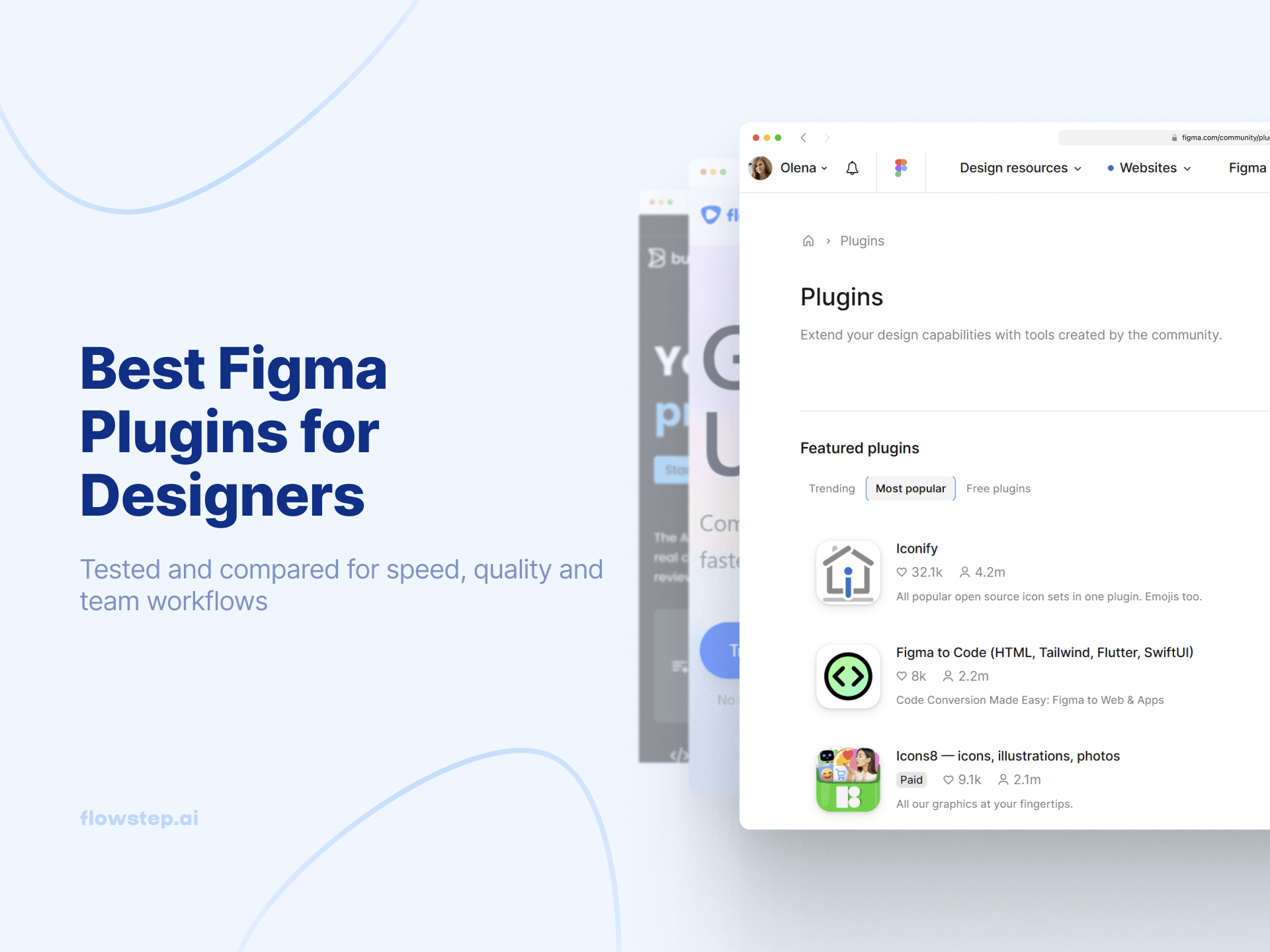
Figma’s plugin directory has over 5,000 entries. Most designers only install 5–10 of them. And honestly? Most of those 5,000 plugins do one thing you could handle manually in 30 seconds. Some haven’t been updated since 2023.
But the best Figma plugins (the ones that earn a permanent spot in your design workflow) can cut your design process in half. They automate repetitive tasks, speed up creating user interfaces, and help you generate, test, and hand off work faster.
Finding them means wading through outdated, unmaintained tools in the Figma community. That’s why we built this list.
Every plugin here earned its spot by improving workflow speed, output quality, or team collaboration in real production workflows. The guide is organized by workflow stage: AI-powered design, assets, productivity, accessibility, code export, and prototyping.
Figma now dominates the design tools market with roughly 40% market share in collaborative design and over 80% in UI/UX specifically. With over 13 million monthly active users, it’s the default workspace for product teams building user interfaces.
AI-powered Figma plugins are the fastest-growing category in 2025–2026. The AI-powered design tools market is projected to reach $14.92 billion by 2029, growing at a 22% CAGR, and Figma’s plugin directory is a key battleground.
The gap between design and code is also shrinking. Figma plugins now handle developer handoff, code export, token management and AI generation—tasks that used to require multiple tools.
But not everything needs to be a plugin. Some of the best tools for your Figma design workflow work outside Figma and feed directly into it, which is why we’ve included tools like Flowstep in this roundup. The key is matching the right tool to the right workflow stage.
Here’s a quick-reference comparison table to help you find the right plugins for your Figma project. Scan by category, use case, or pricing to narrow your search.
AI design is the fastest-growing plugin category in Figma’s ecosystem. Tools vary from those aiming to help you with generating content, creating user interfaces from text prompts, to automating routine tasks like background removal.
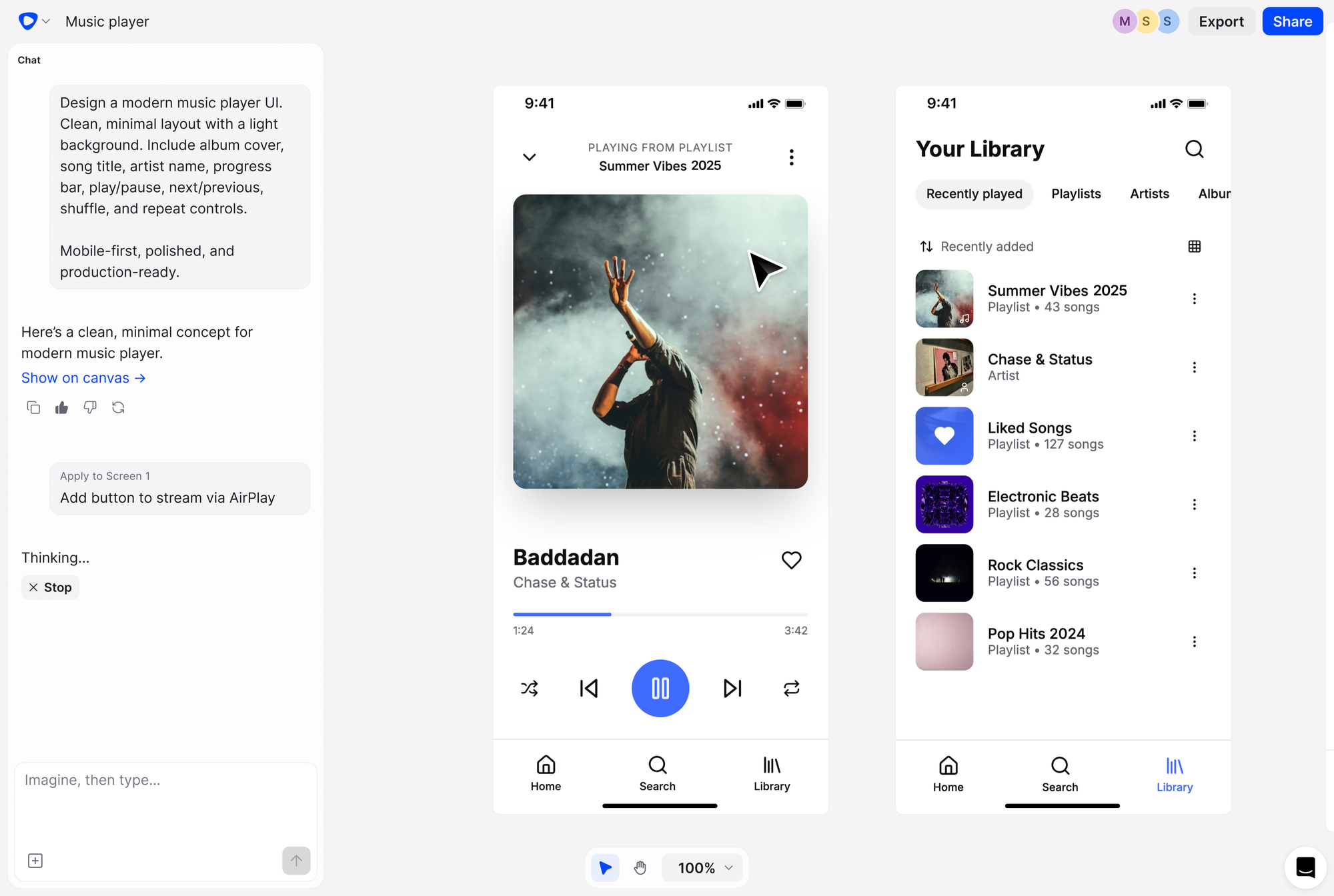
Flowstep isn’t a Figma plugin. It’s better.
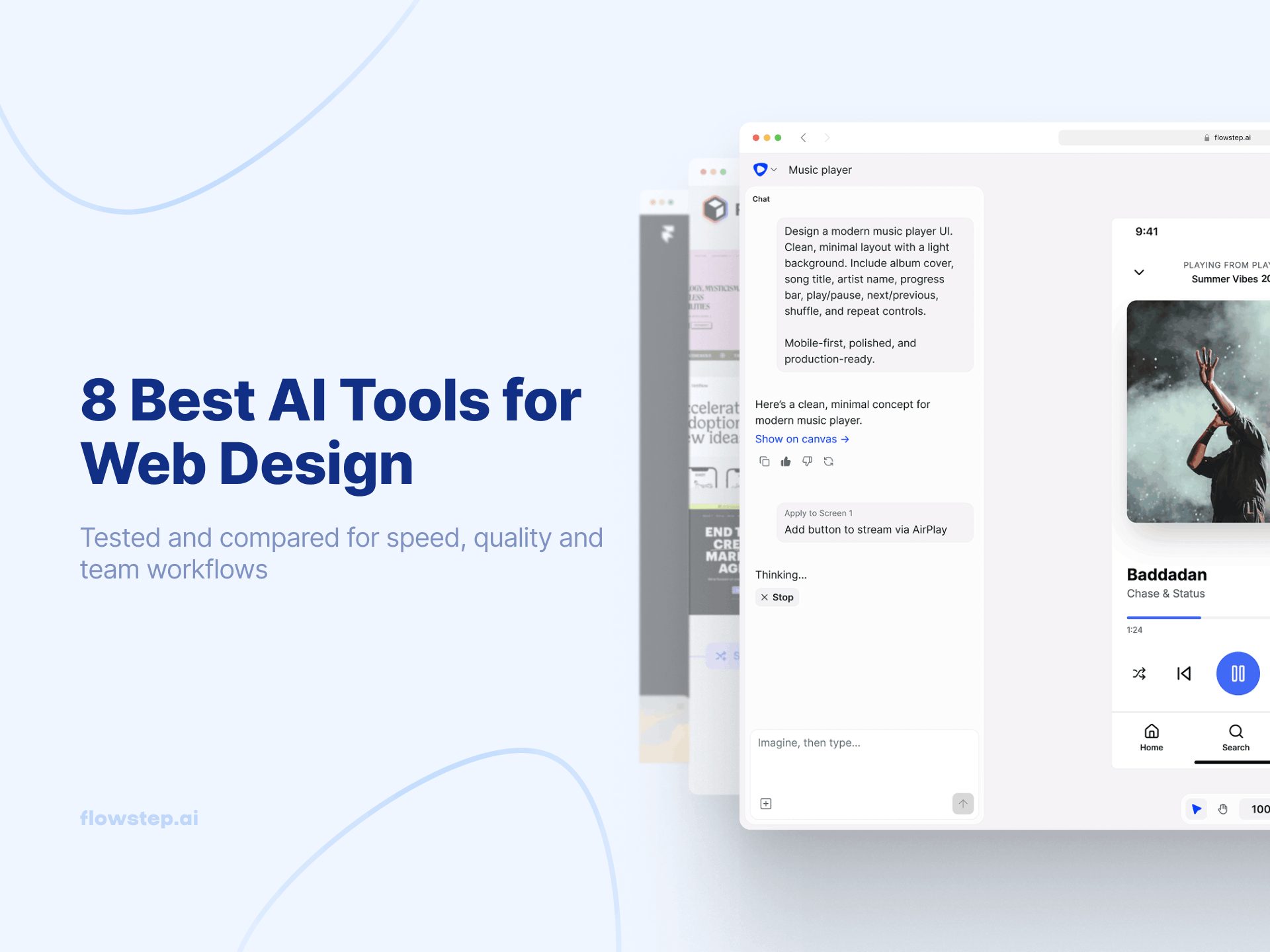
Flowstep works as a standalone AI design tool that generates production-quality UI from text prompts. Describe what you want: a dashboard, a login screen, a settings page, and watch it appear on an infinite canvas in seconds.
The magic is in the Figma integration. Select any design and copy-paste it directly into your Figma file with ⌘C and ⌘V. No plugin installation, no browser extension, no export steps. The output lands in Figma with clean, editable layers.
Key features:
Flowstep solves the “blank canvas problem” that no Figma plugin fully addresses. Describe your idea and get multiple design options to explore. Especially powerful for wireframing and early ideation—the phase where speed matters most.
Pricing: Free plan available. Paid plans start from $15/month.
Best for: Product managers, founders, and designers who want to generate designs from scratch and bring them into Figma instantly.
Try Flowstep free and generate your first design in seconds
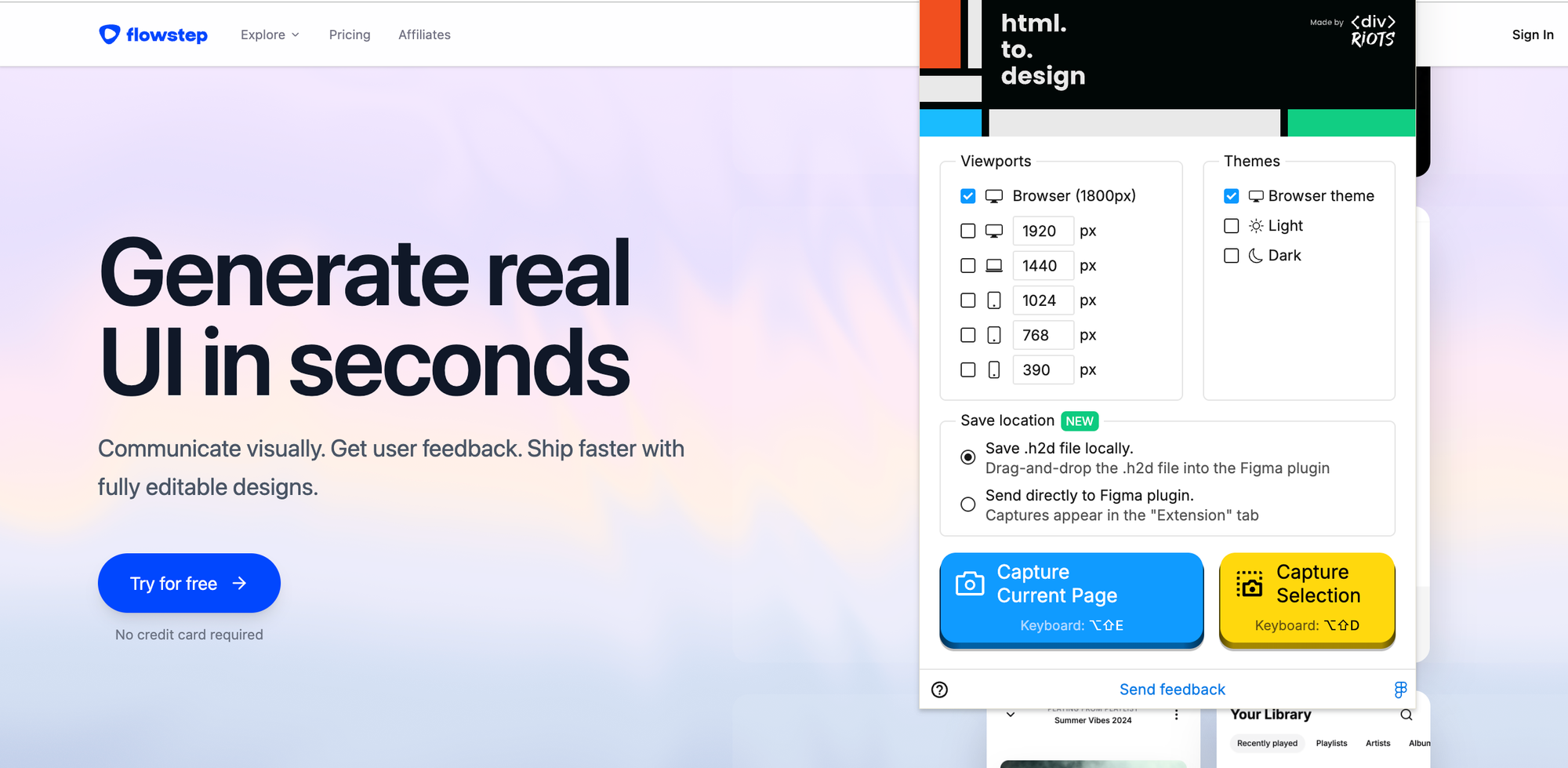
html.to.design converts any live website into fully editable Figma designs. Paste a URL, and it imports the entire page (layout, typography, colors, images) as real, editable layers in your Figma file. No rebuilding from scratch.
It also comes with a Chrome extension for capturing pages behind logins or on private networks. And it has built-in support for importing results from AI tools like ChatGPT, Bolt, and Lovable directly into Figma.
Key features: URL-to-Figma import, Chrome extension for private pages, responsive viewport capture (desktop, tablet, mobile), and AI tool integration.
Pricing: Free tier with limited imports. Pro from $4.99/month for unlimited imports.
Best for: Designers redesigning existing websites, benchmarking competitors, or importing web references into a Figma project without rebuilding.
Trade-off: Complex CSS animations don’t always translate perfectly. Treat imports as a strong starting point, not a pixel-perfect replica.
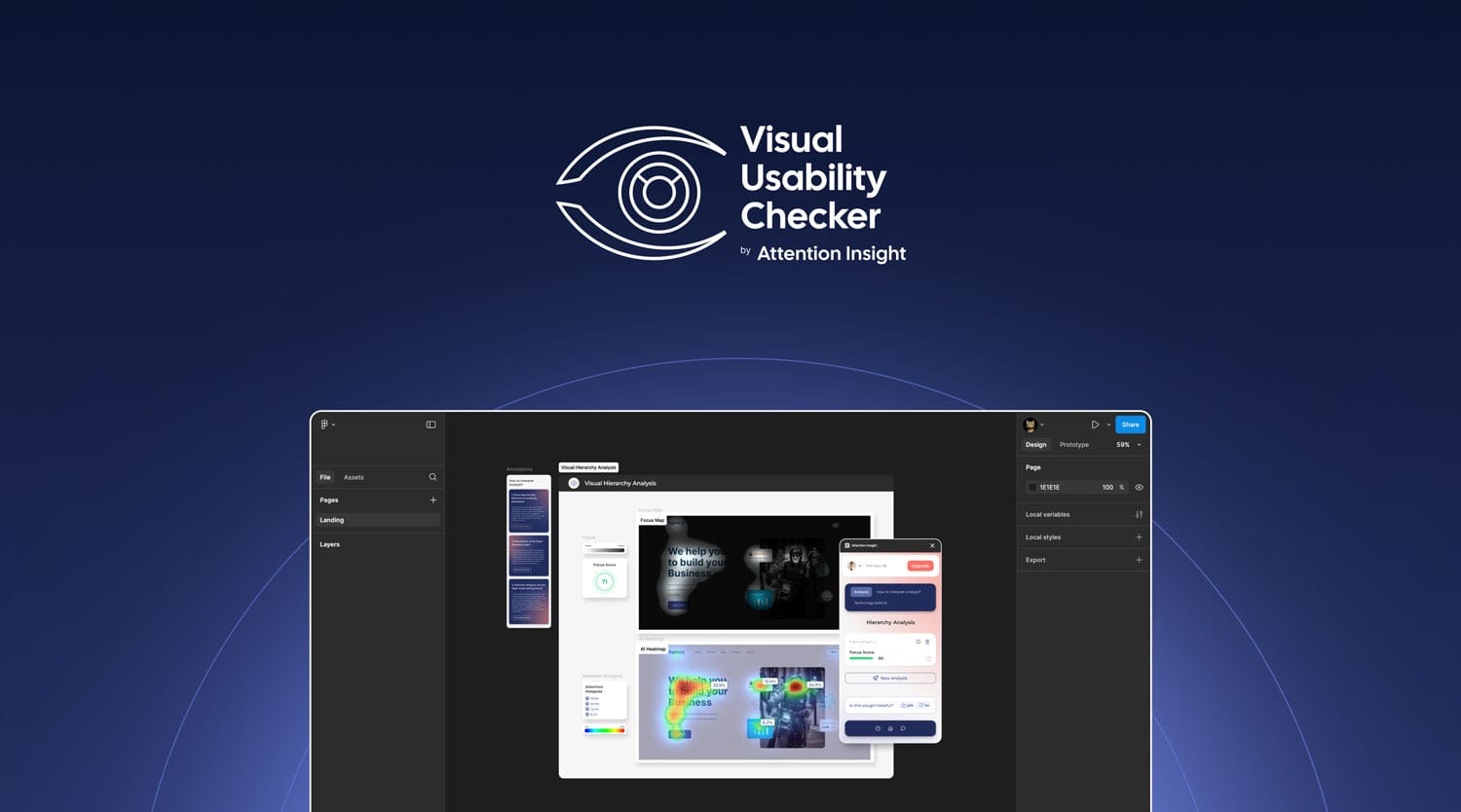
Visual Usability Checker by Attention Insight is an AI-powered Figma plugin that helps designers evaluate visual hierarchy, attention flow, and cognitive load before a design goes live. designers evaluate visual hierarchy, attention flow, and cognitive load before a design goes live. Run an analysis directly in Figma and get instant predictive insights into what users are likely to notice first, what may be overlooked, and whether the layout feels visually clear.
It helps UX/UI designers validate design decisions faster, compare design iterations, and spot usability issues early without rebuilding designs or waiting for full user testing.
Key features: AI attention heatmaps, focus maps, focus score, attention hotspots, cognitive load analysis, cognitive load map, AI recommendations, and direct Figma workflow integration.
Pricing: Free access/trial available, with paid plans for more advanced and ongoing design validation.
Best for: Designers, product teams, marketers, and agencies who want to improve landing pages, websites, app screens.
Trade-off: It does not replace real user research. Treat it as a fast pre-launch validation layer that highlights likely attention and usability issues early, so teams can make better design decisions before investing in development or live testing.
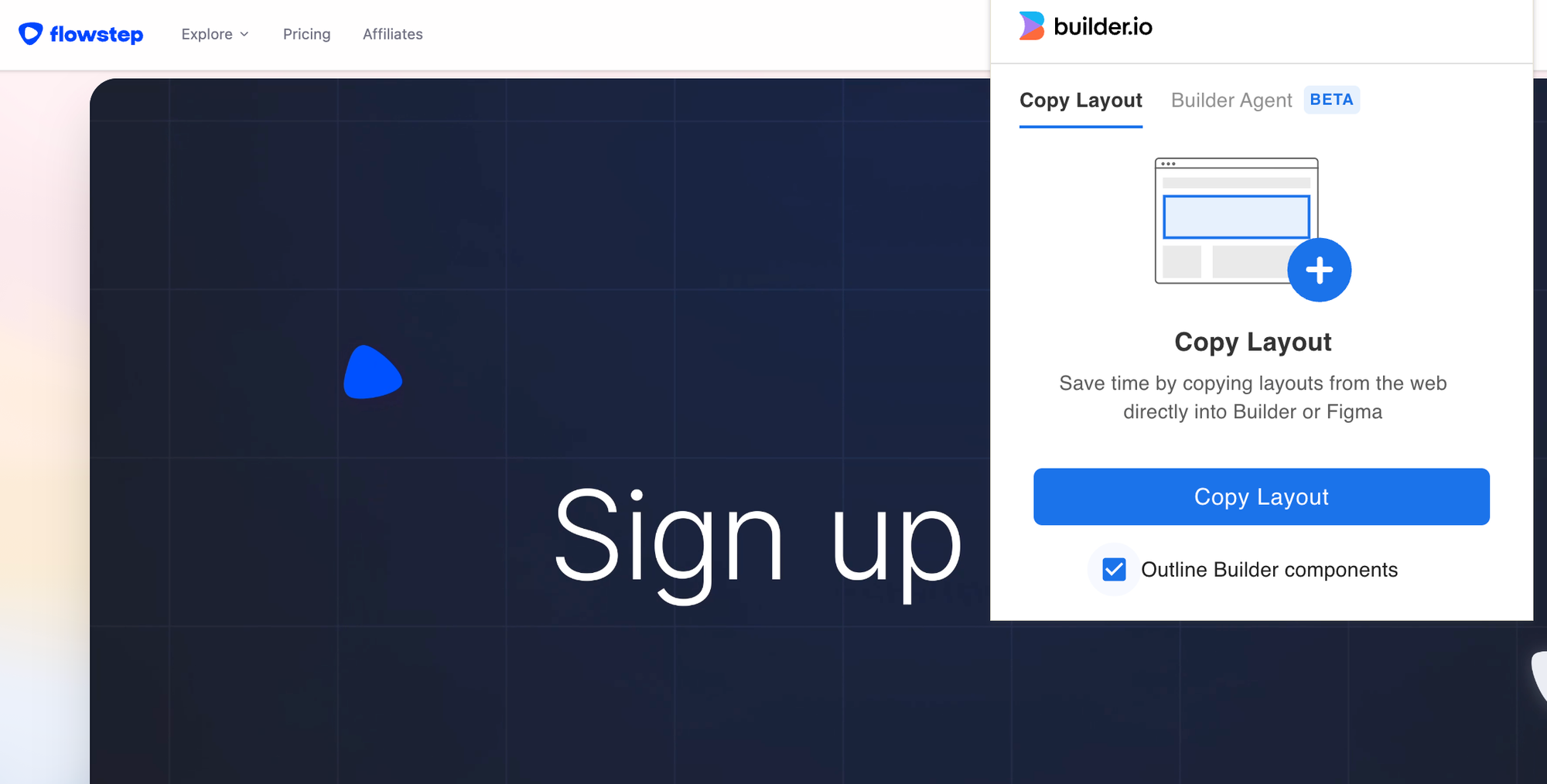
Builder.io bridges design and code in both directions. Its Figma plugin lets you import any website into editable Figma designs, and it also works the other way—select a frame and generate clean code in React, Vue, Tailwind, or HTML.
What sets Builder.io apart is its “Design with AI” feature. Select an imported frame, enter a prompt, and it generates editable Figma designs that match your source’s color palette, typography, and visual hierarchy.
Key features: Website-to-Figma import, AI design generation, one-click code export (React/Vue/Tailwind/HTML), and responsive output.
Pricing: Free tier available with generous limits. Paid plans for teams.
Best for: Teams that need AI design generation and developer handoff in one tool, especially when the workflow runs from code to design and back.
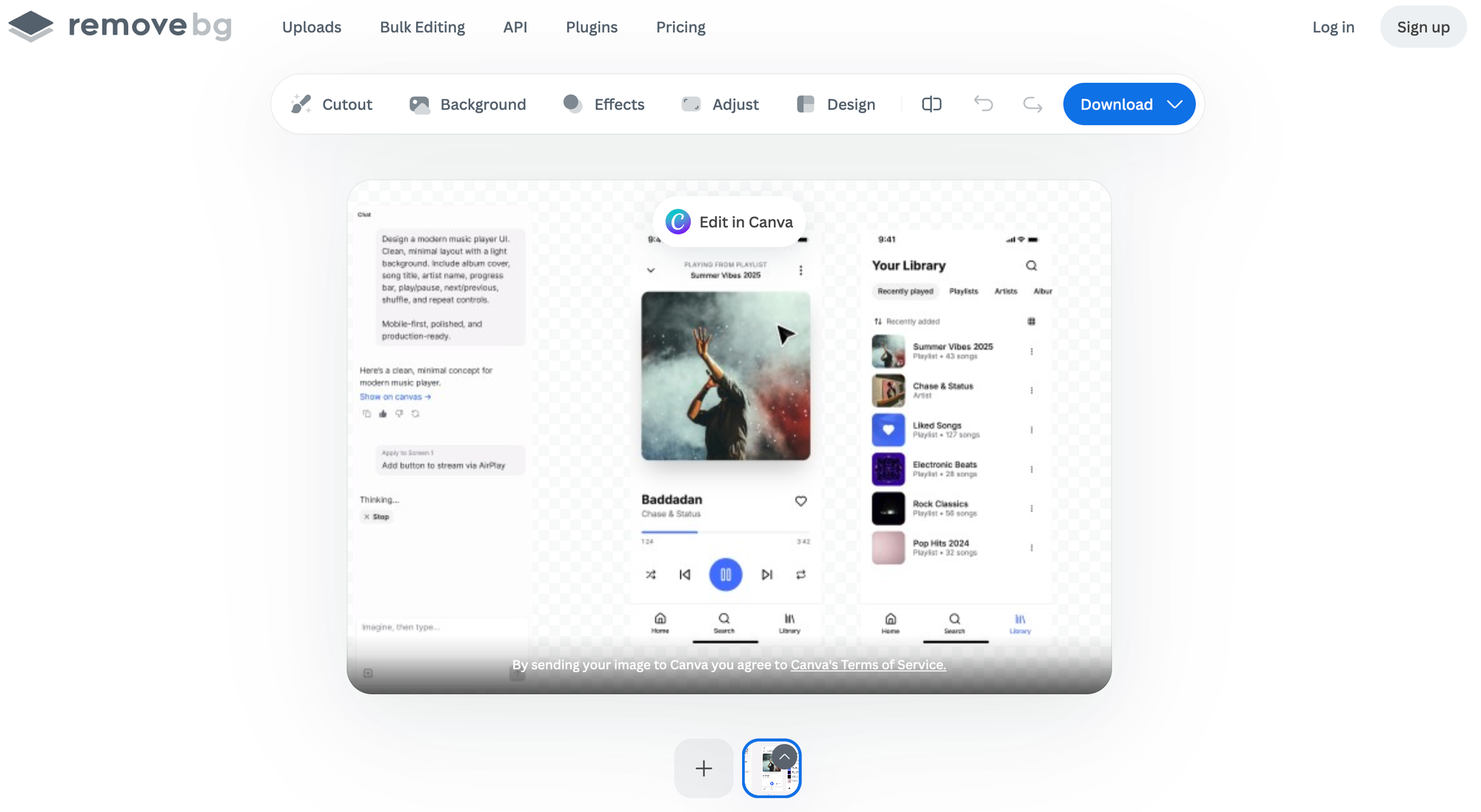
Remove BG uses the remove.bg AI engine to automatically remove image backgrounds with a single click inside Figma. Select a photo on your canvas, run the plugin, and the background disappears in seconds, no need to open Photoshop or leave your file.
Simple but constantly useful. Despite the work you do: creating device mockups, building marketing graphics, or cleaning up product photos for user testing, background removal comes up all the time. Having it inside Figma keeps your design workflow tight.
Key features: AI-powered background removal, single-click operation, works on images in your Figma file, high-resolution output with paid credits.
Pricing: Free (1 credit per day for preview resolution). Paid plans from $9/month for high-resolution and bulk processing.
Best for: Designers who work with photo assets and need quick background removal without leaving Figma.
These plugins give you instant access to photos, icons, and illustrations without ever leaving Figma.
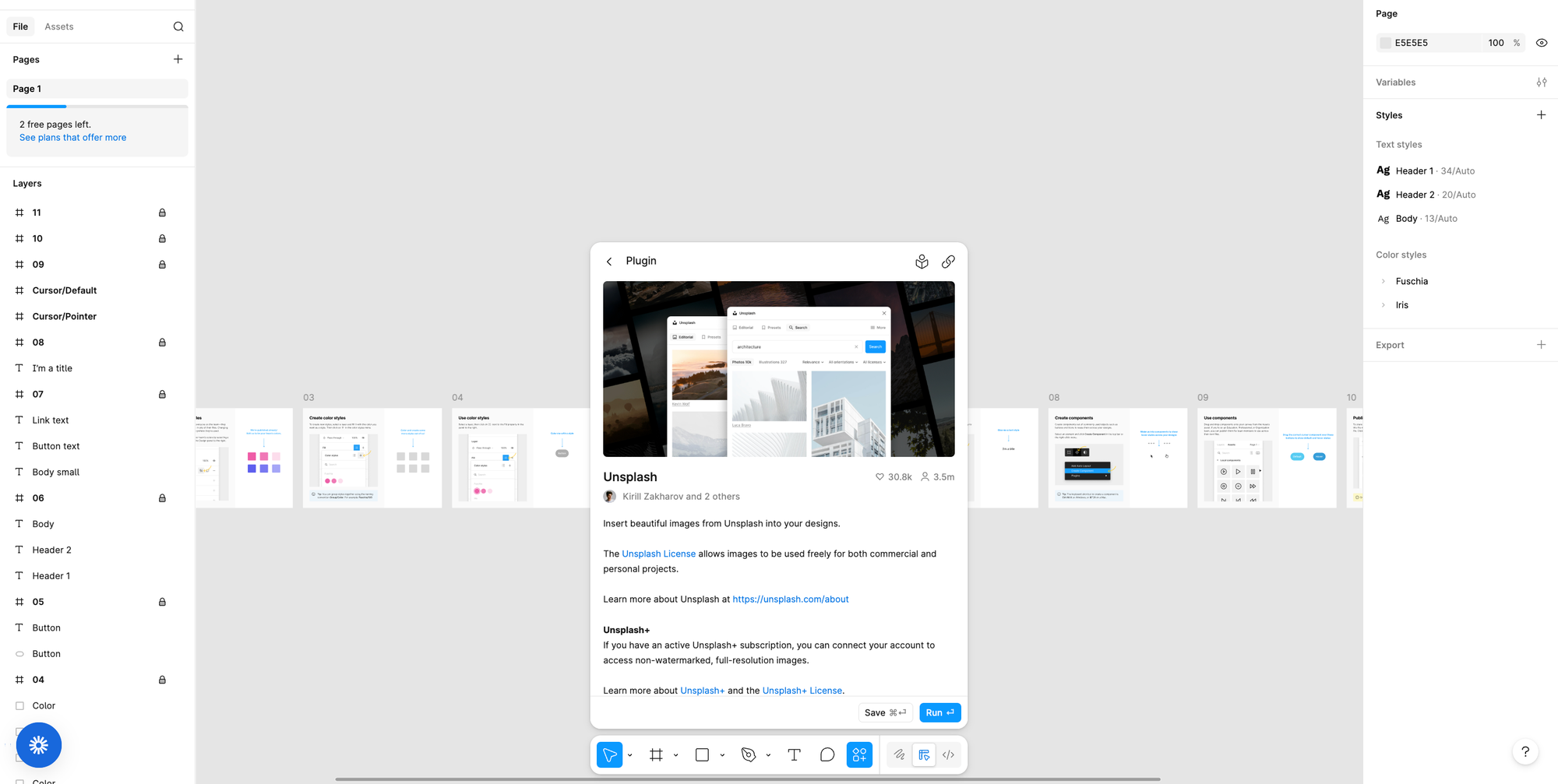
Unsplash brings its entire library of free stock photos directly into Figma. Search by keyword, click to insert, and you have a high-quality image in your Figma design in seconds. All photos are free for commercial projects.
Pricing: Free.
Best for: Mockups, background images, visual inspiration, and filling designs with real photography instead of gray boxes.
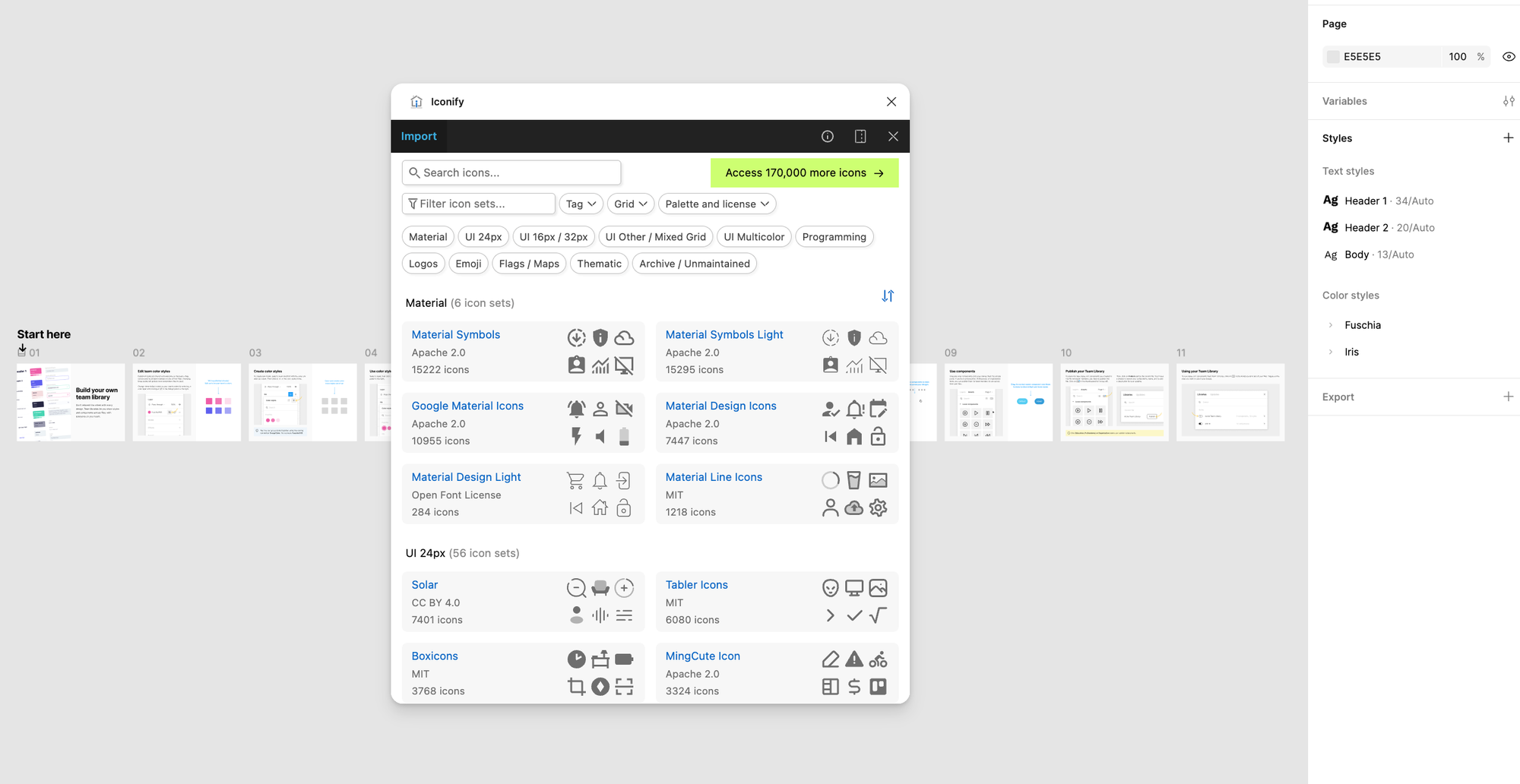
Iconify gives you access to over 100,000 open-source icons from multiple collections (Material Design, FontAwesome, Feather, Lucide and more), all from a single plugin with SVG and PNG export.
Pricing: Free.
Best for: Any designer who needs icons regularly. It’s the fastest way to insert high-quality illustrations and icons into a Figma file.
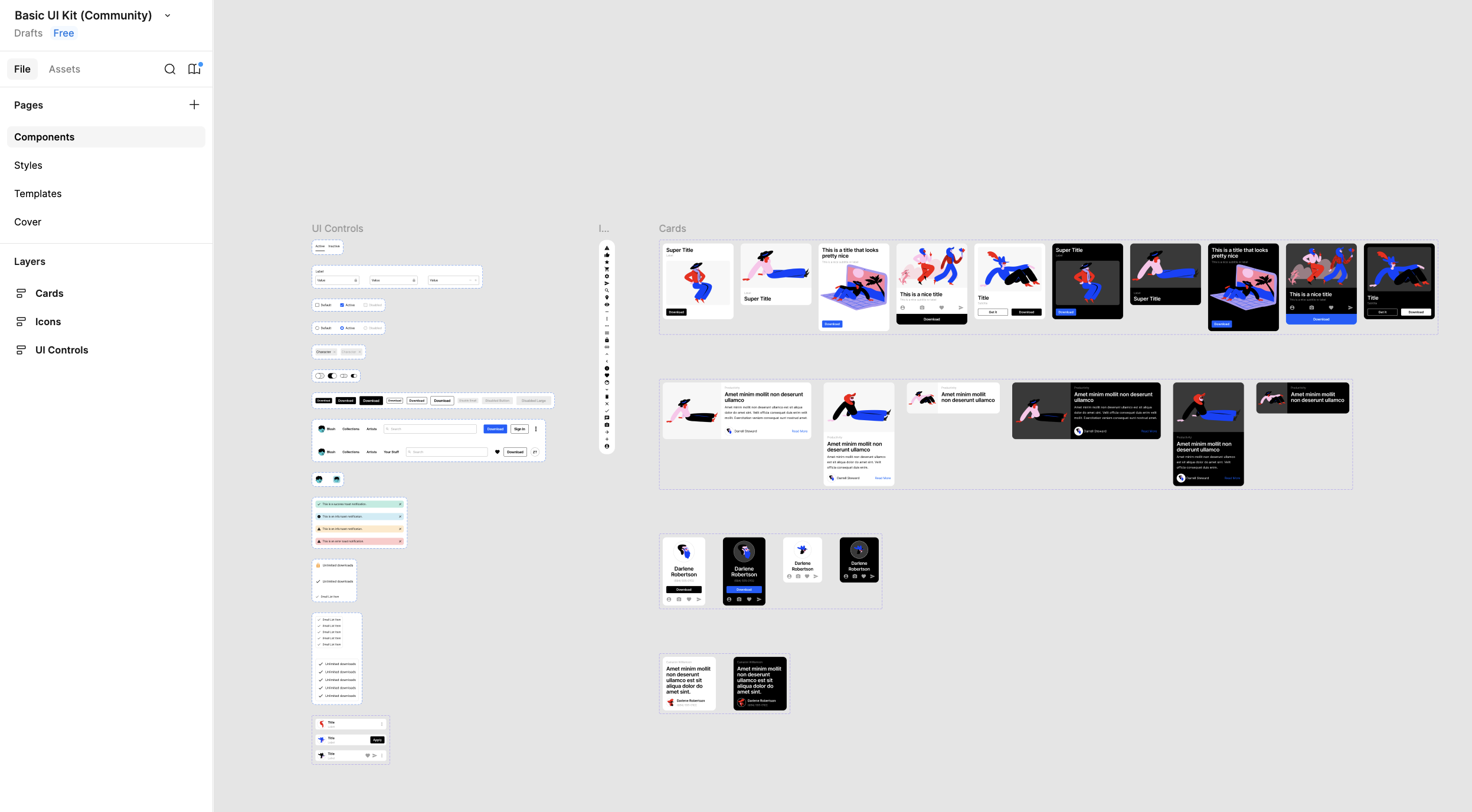
Blush offers customizable illustrations from top artists. Mix and match elements, change colors, swap expressions, and drop results into your design. Covers onboarding screens, empty states, and marketing pages.
Pricing: Free for basic use. Premium illustrations from $5/month.
Best for: Teams that need high-quality illustrations for onboarding, empty states, and landing pages without hiring an illustrator.
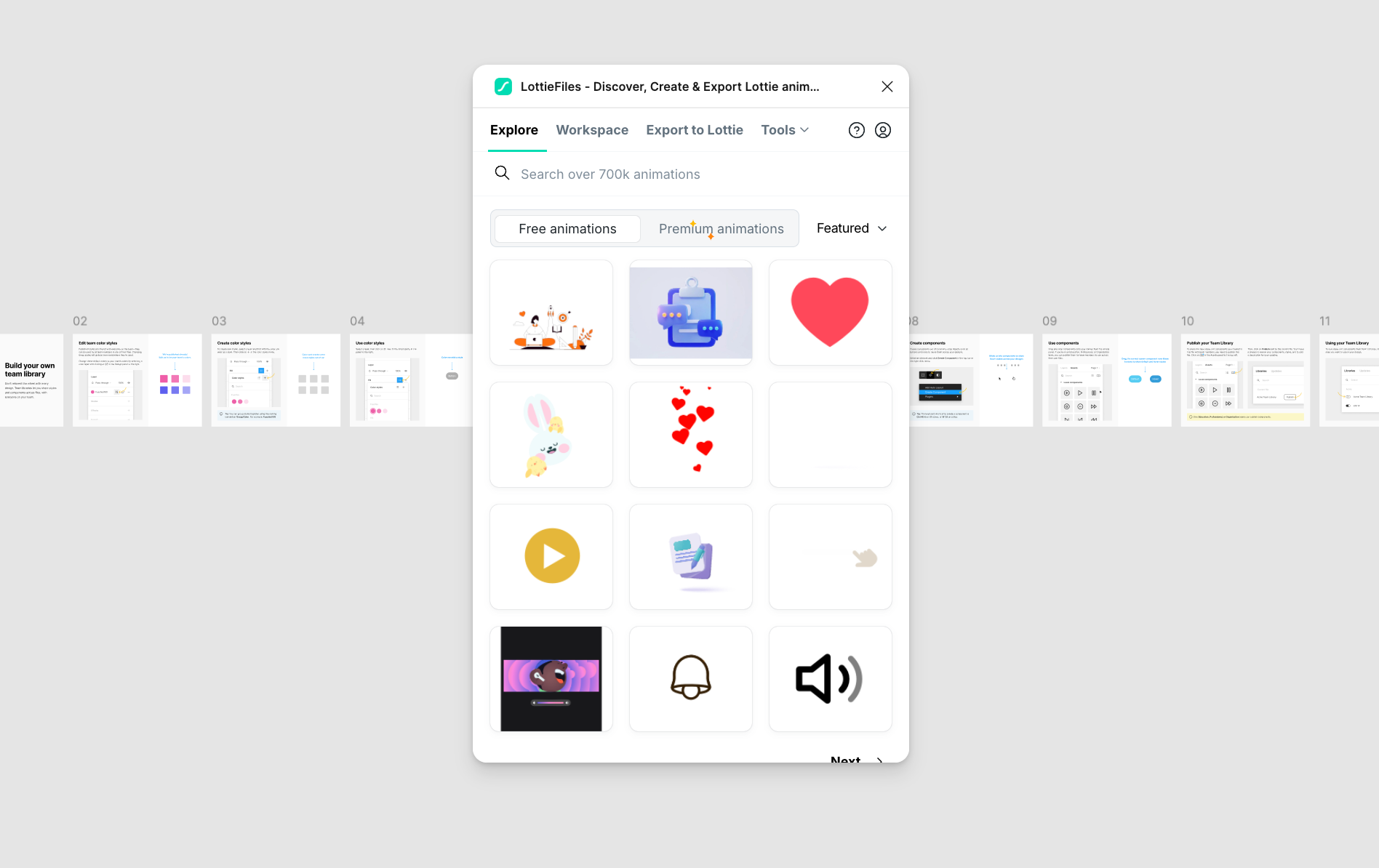
LottieFiles lets you create and export animations from Figma to Lottie JSON format. Preview in context, adjust timing, and export lightweight files that developers can use immediately.
Pricing: Free tier available. Premium plans for teams.
Best for: Teams adding animation to web and mobile products who want to keep the design-to-development process smooth.
These plugins handle routine tasks—renaming layers, filling designs with realistic data, and documenting user flows. Not flashy, but they save time every day.
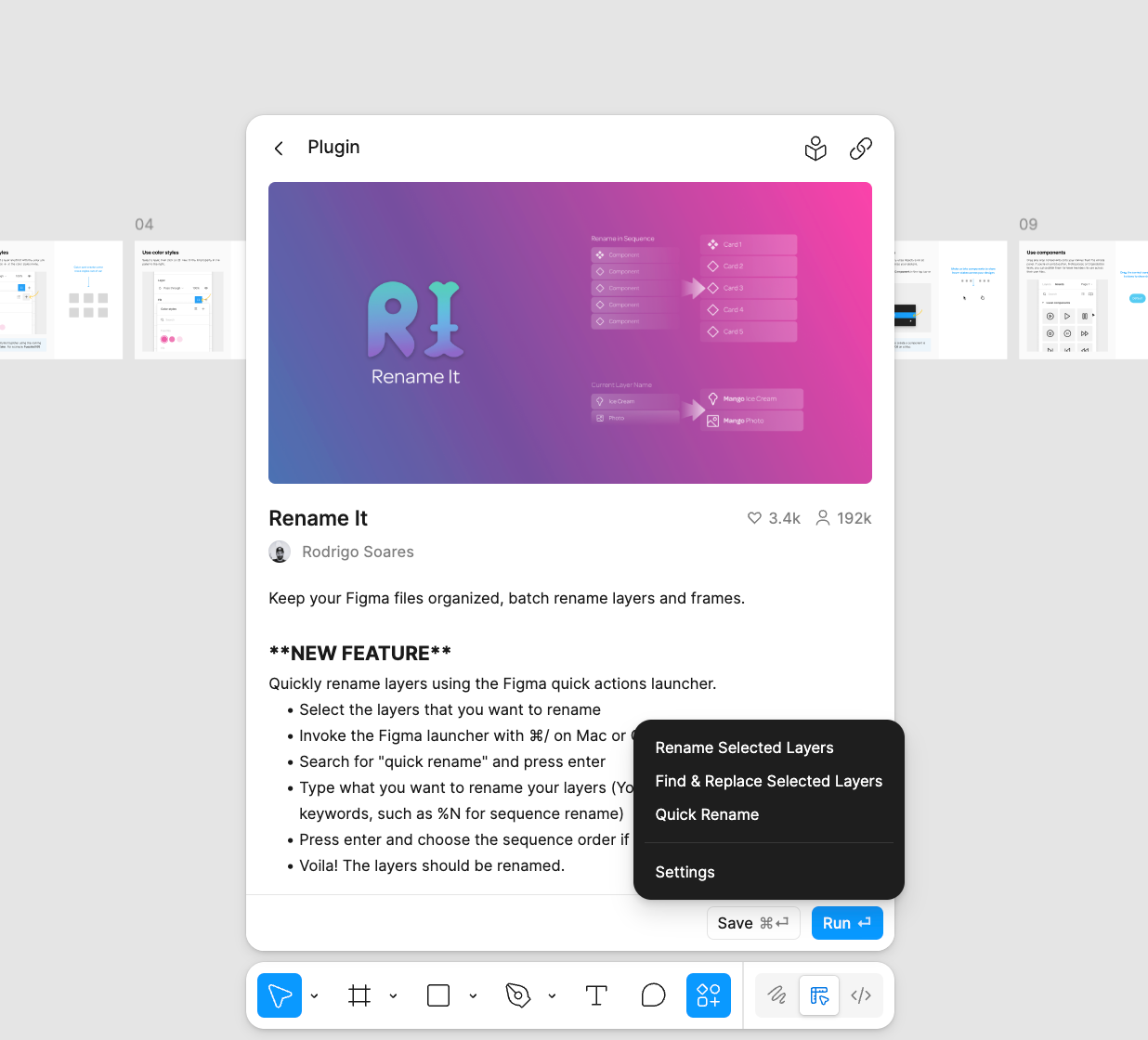
Rename It lets you batch rename layers, frames, and groups with find/replace, sequential numbering, or custom patterns. This plugin automatically removes the pain of manually renaming hundreds of layers before developer handoff.
Pricing: Free.
Best for: Keeping your Figma project organized, especially on large files with hundreds of layers and components.
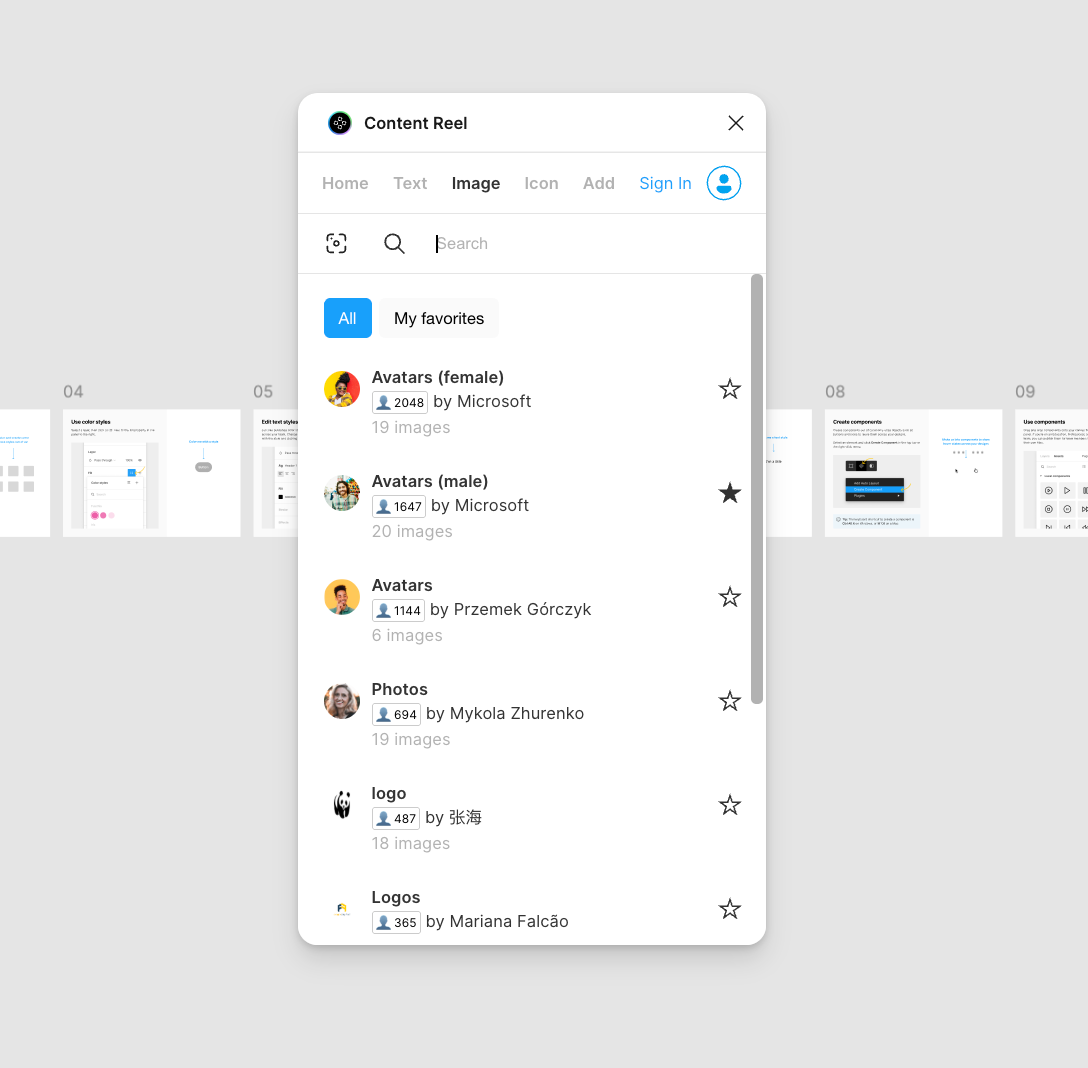
Content Reel fills designs with realistic placeholder data: names, addresses, avatars, and text. Much better than lorem ipsum for making prototypes look real during user testing.
Pricing: Free.
Best for: Anyone creating mockups or prototypes who needs realistic designs without manually generating content.
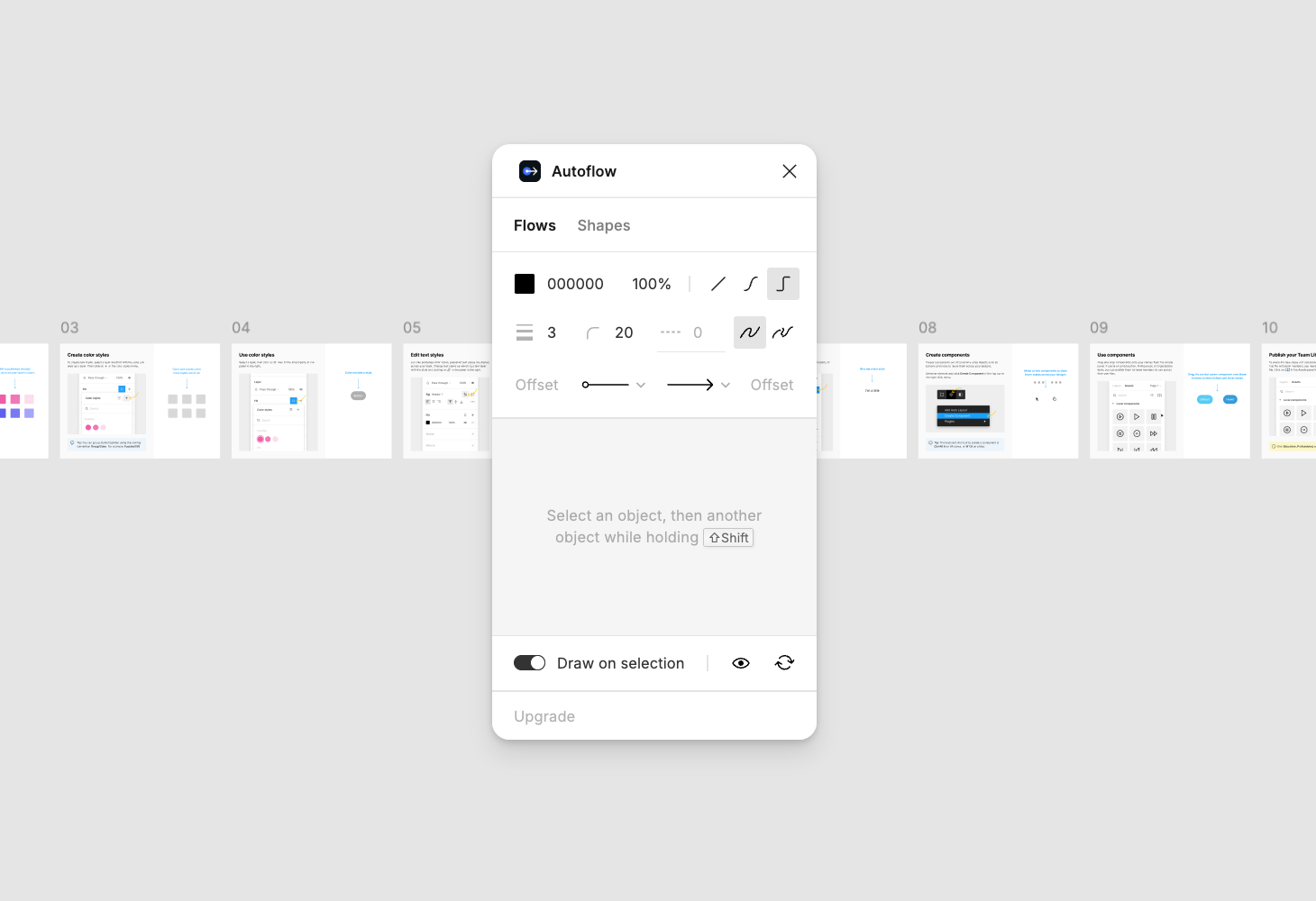
Autoflow draws connection arrows between objects in Figma with smart routing. Select two frames, click connect, and you get a clean arrow that automatically routes around other elements. It’s essential for user flow documentation and UX mapping.
Pricing: Free up to 50 flows per file. Individual lifetime access for a one-time fee of $49.
Best for: UX designers documenting user flows, information architecture, and interaction patterns within their Figma design files.
Shipping inaccessible designs in 2026 is a liability, not just bad practice. These plugins help you catch accessibility issues before they reach developers and users. Following inclusive design principles starts right here in your Figma workflow.
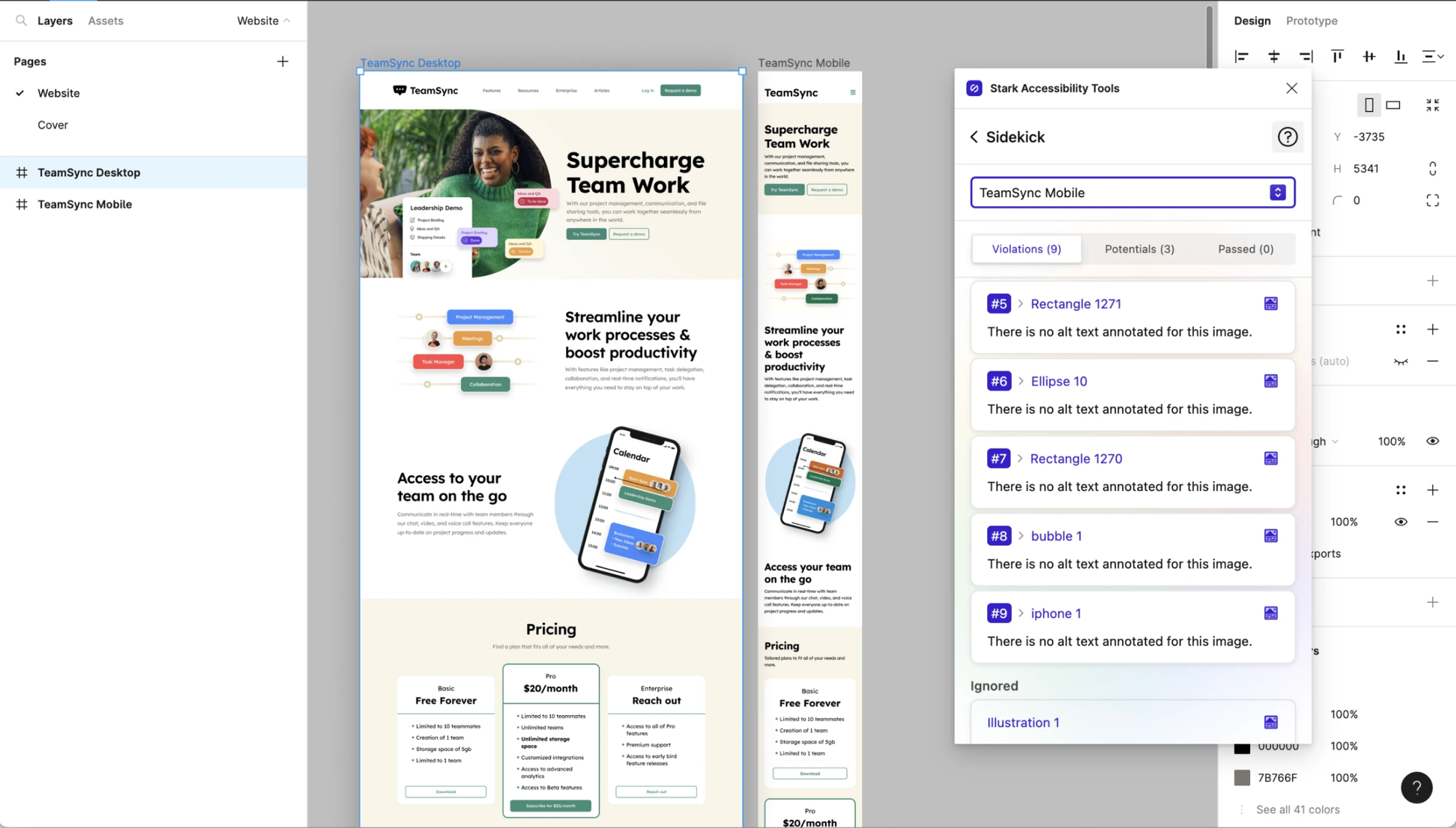
Stark is the most complete accessibility plugin for Figma. Contrast checking, vision simulation (deuteranopia, protanopia, low vision), alt text suggestions, focus order, and touch target sizing, all covering WCAG 2.1 and 2.2.
Pricing: Free tier for individual use. Team plans from $40/month.
Best for: Design systems teams and anyone building products that need to meet accessibility standards.
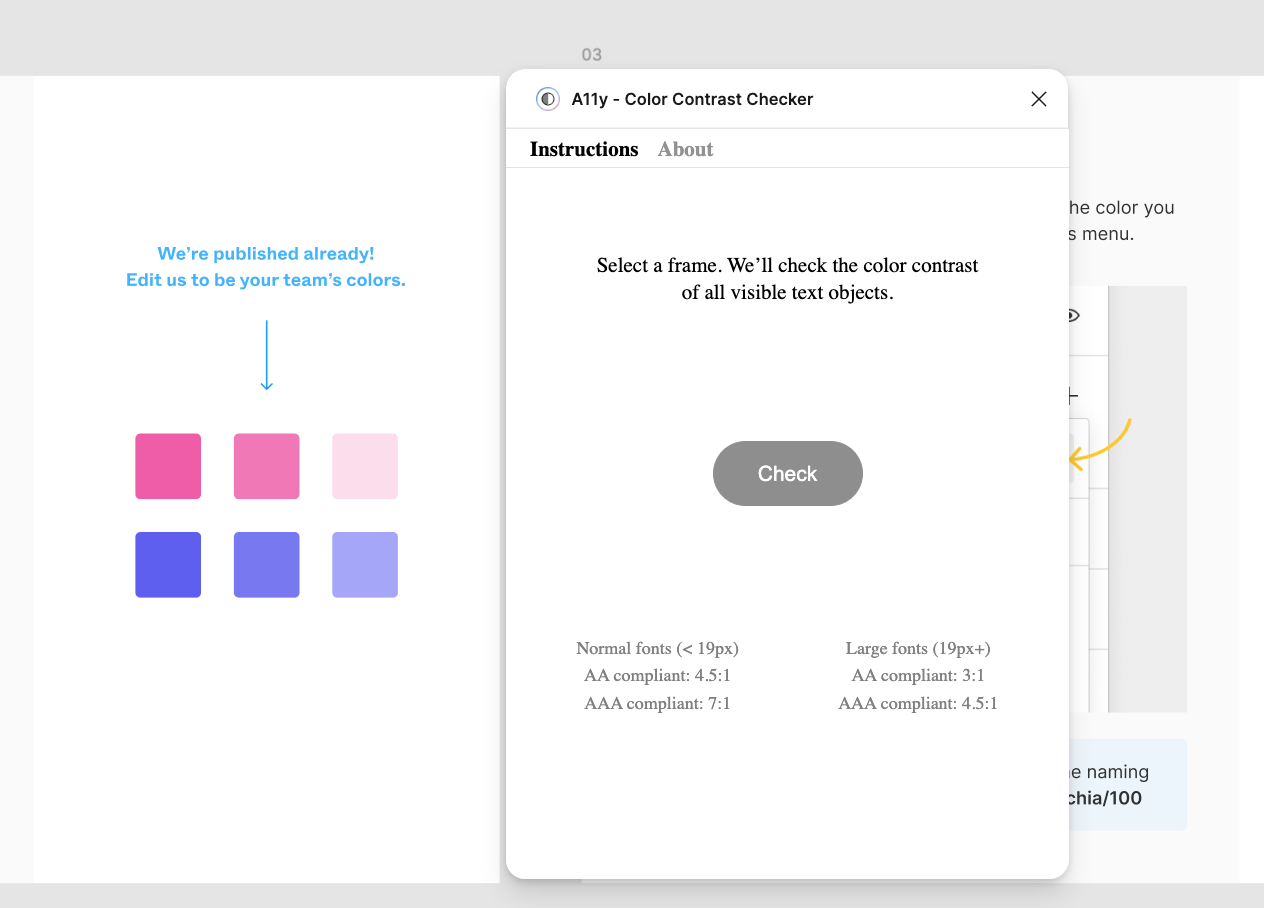
A11y is a quick, free contrast checker that validates your color palette against WCAG guidelines. It shows how people with color blindness see your interface and suggests better alternatives.
Pricing: Free.
Best for: Quick accessibility checks during the design process. If you don’t need Stark’s full suite, A11y covers the essentials.
These plugins help developers access clean code, synced tokens, and responsive layouts directly from Figma.
Figma to Code converts Figma layouts to responsive code in HTML, Tailwind, React (JSX), Svelte, Flutter, and SwiftUI—clean output developers can use with minimal cleanup.
Pricing: Free.
Best for: Teams that need to go from Figma to production code across multiple frameworks and languages.
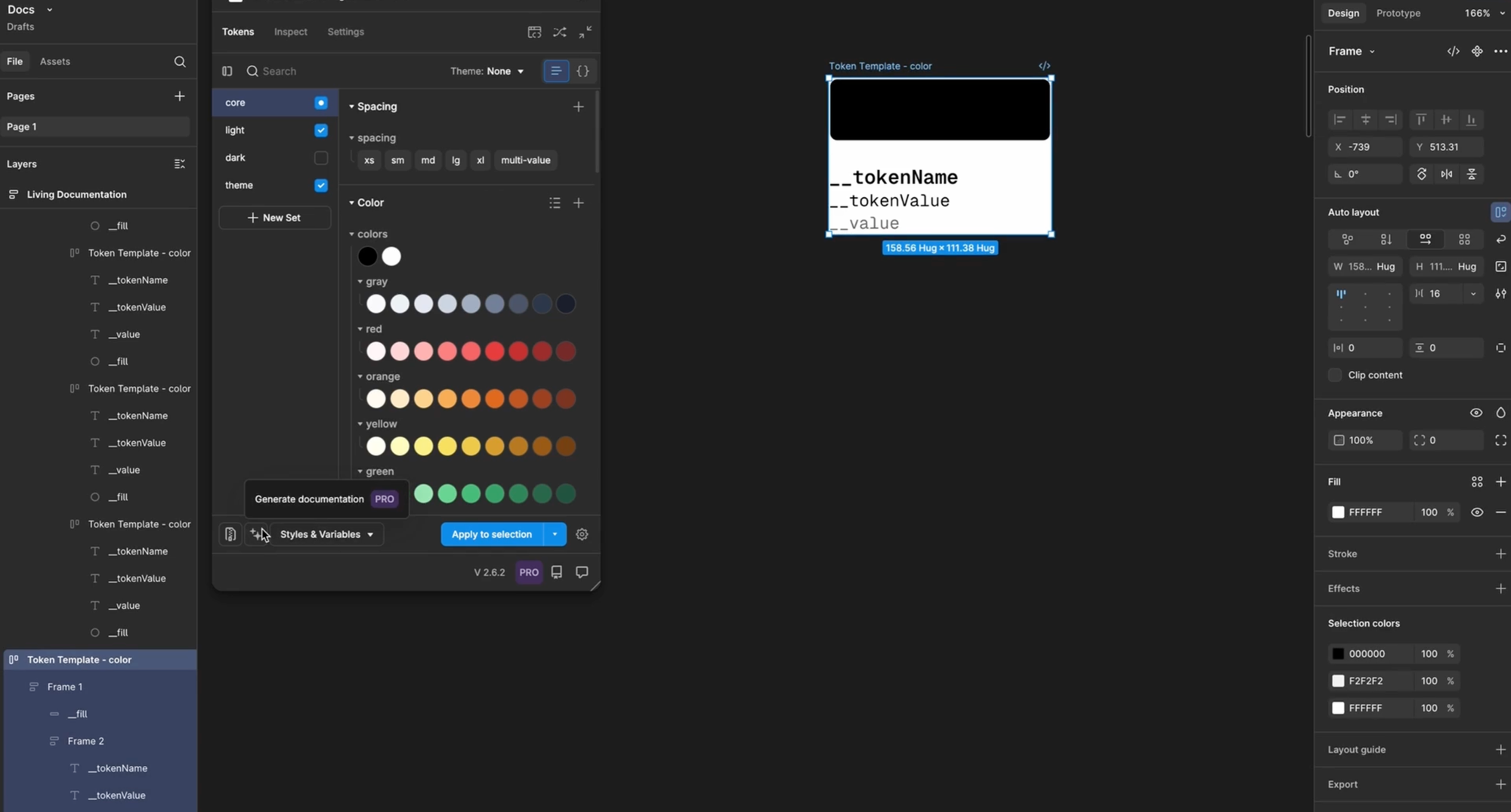
Tokens Studio manages design tokens (colors, spacing, typography and styles) and syncs them to GitHub or GitLab with two-way version control. The standard for production design systems.
Pricing: Free tier available. Pro plans from $9/month.
Best for: Teams maintaining design systems who need a reliable bridge between Figma and code repositories.
Figma’s built-in prototyping covers the basics. These plugins go further with advanced interactions, animations, and export options.
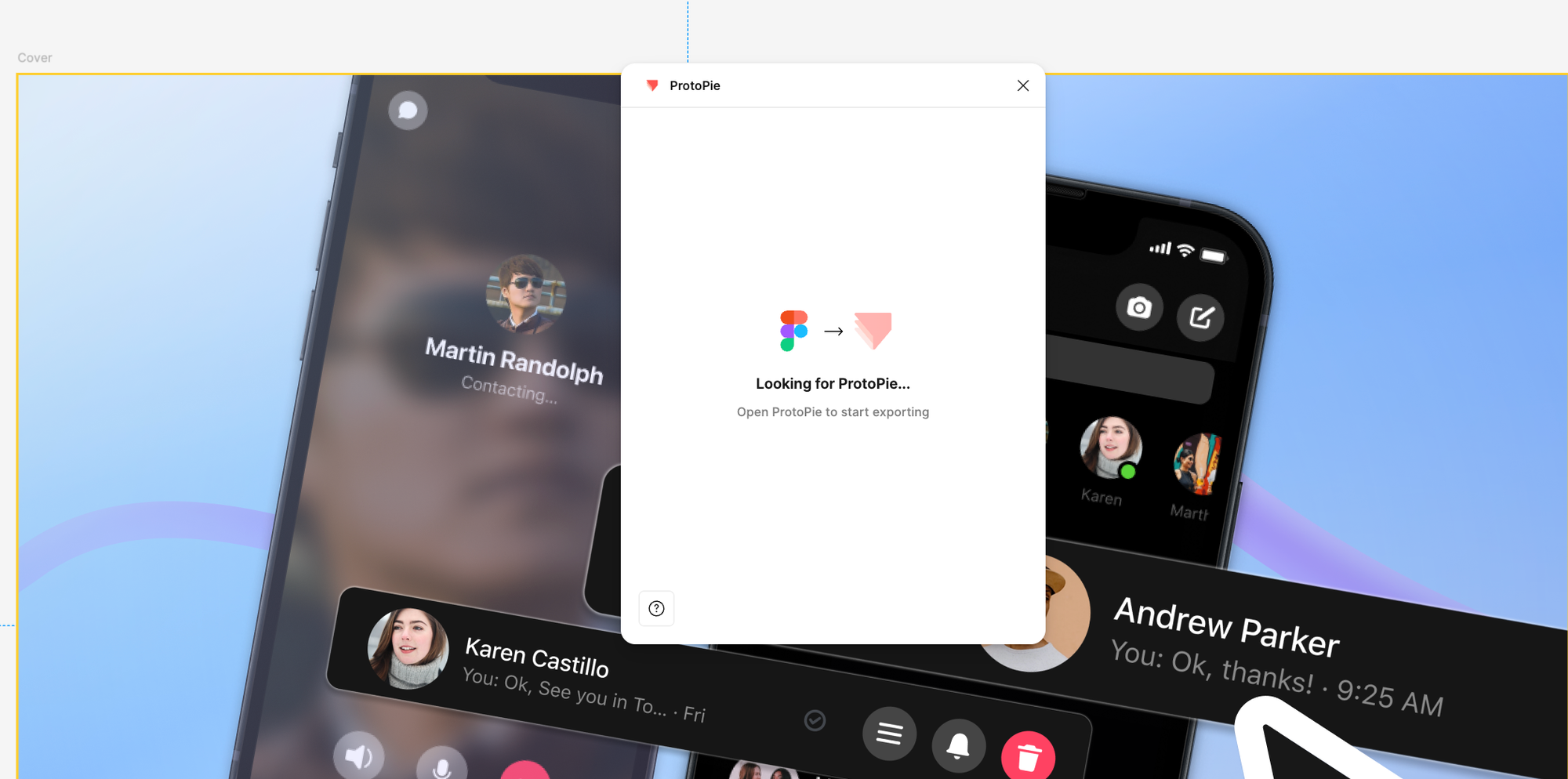
ProtoPie lets you export Figma designs and build high-fidelity interactive prototypes with dynamic interactions, conditions, and formulas. It goes far beyond Figma’s native prototyping—think sensor triggers, variables, and multi-device interactions for realistic user testing.
Pricing: Free tier available. Pro plans from $13/month.
Best for: Teams that need prototypes closer to the final product experience, especially for user testing and stakeholder demos.
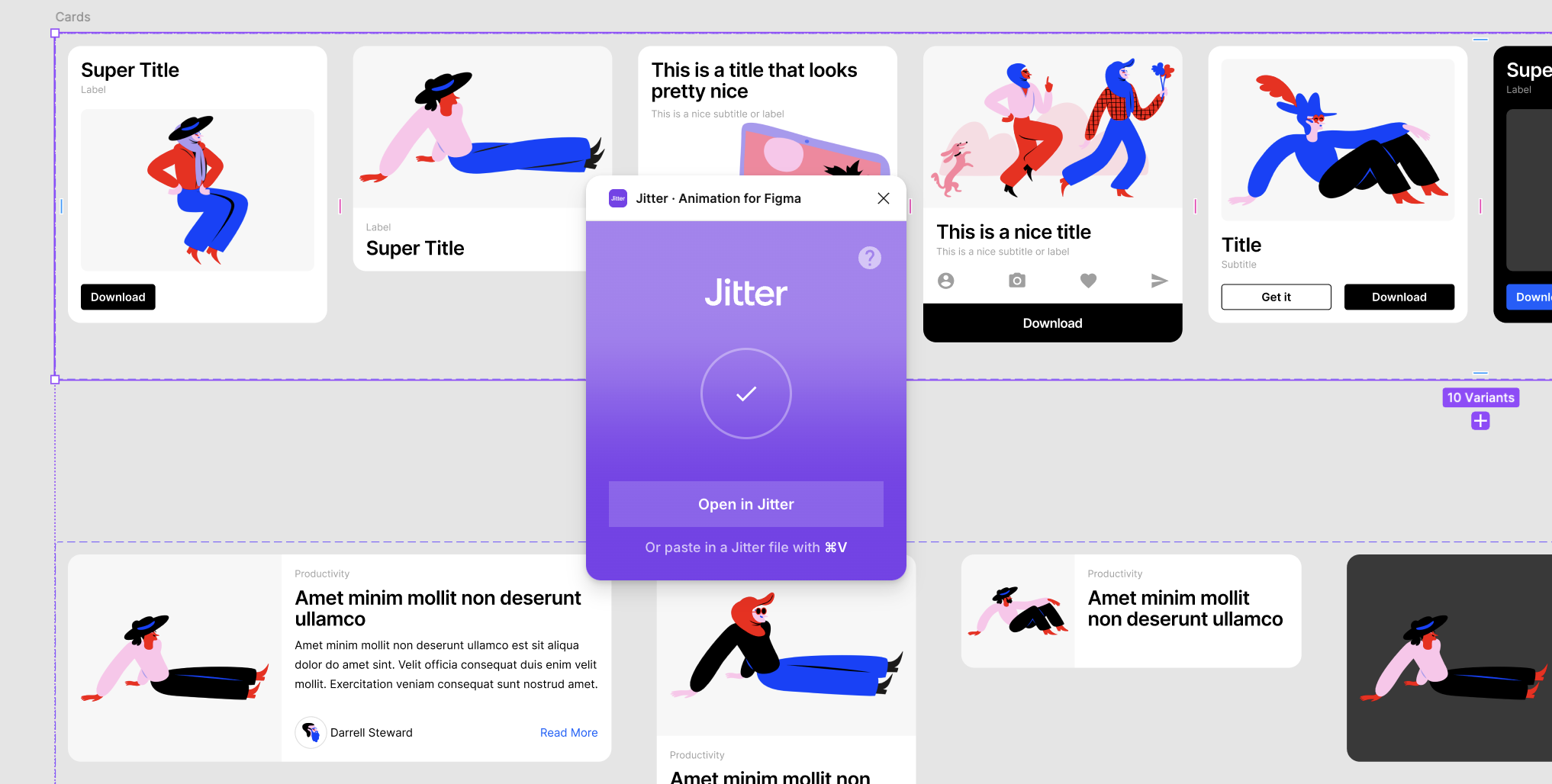
Jitter turns static Figma designs into animated interfaces with pixel-perfect import. Bring any frame into Jitter, apply animation presets or build custom motion on a timeline, then export as video, GIF, or Lottie.
Pricing: Free tier available. Pro plans from $12/month.
Best for: Designers creating animated app demos, interaction previews, or marketing assets from their Figma designs.
You don’t need all 17 tools. Here’s a quick guide:
The best workflow combines a few focused tools. Start with the stage where you spend the most time and expand from there. For more, see our AI tools for designers guide.
The biggest productivity leap comes from what you do before opening Figma. Flowstep lets you generate full UI designs from text prompts, then copy-paste them into Figma in seconds, no plugin needed.
Combine Flowstep with the right plugins for assets, accessibility, and developer handoff, and you have a design workflow that’s hard to beat. These tools help designers, product managers, and developers create better products faster.
Sign up for Flowstep free and generate your first design today
The top Figma plugins for 2026 include Flowstep (AI design generation with Figma copy-paste), html.to.design (website-to-Figma import), Builder.io (code export + AI design), Stark (accessibility), Tokens Studio (design systems), and Iconify (icons). The best choice depends on your workflow stage—see our complete comparison table above.
Yes. Unsplash, Iconify, Rename It, Content Reel, Autoflow, A11y Contrast Checker, Figma to Code (Grida), and Remove BG (free tier) are all free or have generous free plans.
The top AI Figma plugins and tools in 2026 are Flowstep (AI design generation + Figma integration), html.to.design (website-to-Figma conversion), Builder.io (AI design + code export), and Remove BG (AI background removal).
Open a Figma file, go to the Resources panel, search for the plugin, and click “Install.” You can also browse plugins on the Figma community website.
Yes. Flowstep works outside Figma as a standalone AI design tool. Generate designs from text prompts, then copy-paste them into your Figma file with ⌘C/⌘V. No plugin, no extension, just clean, editable layers.