

Base44 Review (2026): Pricing, Features & Pros & Cons
Before you choose Base44, read this. This Base44 review highlights some important things to consider about its strengths, weaknesses, pricing and when a different tool might be a better fit.
Looking for the best tools for UI design? This guide covers every stage: AI generators, wireframing, prototyping, dev handoff and user testing.
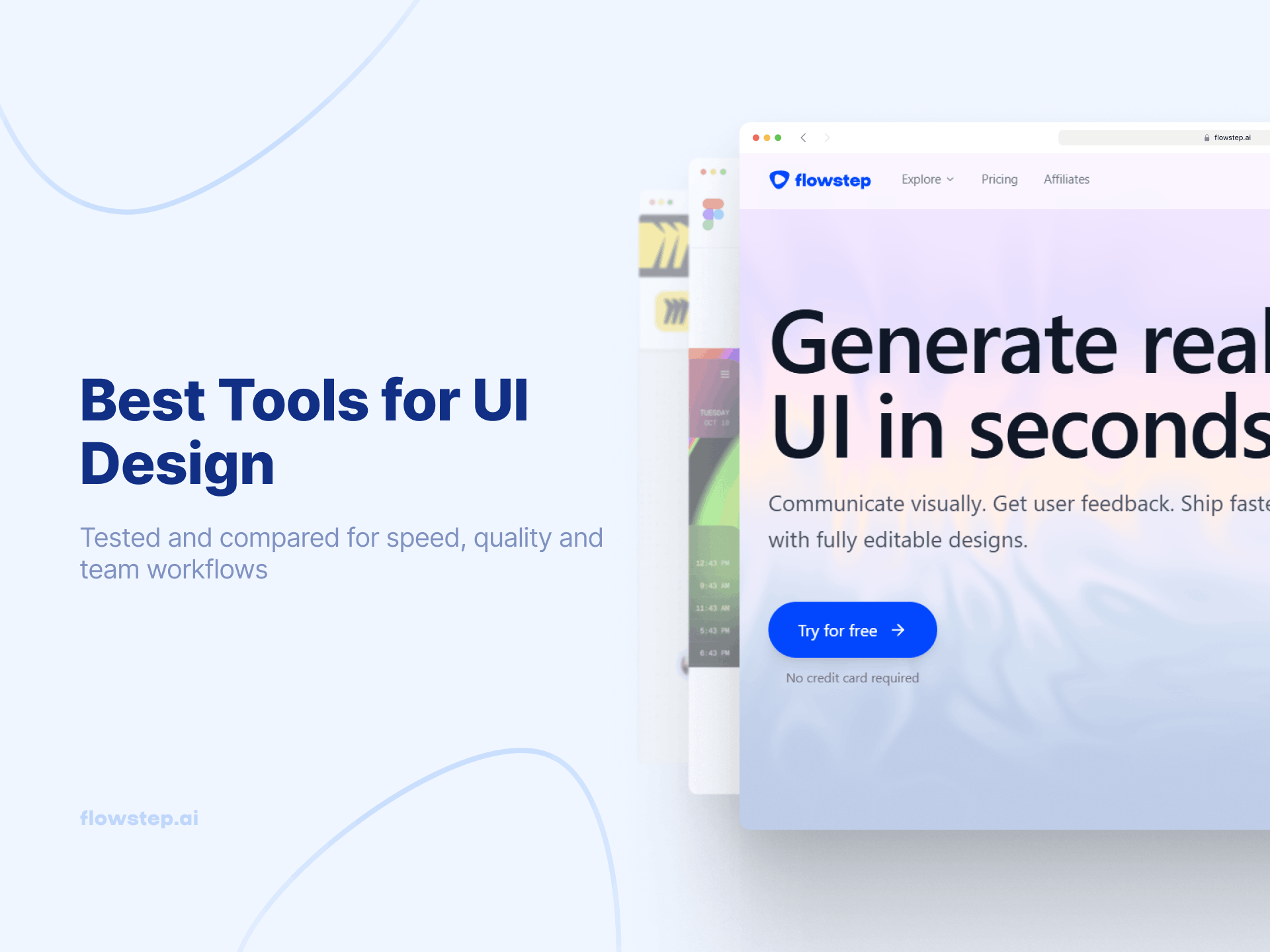
The best tools for UI design have changed radically over the past few years. The gap between "I have an idea" and a usable product has gone from weeks to hours, especially since AI tools entered the design process. This guide covers the full picture: from AI-powered generators that turn ideas into real UI instantly, through wireframing brainstorming help, production design, dev handoff, user testing, no-code and vibe coding tools. By the end, you'll know exactly what to use and when, regardless of whether you have a specialized designer on your team or not.
A five-person startup has different design needs than a 50-person company with a dedicated product team. But there are a few universal things to look for:
We broke down the UX design workflow into five layers, each including a different set of tools:
Here's a framework for matching your needs to the right tool category from this list:
As you can see, some of these tools can be used across multiple categories. Flowstep, for instance, handles ideation, generates interactive designs and exports production code.
Let's explore these options in more detail.
A couple of years ago, "AI-generated UI" meant something generic and barely usable. You'd type a prompt, get a blurry wireframe with placeholder text, and spend the next hour rebuilding it from scratch. Today, AI tools generate real, editable designs with multiple screens and production-ready component structures from a few sentences of plain language.
By 2025, what came out of these platforms started to look like something a good designer actually made. This section covers the best tools for AI UI design for turning an idea into something you're not embarrassed to share.
Don't worry, we're not saying that AI will replace designers. These are just some of the best AI tools for designers that are bound to make their work faster, easier and just more pleasant, eliminating creative block from the workflow.
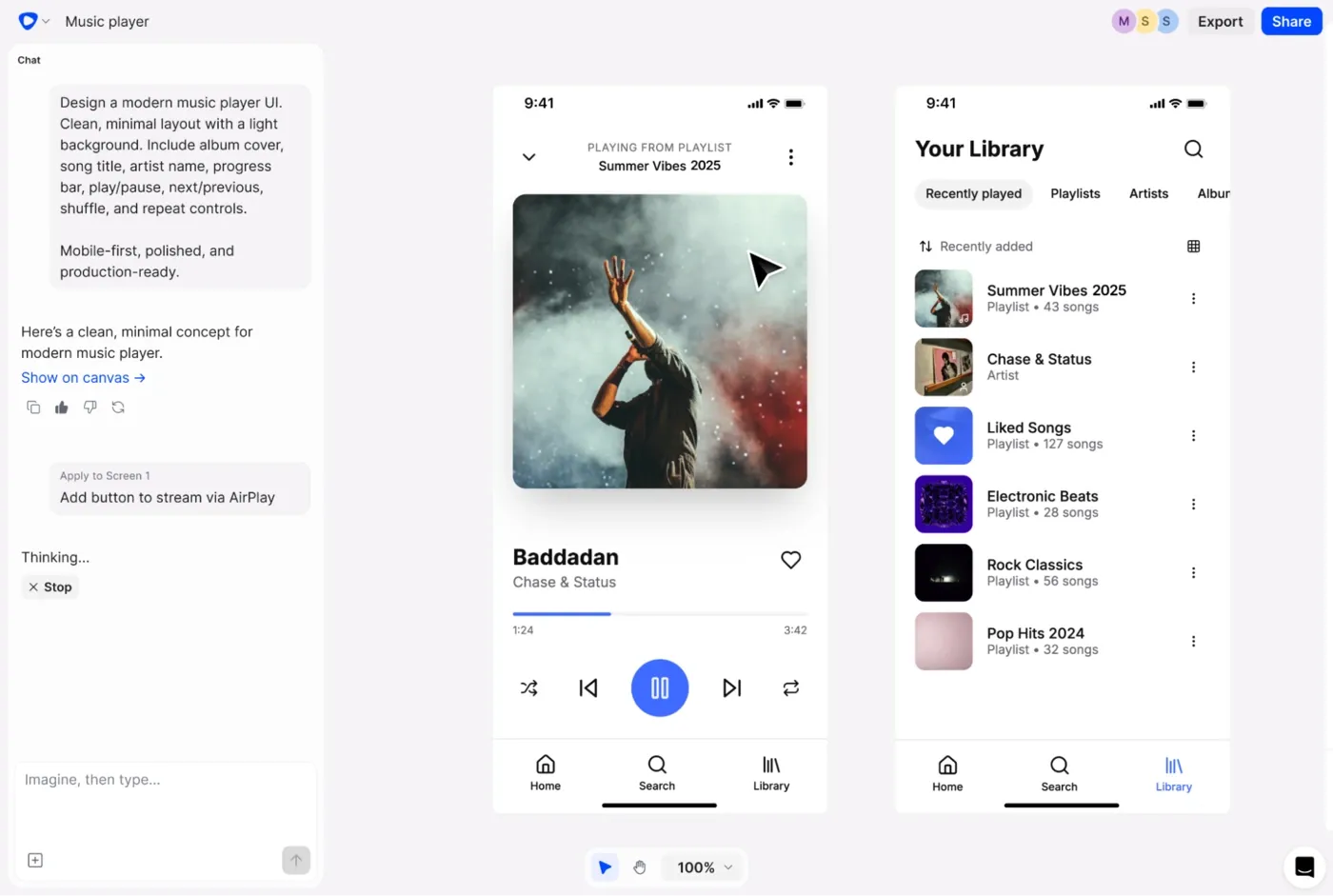
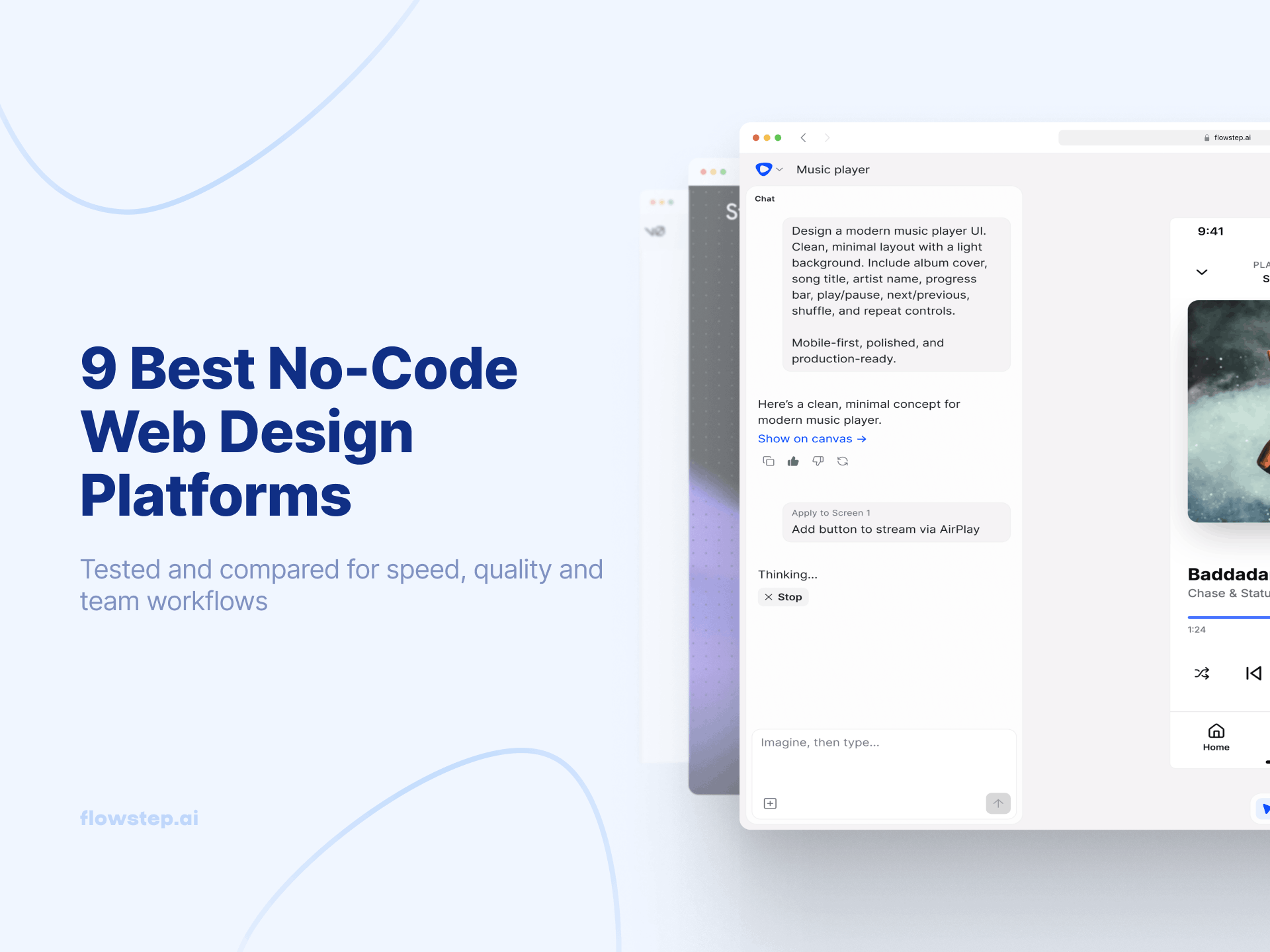
Flowstep is your trusty AI design assistant, and the fastest way to turn ideas into real, editable UI—no design background required, no complex features to learn before you can produce anything useful. Just describe what you want in plain language, attach references if you have any, and Flowstep generates full, on-brand screens on an infinite canvas: dashboards, onboarding flows, settings pages, mobile apps, the whole experience. It's not producing rough, quick wireframes to redraw later. It's generating an actual, polished visual design that you can edit directly.
One of the things that makes it different from other tools in this category is the Figma integration. Most tools with "Figma compatibility" mean a plugin, an export step or integration setup. Flowstep makes it easier: select any design on your canvas, hit ⌘C, open Figma, hit ⌘V. Layers intact, components editable, no plugin, no Chrome extension, no rebuilding. For design teams that live in Figma but want to stop starting from scratch every time, this alone is worth the switch. Flowstep also exports clean React, TypeScript and Tailwind CSS 1:1, clean code that developers can work with directly.
Product managers use Flowstep to communicate requirements visually before they write a spec. Founders use it to test concepts with real users before committing to a build. Designers use it to blow through the ideation phase, brainstorming multiple versions and approaches in the blink of an eye. Real-time collaboration with multiple users means the whole team can see each other's cursors, edit on the same canvas, and share feedback inline. You get an endless editable canvas that can hold any number of screens. Designs can be edited with AI or manually (without using up credits).
There's a free plan to start (no credit card needed), with paid plans starting from $12/month based on usage, not per seat. We charge based on AI messages, not obscure credits, so you can easily gauge how much you need. If you're at a loss thinking about how to use AI in the design process, Flowstep is the best place to start. Try it with our free forever option.
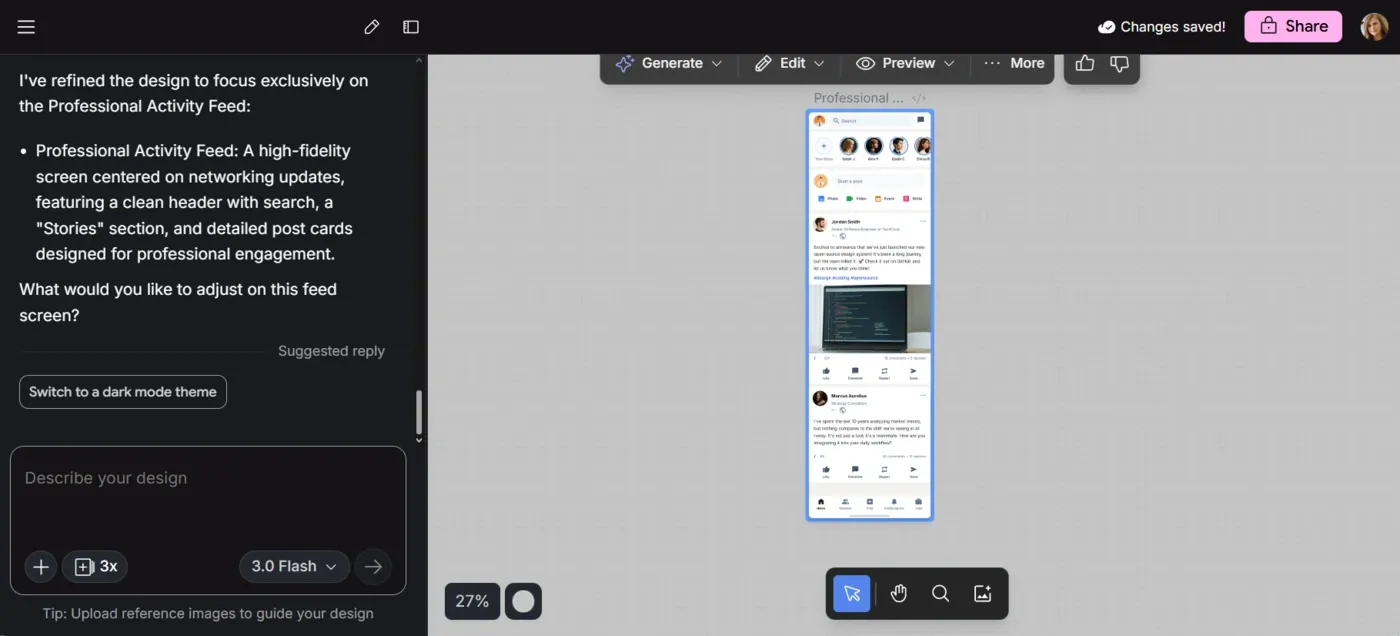
Google Stitch is Google Labs' AI-powered UI generation tool built on Gemini. Give it a text prompt, upload a reference image or a rough sketch, and it produces UI designs with the corresponding HTML or CSS code. It also exports designs into Figma, but only with certain agents. The more advanced designs made with Gemini 3 Pro don’t easily export to Figma. And even if your export works, the copied designs don’t always stay the same in Figma.
Where Stitch does well is early concept exploration. You can generate several screen variations, compare them side by side, and keep refining without rebuilding from scratch. It's free to access through Google Labs, which lowers the barrier for teams just testing the category. The limitations are real, though—it's still experimental, the collaboration environment is thin compared to dedicated platforms, and brand consistency across screens is inconsistent. You get 400 daily credits and separate 15 redesign credits. Think of it as a fast ideation tool, not a production design environment.
This Google Stitch review goes deeper, and if you're comparing your options, this Google Stitch alternative guide is a useful read.
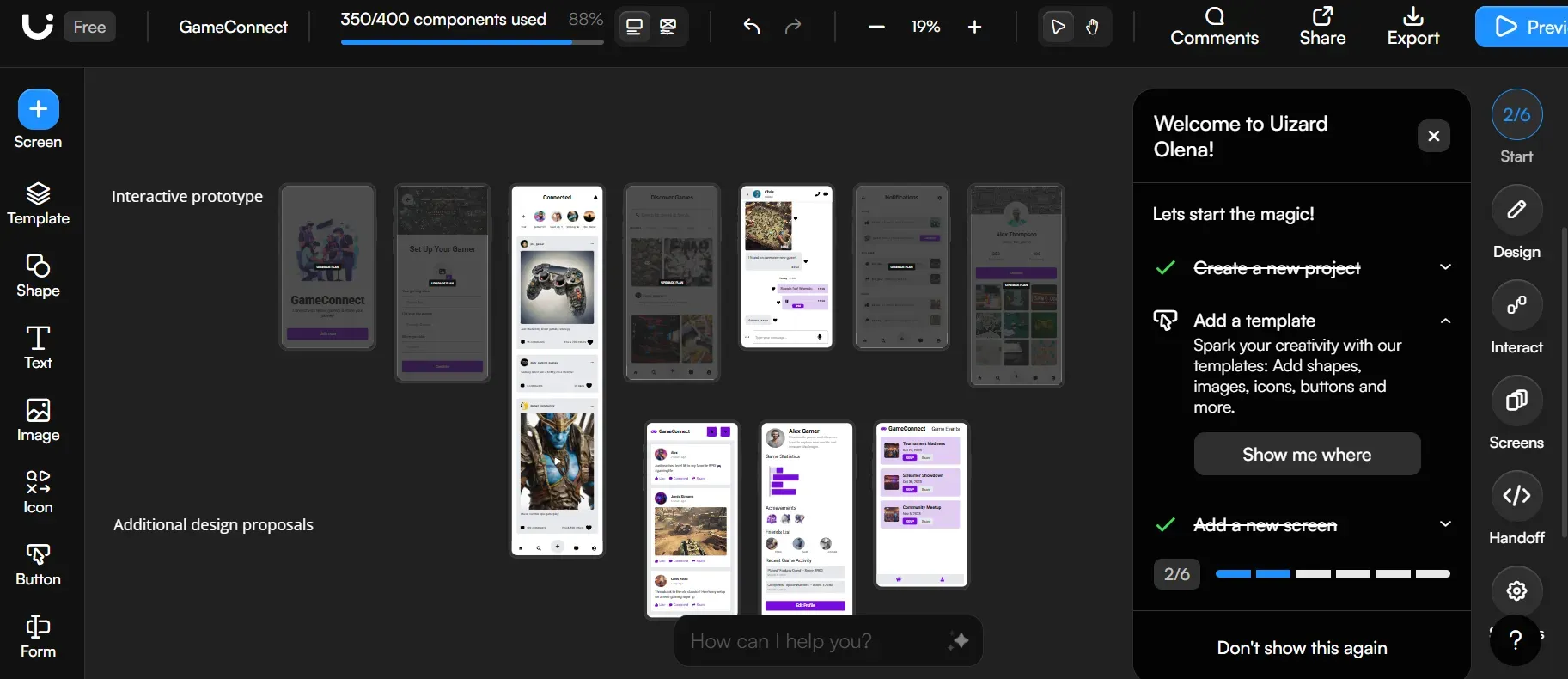
Uizard turns concepts into wireframes and prototypes. It includes a sketch recognition and screenshot scanner feature: take a photo of something scrawled on a whiteboard during a creative workshop, and see it converted into an editable digital mockup. It also does text-to-UI generation and screenshot-to-design conversion, which can save time during early exploration when your design inspiration is scattered across competitor apps and reference images.
Some users note, though, that it struggles with fixed-position elements, audio and video support and export quality. For new designers or product teams doing rapid concept validation before detailed design begins, it's a useful tool. For teams that need high-fidelity prototypes from the first generation, it may require more post-processing than you'd want.
This detailed Uizard review (pricing, features + more) is worth checking out if you're evaluating it, and Uizard alternatives covers similar options if you want to explore further.
Before deciding on visual design, you need to agree on structure: what screens the page flow needs, how they connect, what the user journeys look like, and what the information architecture should be. Wireframing tools are for that. You may feel these don't look as polished as the options above—they're not supposed to. The premise is that rough sketches give you the unspoken permission to play without fixating on looks.
This part of the design process still has its place, even in an AI-first, visual-forward world. Getting alignment on complex wireframes and user flows before you invest in visual design saves you from the expensive problem of building something beautiful in the wrong direction. If you want to dig into this more, this guide to wireframing tools and this explainer on what a wireframe actually is are both practical resources.
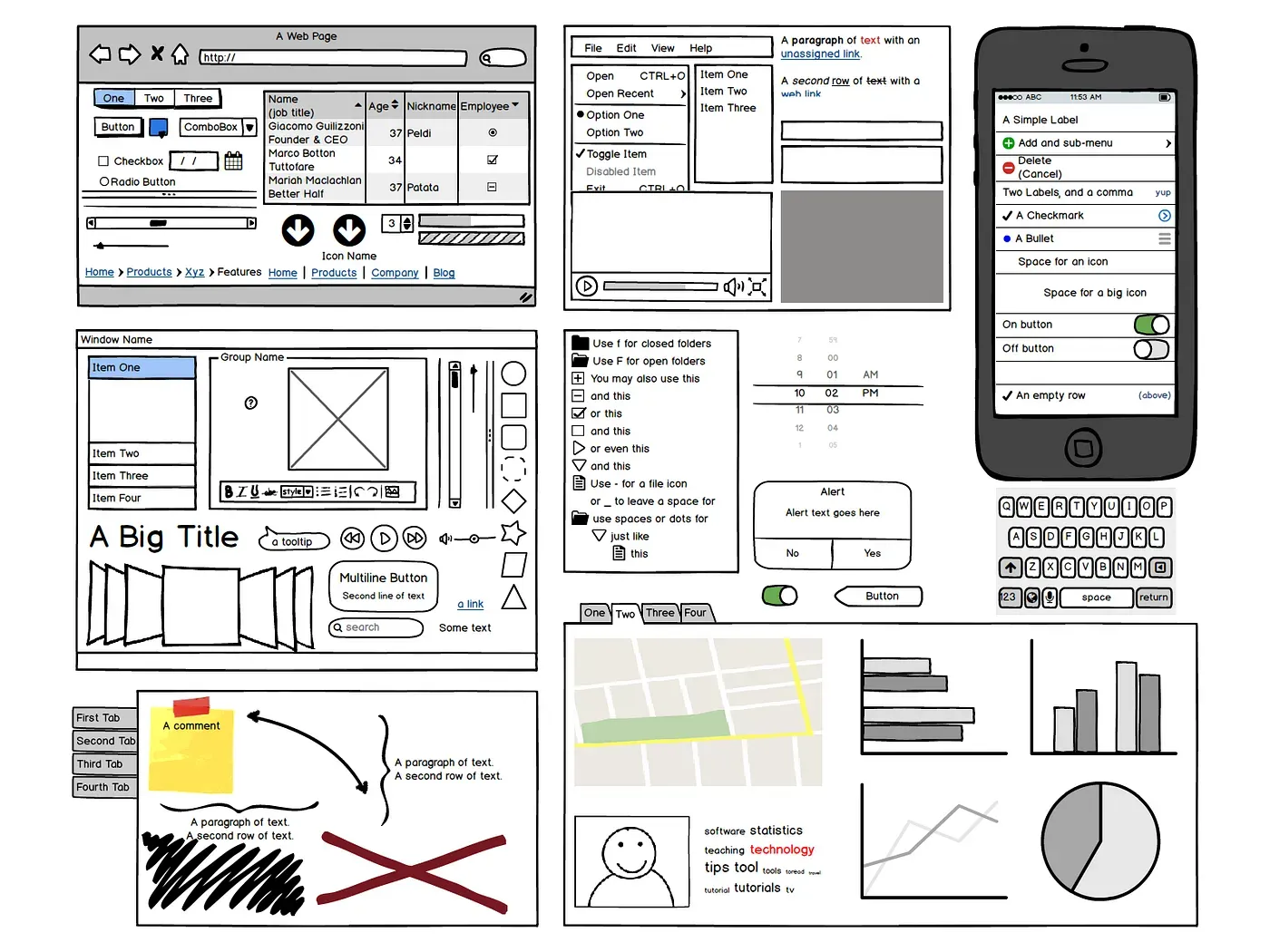
The hand-drawn aesthetic is the point of Balsamiq: it's for early thinking, which tends to produce better feedback than a polished mockup would. People critique a sketch. People polish a beautiful design. You want the former when you're still figuring out layout and usability.
It's quick to learn, browser-based, and good for teams that need to sketch user flows without spending hours on setup. For new designers getting into UX design or for PMs who need to communicate product structure without design expertise, it's a reliable and user-friendly starting point.
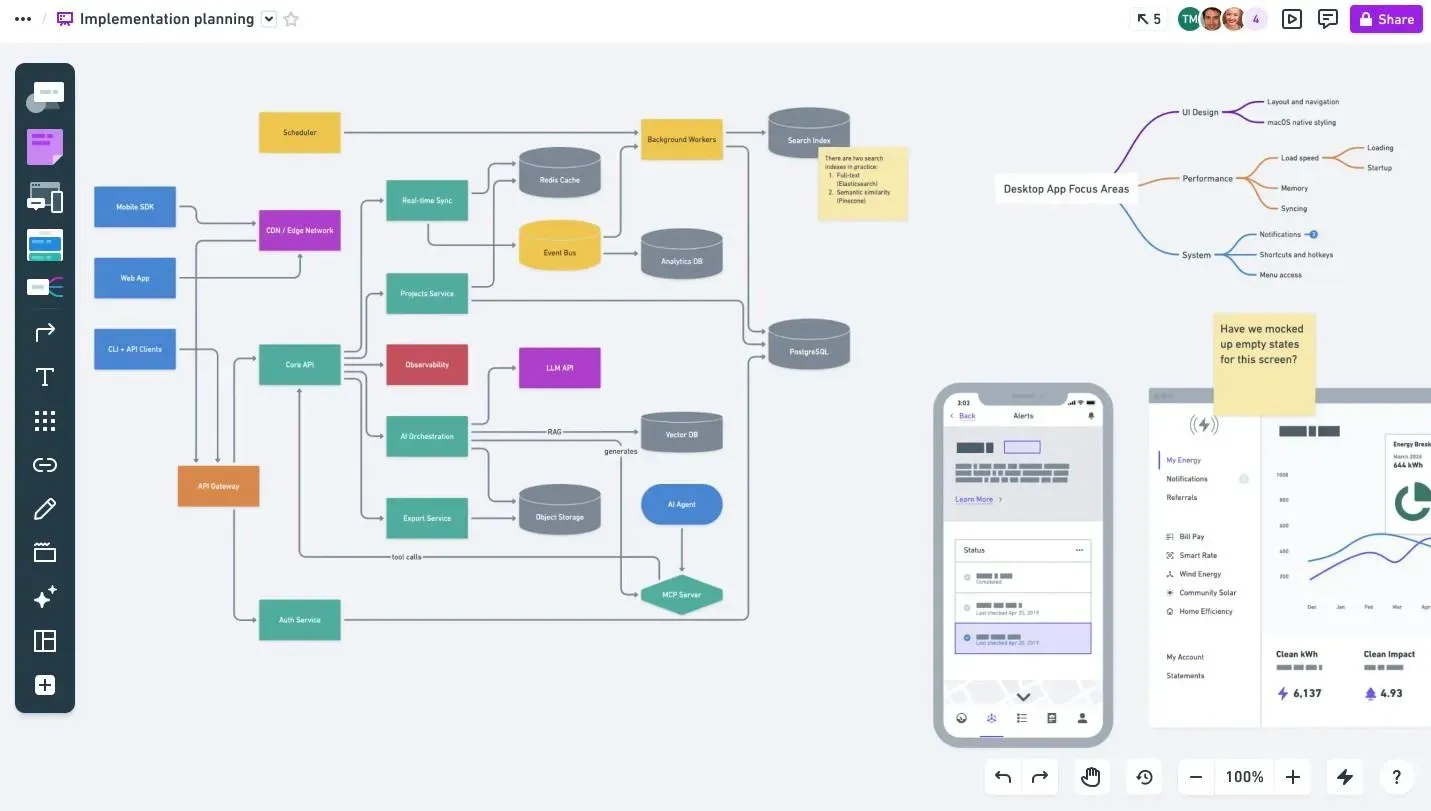
Whimsical quickly builds wireframes, mind maps, diagrams and flowcharts. You can sketch a user flow, connect each step to a rough screen, and share the whole thing as a single living document. It's particularly useful for teams that think in flows before they think in screens.
The tool is fast and collaborative, with a low enough learning curve that a PM or engineer can contribute meaningfully without any UX design background. It's not going to produce high fidelity output, but it's not meant to. See our guides for creating effective AI wireframes and understanding how to write wireframe prompts, which will prove useful when using Whimsical.
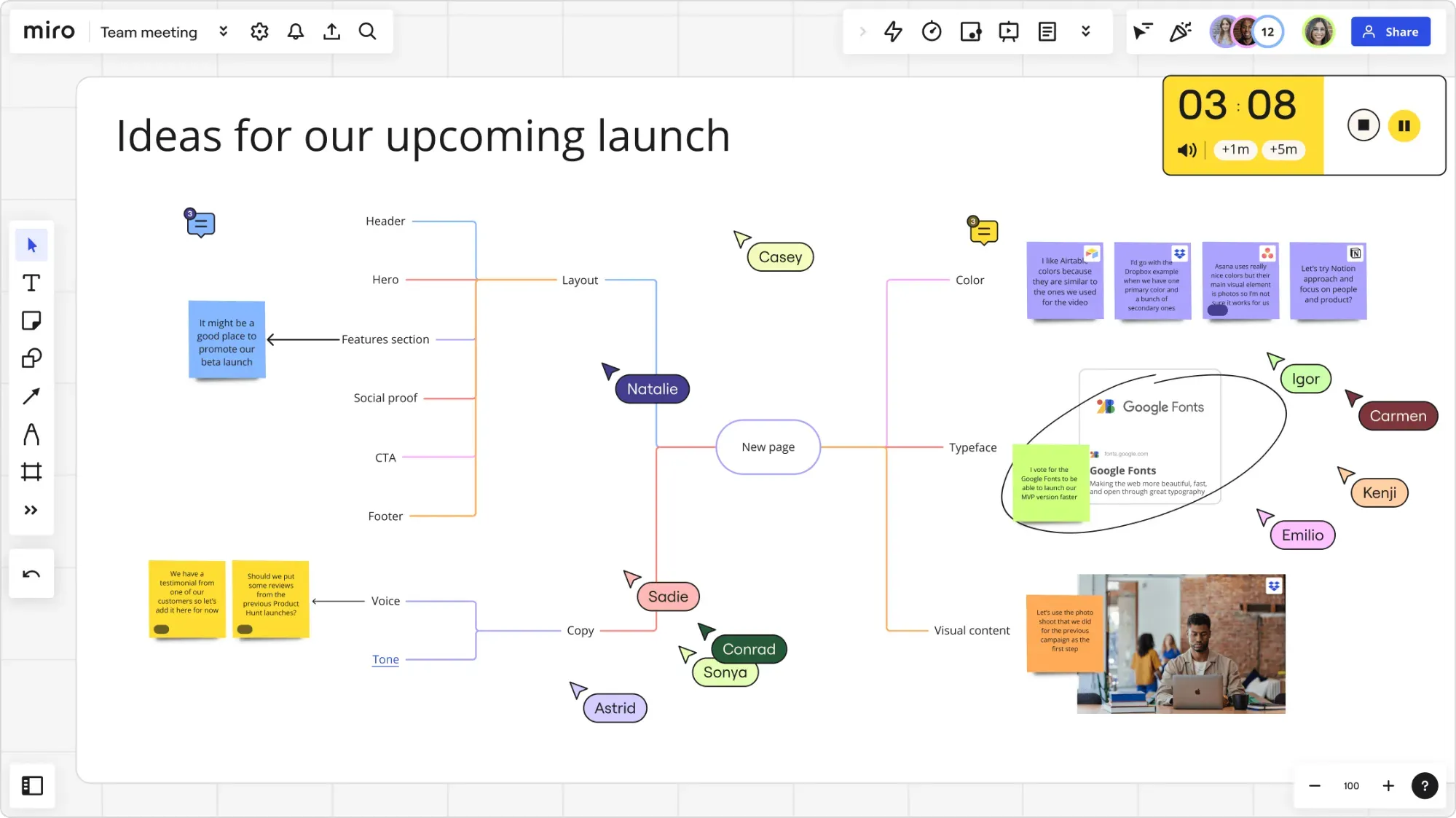
Miro is a collaboration platform for product teams who think visually. It includes tools for creative workshops, user journey mapping, competitive analysis and rough wireframing on an infinite canvas. Multiple people can work on the same version, comment with sticky notes and whiteboard-style brainstorming. Miro's unique value proposition is context. A rough screen layout can sit right next to the user research that shaped it, the qualitative data from the last round of usability testing, and the stakeholder feedback that changed the direction.
This layer adds polished layouts, shared design systems, interactive prototypes, component libraries and auto-layout—probably where UX designers will spend most of their time and where the output gets molded into something precise enough for developers to implement from.
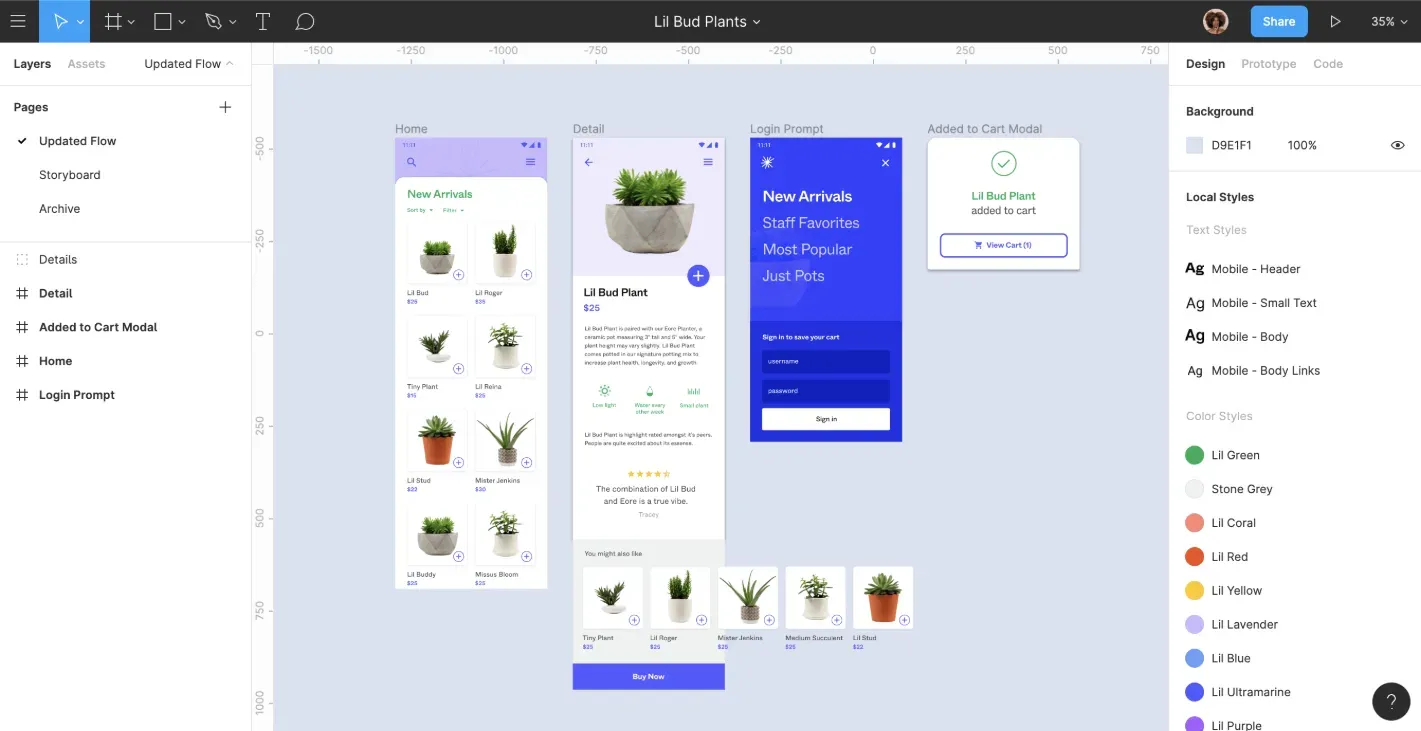
Figma helps with UI design with features like real-time collaboration, shared design systems, auto-layout, Dev Mode for direct code inspection, and a component architecture that scales from a startup's first screens to a large company's full UI kit. Figma Make lets you generate UI and prototypes from text prompts.
However, the main problem with this tool is its steep learning curve for non-designers, context switch between Figma Make and Figma, plus high, per-seat pricing.
If you're weighing your options, check out this guide to Figma alternatives. If you don't want to leave the program for design work, but the AI features leave you wanting more, see this comparison of Figma Make alternatives. The best Figma plugins are also worth knowing if you want to extend the platform's capabilities.
See also: Full Figma Make review
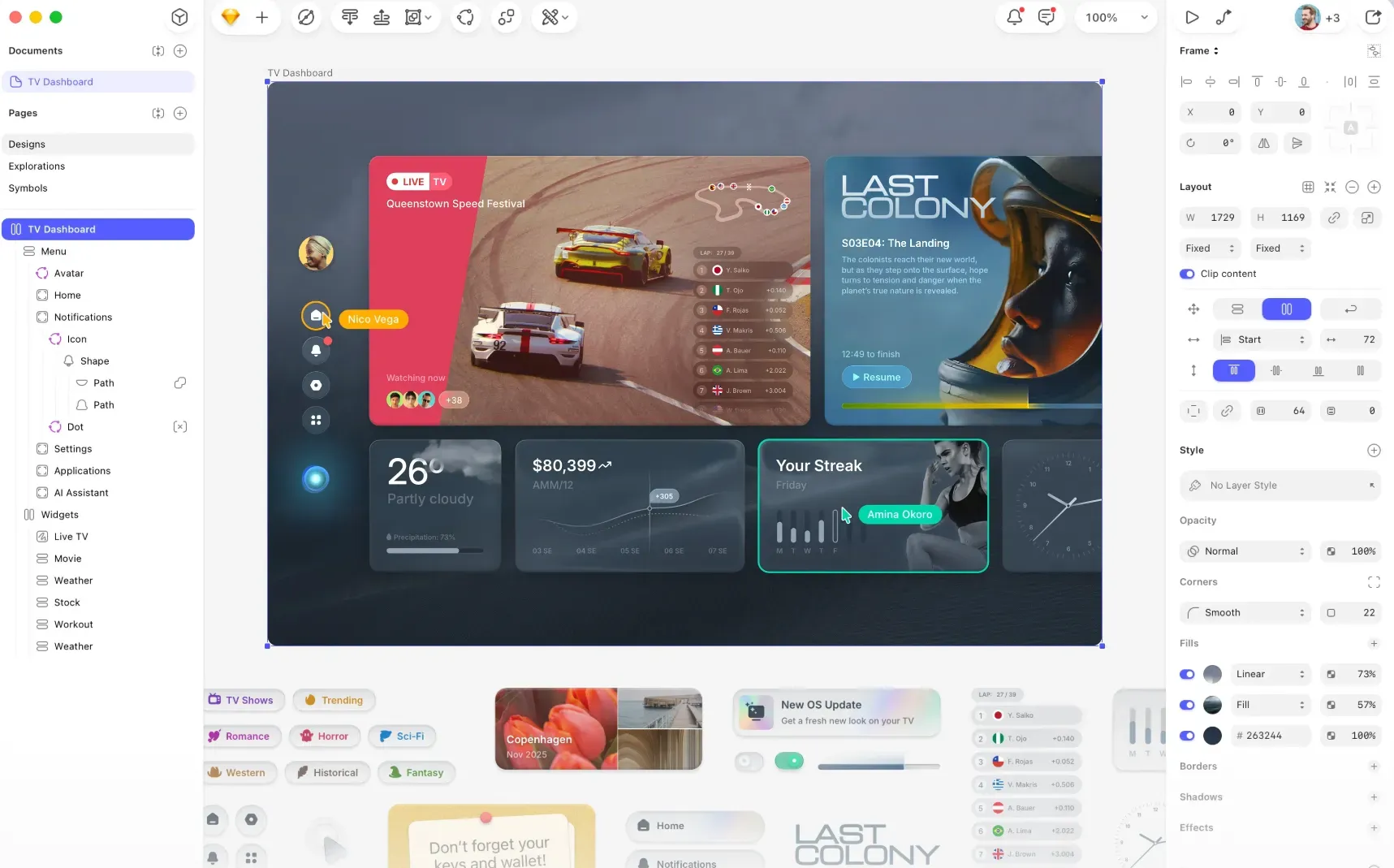
Sketch is a mature UI design tool built for designers who prefer a focused, local-first workflow over browser-based collaboration. It runs natively on macOS, making it fast, stable and predictable—especially with large files and complex design systems.
Where Sketch stands out is in control and flexibility. Its plugin ecosystem is one of the most extensive, and long-time users often rely on highly customized workflows that would be hard to replicate elsewhere. It also integrates well with version control tools and external collaboration setups, which some teams prefer over all-in-one platforms. Collaboration features are solid, as long as your team works on the Mac system.
The trade-offs are clear, though: it’s Mac-only, and many features—like design system management or developer handoff—depend more on plugins or external tools than built-in functionality. It's not the easiest to start with, either—you have to know what you're doing to get good results.
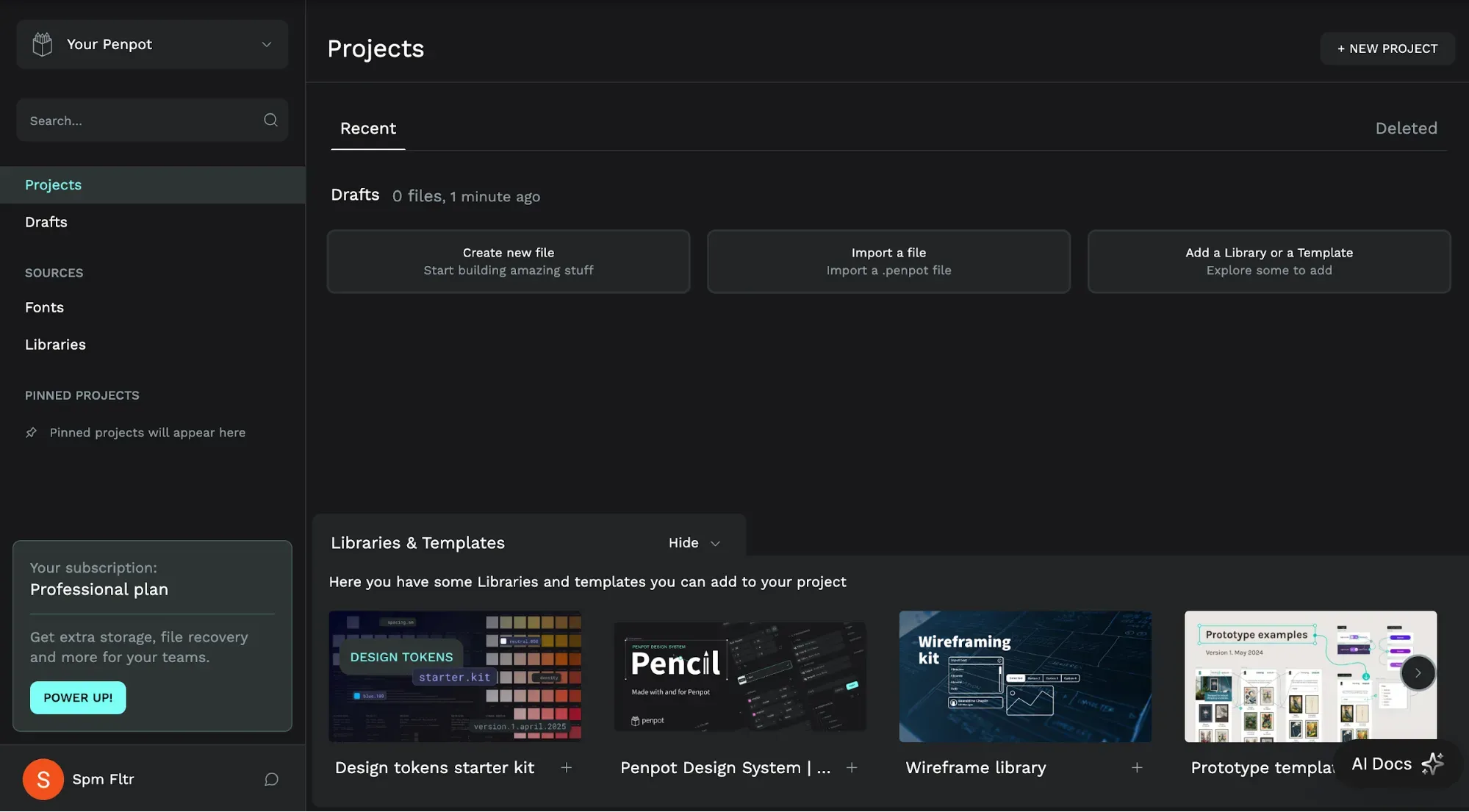
Penpot is the open-source alternative to the two options above—browser-based, free to self-host, and built on web standards rather than proprietary formats. The SVG-based architecture means the output maps naturally to how browsers render content, which matters a lot for dev handoff accuracy. For organizations with strong data privacy requirements or teams that want to export designs without vendor dependency, it can be an interesting option. The plugin ecosystem and community resources are still catching up to Figma's, but the gap is slowly closing.
It has a template library you can start off with, plus extensive tutorials and a useful help center to get you off the ground.
The moment when design files leave a designer's hands and land in a developer's workflow is where things usually go wrong. Spacing is all over the place, colors don't look the same, interactive designs stop working properly... These tools help to close that gap.
Note that some tools, Flowstep included, skip the handoff problem altogether by generating clean, production-ready code directly alongside the design. For teams where the design-to-dev friction is a recurring issue, that end-to-end approach is worth considering before you invest in a separate handoff layer.
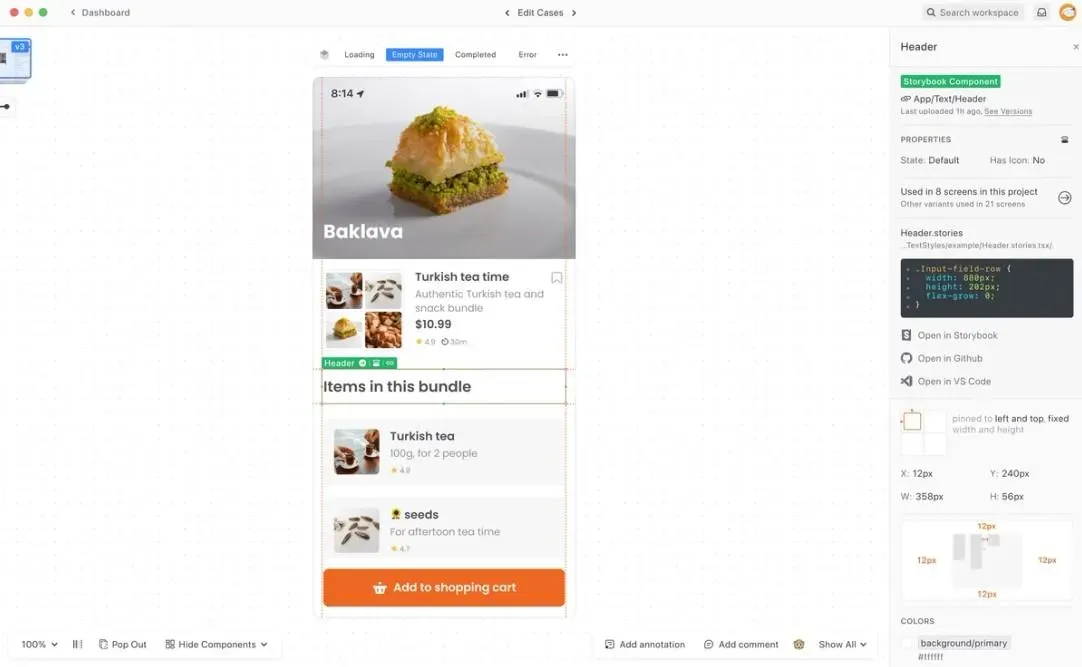
Zeplin turns designs into structured, developer-friendly specifications. It automatically surfaces spacing, typography, colors, assets and layout details, along with code snippets in CSS, Swift, Android XML and more. Designers can organize screens, add notes, and define components, while developers get a centralized place to inspect everything without needing to touch the original design tool.
It includes tools for tracking design changes with version history, organizing projects and documenting designs with journey mapping and notes. You can also get instant feedback from AI that scans your projects for inconsistencies and accessibility.
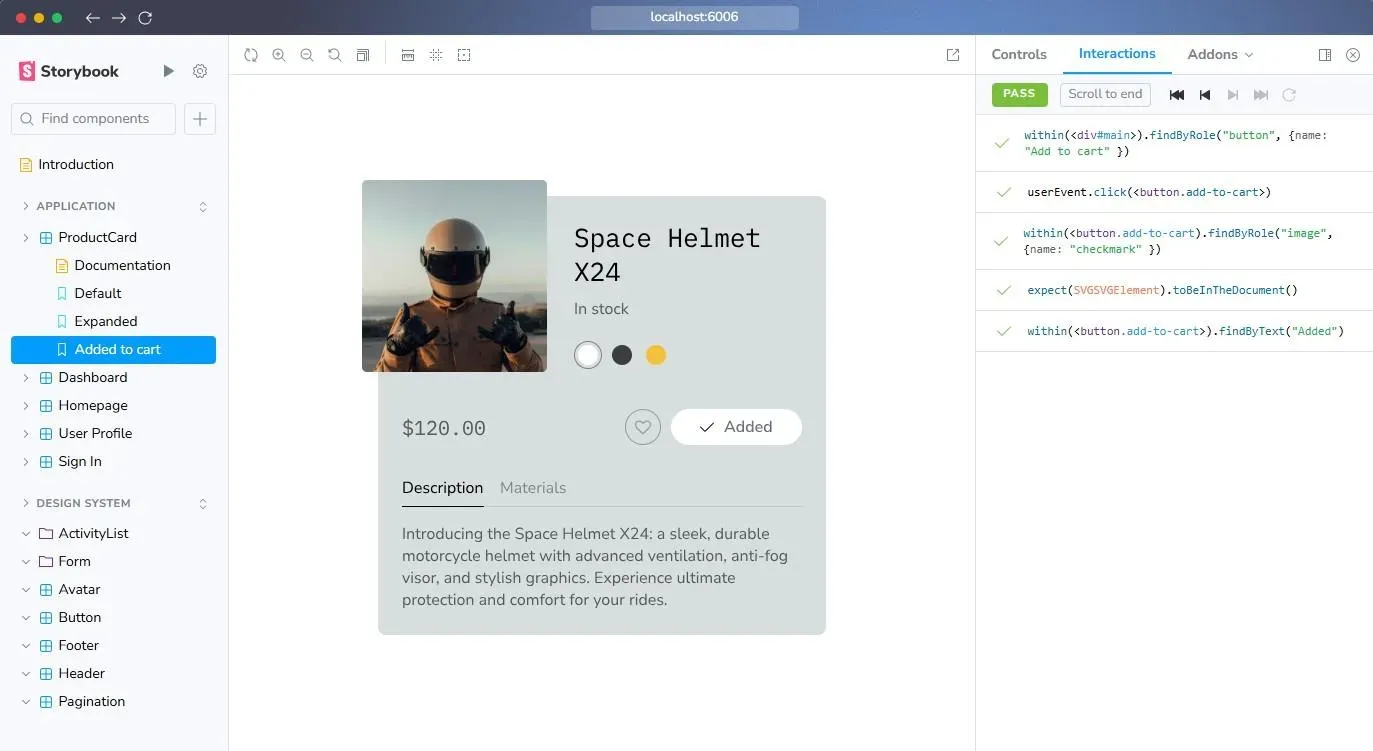
Storybook is a frontend development tool for building, testing and documenting UI components. Teams build and showcase UI components, and engineers browse the component library, view image by image what each state and variant looks like, and copy the actual code they need.
It acts as a shared source of truth between design and engineering: designers can reference how components actually behave, and engineers can reuse tested, production-ready code. Add-ons enable accessibility checks, visual regression testing and interaction testing.
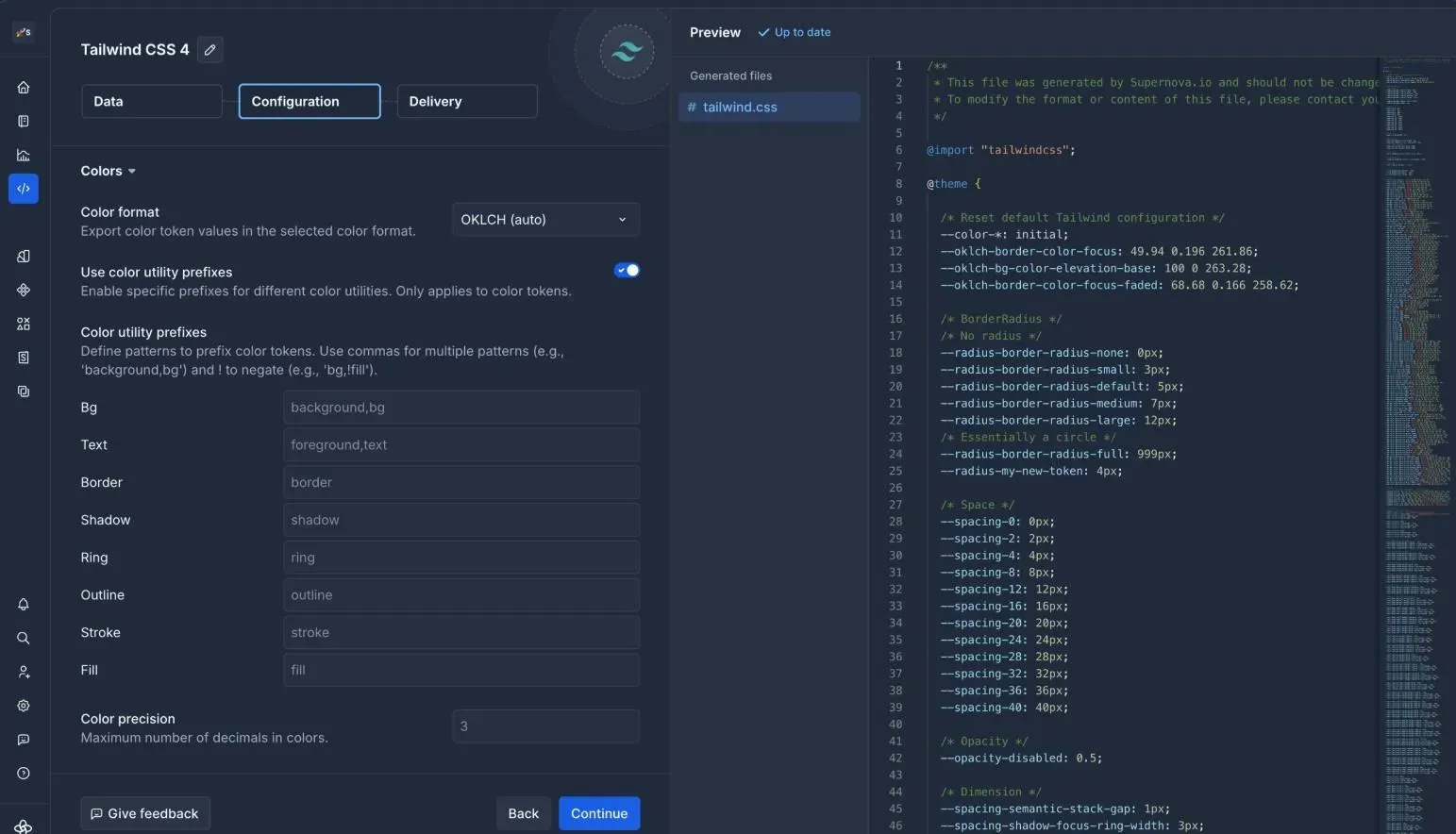
Supernova is a design system platform that turns design decisions into production-ready assets. It syncs design tokens (colors, typography, spacing, etc.) from tools like Figma and transforms them into code for frameworks like React, iOS (Swift), Android (Kotlin), and more. It also generates living documentation sites that stay in sync with both design and code.
It maintains consistency across platforms as products grow. Instead of treating design and development as separate layers, Supernova connects them through shared tokens and automated outputs. That makes it particularly useful for bigger companies managing design systems across web and native apps. The trade-off is complexity—setup, configuration and ongoing maintenance require more structure than lighter-weight handoff tools.
Designs that haven't been tested are guesses—and guesses that developers work toward become expensive guesses. Getting user feedback before committing engineering resources is crucial in product development.
This guide on prototyping tools has useful context on how testing connects to the design process.
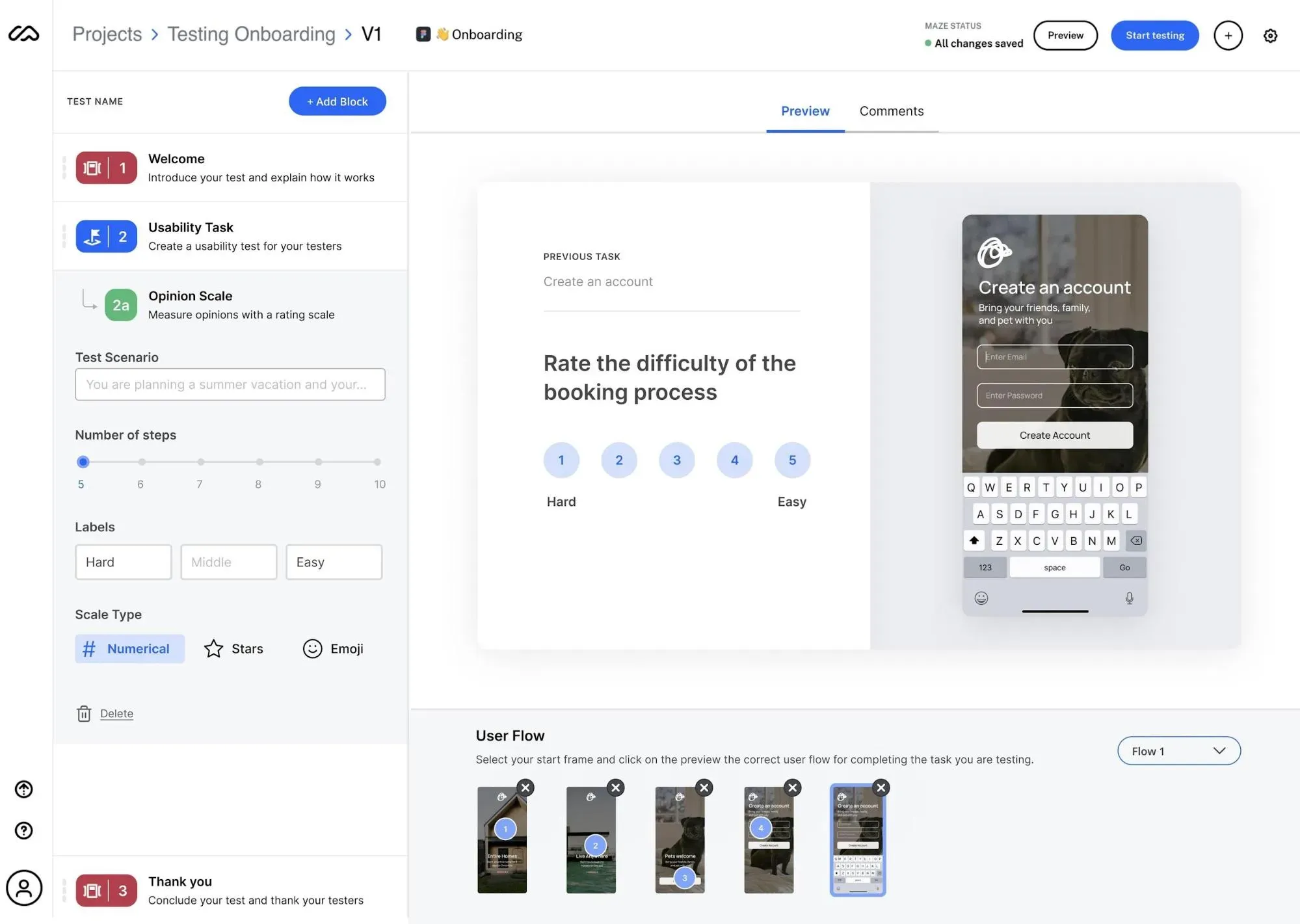
Maze lets you run unmoderated usability testing on Figma prototypes and share tests with real users in under an hour. Participants complete tasks while Maze captures click paths, heatmaps, task completion rates and time-on-task data. It converts qualitative data from usability issues into structured, shareable reports without you needing to conduct a moderated session.
Maze makes structured user testing accessible to product teams without a dedicated UX researcher. It's especially good for quick concept validation—you can have an interactive prototype test running the same day you finish the screens. Maze also supports website/live URL testing, including published prototypes from tools like Figma, Lovable, Bolt and Replit.
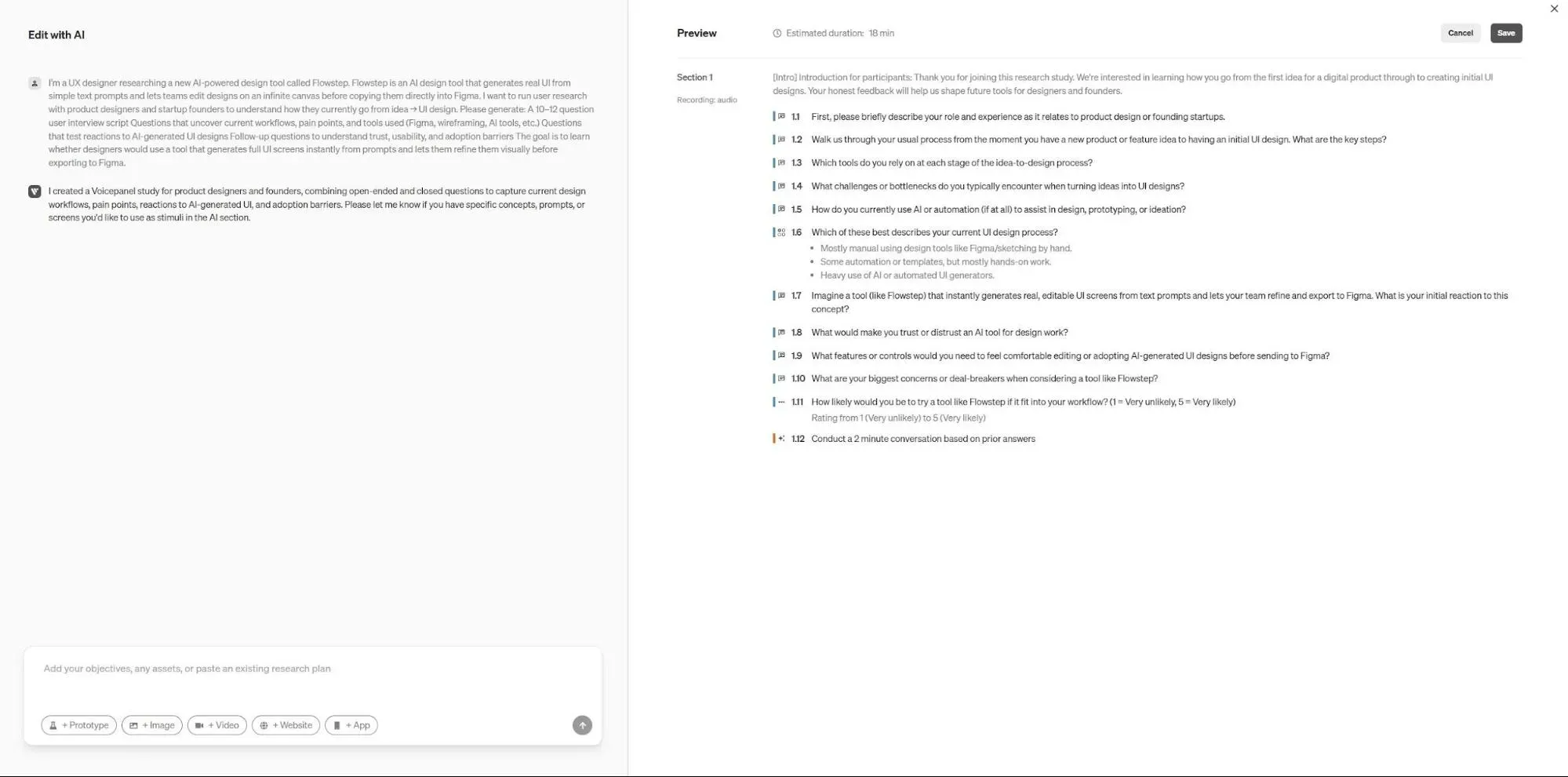
Voicepanel is an AI-powered UX research tool for conducting voice interviews. Define your research questions, set up the interview flow, and have Voicepanel recruit participants, run the interviews, and deliver synthesized UX research insights. It compresses what used to be weeks of qualitative user research into a matter of hours. We recommend it for product teams that know what they need to learn but don't have time to run 20 individual interviews.
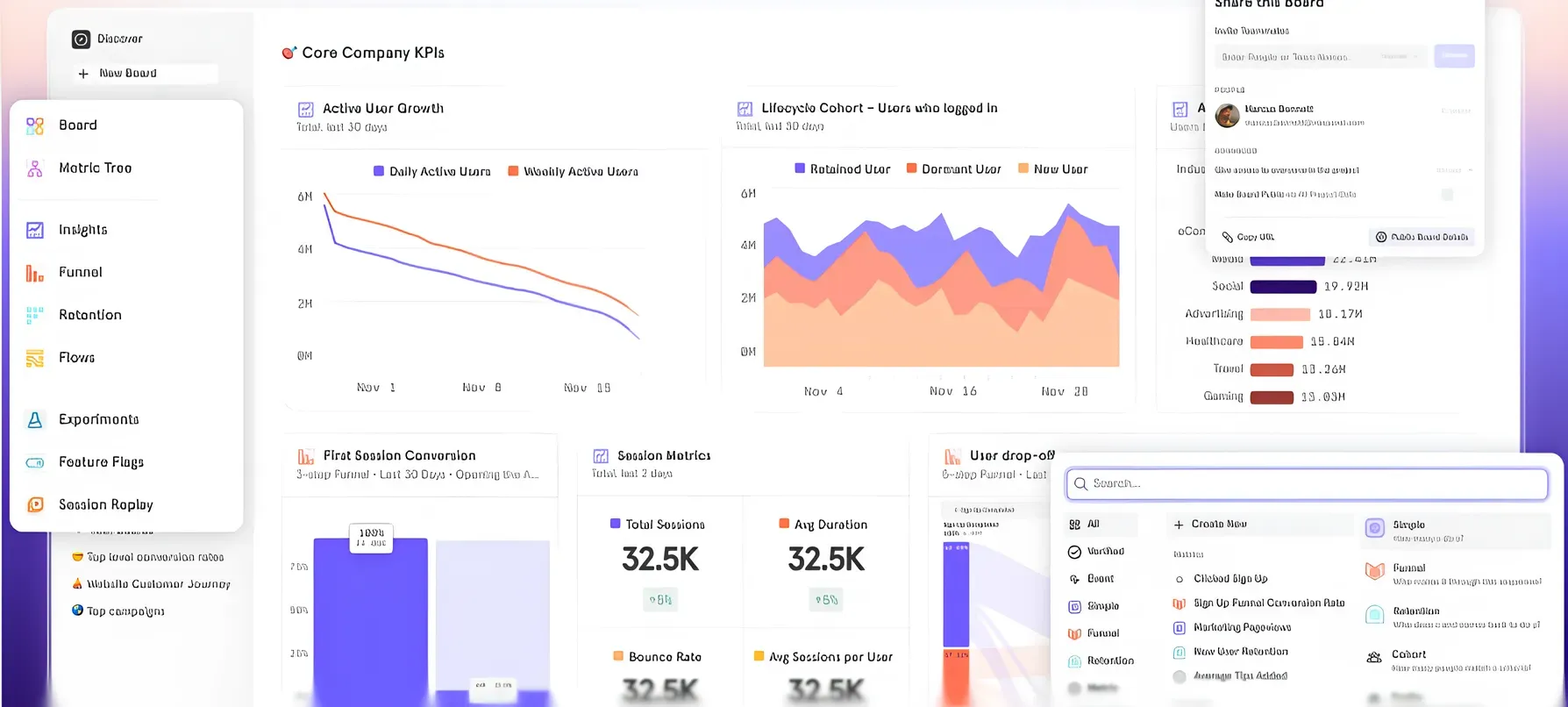
Mixpanel tracks what users actually do inside your product once it's live. Unlike tools focused on pre-launch usability testing, Mixpanel shows you aggregate patterns: where people drop off, which features get used and how conversion rates shift across cohorts. It's more useful as a post-launch feedback loop than a pre-launch validation tool, but for teams iterating on existing products, the quantitative data it surfaces is valuable in the next design cycle. Think of it as the other tools' complement—once your designs are live and real users are in the product, this is how you find out where the experience has flaws.
Some tools make design and deployment the same step without developer involvement or a staging environment needed—you design it, you publish it. This approach is particularly relevant for landing pages, marketing sites and early-stage MVPs where speed matters more than code architecture.
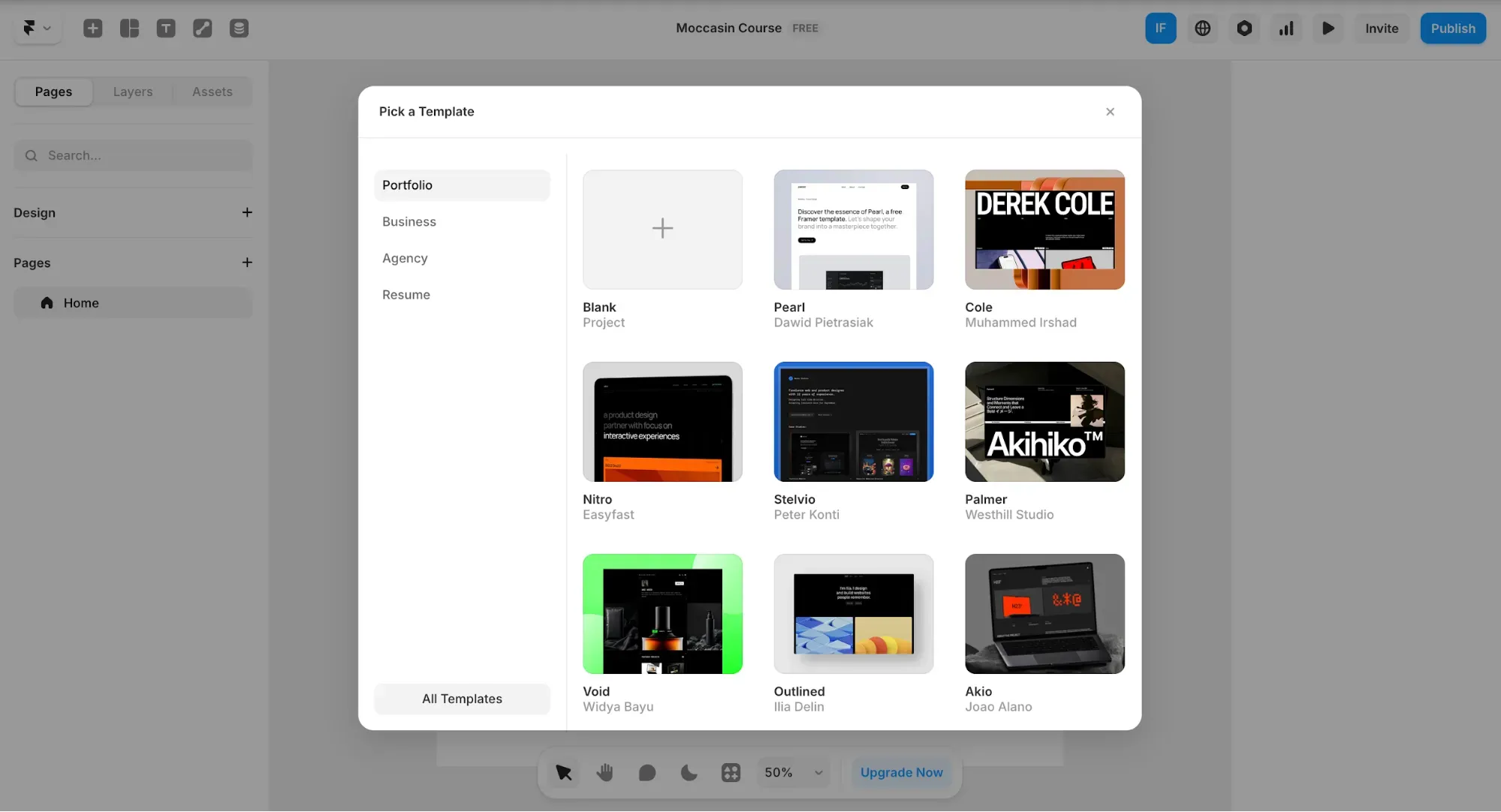
Framer is a no-code web builder with strong visual design capabilities, including advanced animations, custom interactions, responsive auto-layout and direct publishing to a live URL. It's become the tool of choice for designers who want complete creative control over marketing sites and landing pages without handing a Figma file to a developer and hoping for the best. The design experience is closer to a real design tool than most no-code platforms, which is why UX/UI designers tend to reach for it over alternatives when they want to own the full output end-to-end.
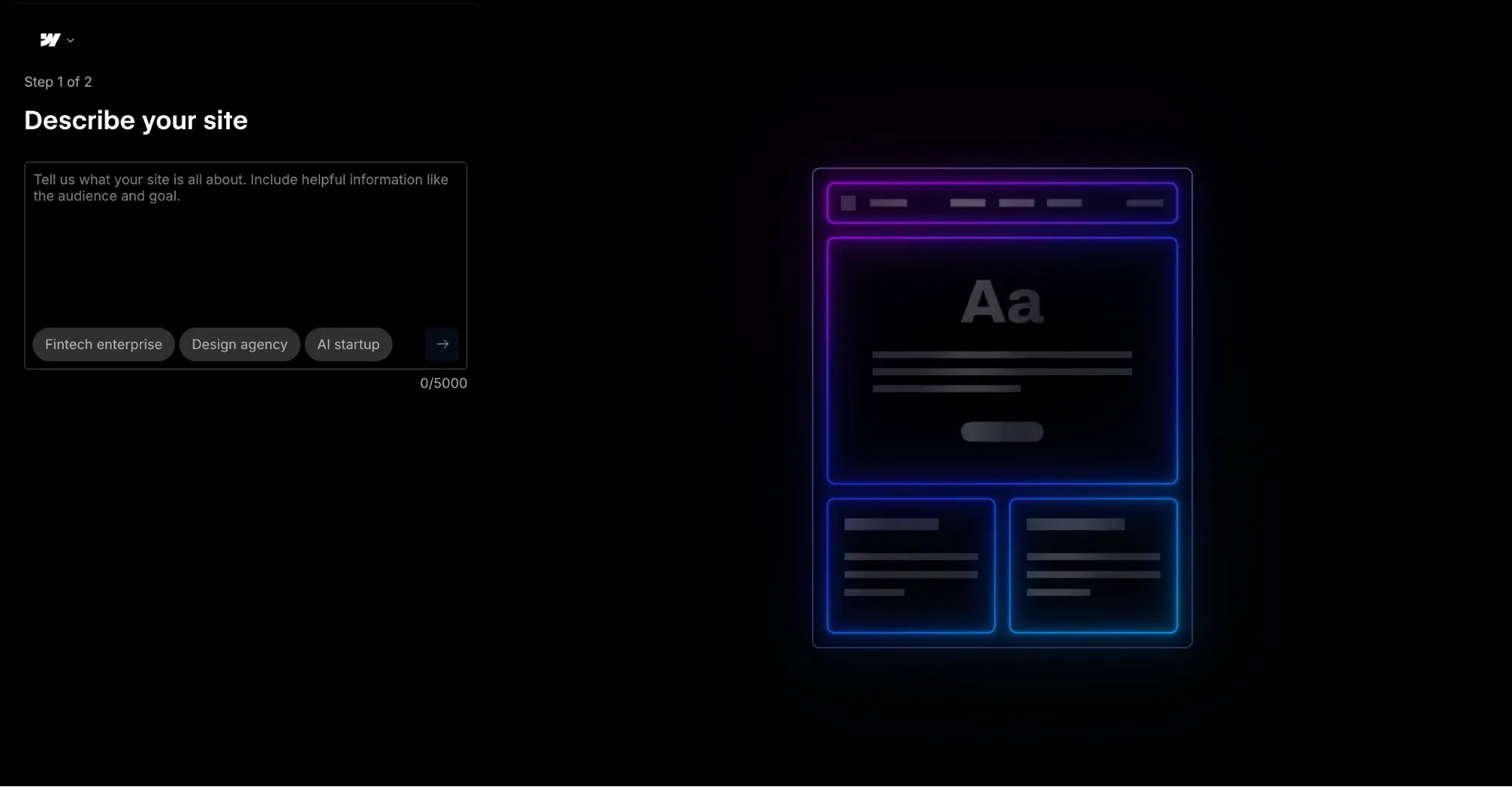
Webflow is essentially a visual website builder that lets you create, manage and optimize web experiences with AI. It's more structured than Framer, more powerful for content-heavy sites, and better suited for organizations that need to manage a CMS alongside a marketing site. The learning curve is real, though—it's not a tool you pick up in an afternoon. But what you get in return is more control over responsive behavior, SEO configuration and scalable content management with integrated analytics.
Vibe coding tools let you describe an application or design in plain language and have AI write the whole code of an actual working product. These tools are for technical founders and engineers who want to ship fast but will be able to review and guide AI-generated code without being slowed down by the traditional design process.
The key distinction: vibe coding tools produce functional prototypes and working applications. AI UI generators like Flowstep produce high-fidelity designs and production-ready code components. Both have a place in the workflow—the choice depends on your specific needs.
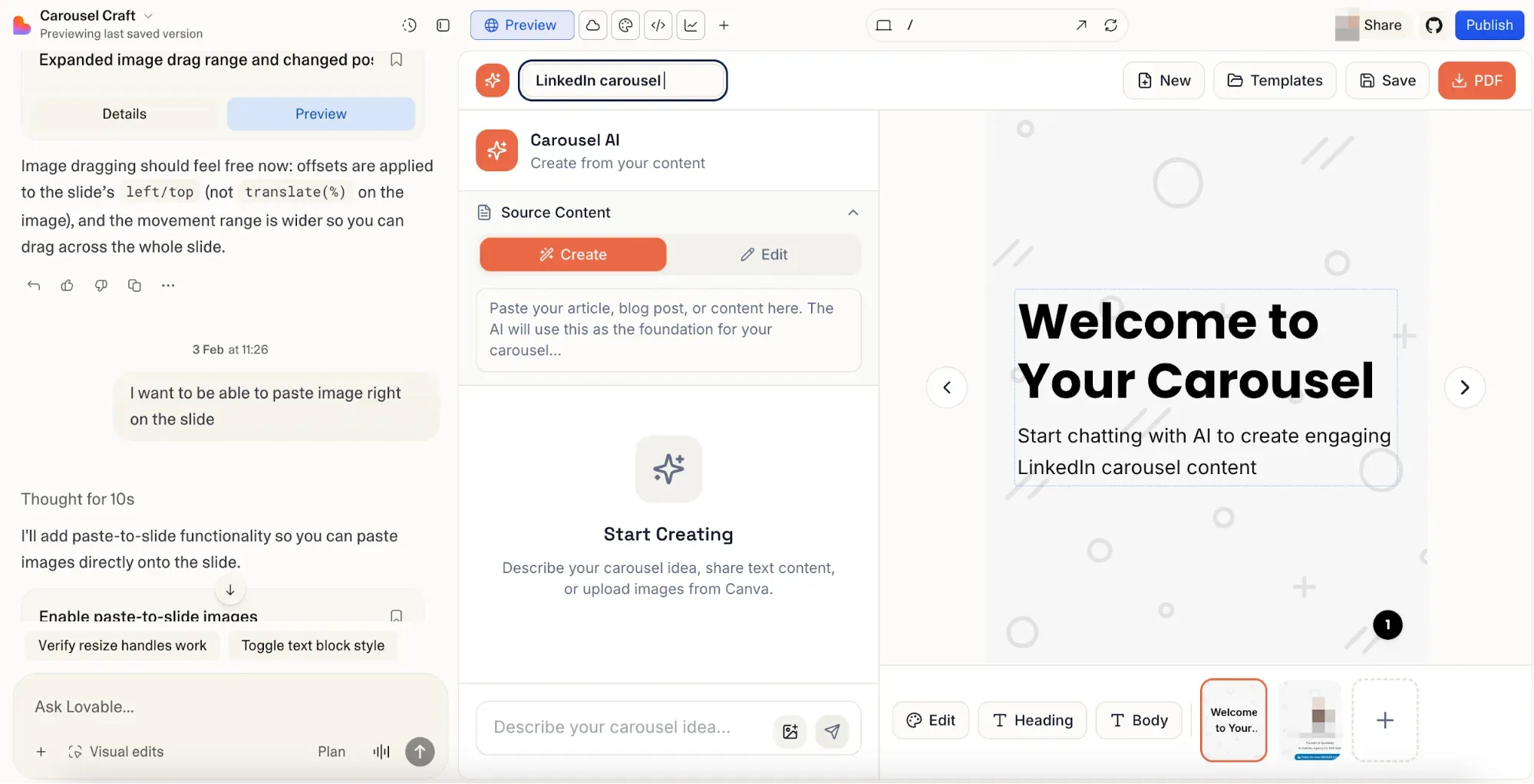
Lovable is an AI-powered full-stack app builder, where you describe what you want and get a working React application, including frontend, backend and data logic. It's popular among technical founders who want to go from idea to a functional product without a traditional design-then-build cycle. Output quality varies with complexity, and production-scale apps typically need engineering refinement. For MVPs, internal tools, and concepts you want to put in front of real users quickly, it removes a lot of the foundational work. Lovable alternatives are worth looking at if you want to compare what else is available.
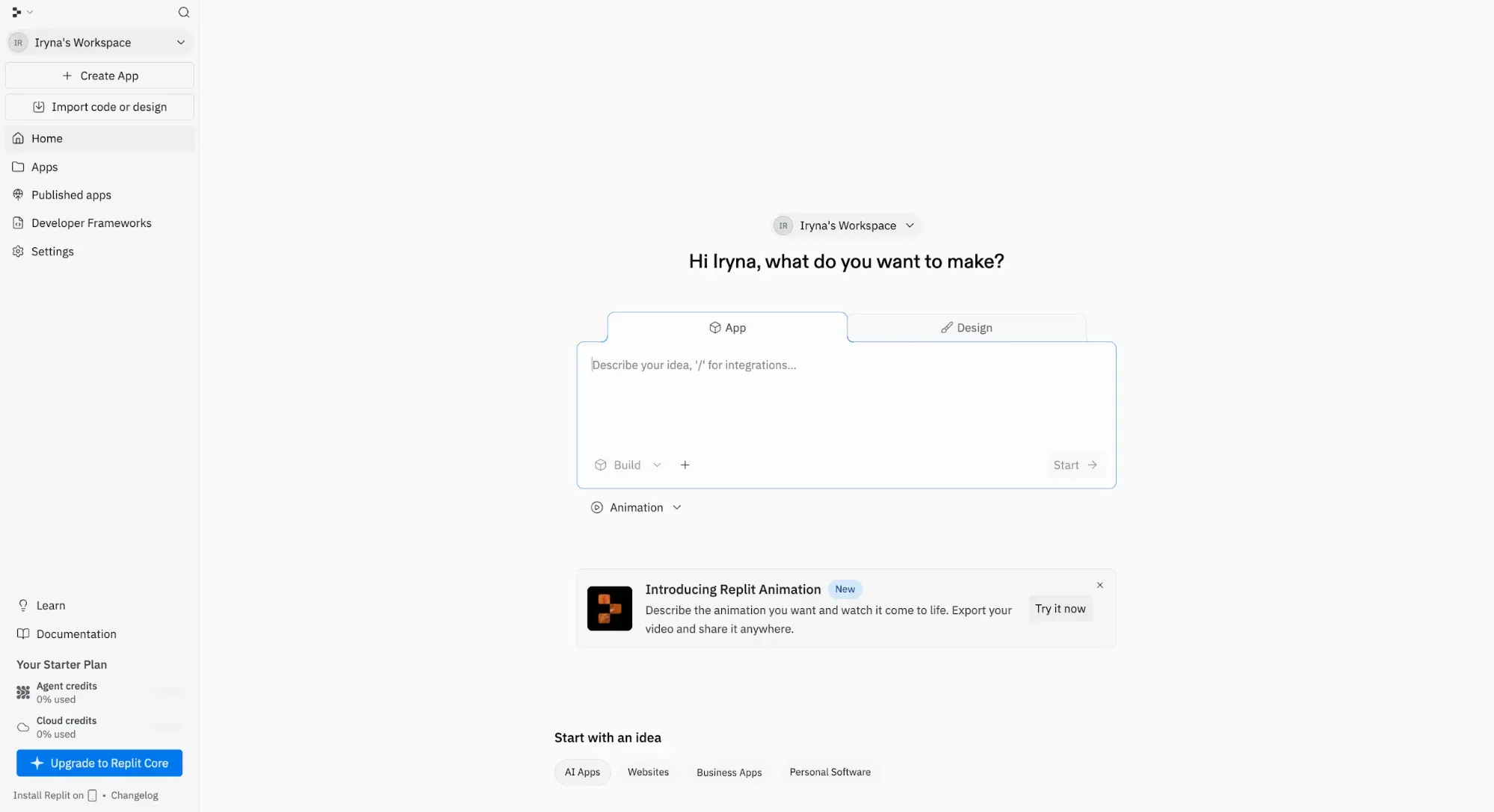
Replit started as a browser-based coding environment and has evolved into an AI-assisted development platform where the AI agent can build full applications from natural language. Everything runs in the browser—no local environment setup or coding knowledge required to get started. It's popular with engineers who want to prototype quickly and with founders who have enough technical context to guide the output and verify the result. Replit alternatives cover the other options if Replit's approach or pricing doesn't fit your situation.
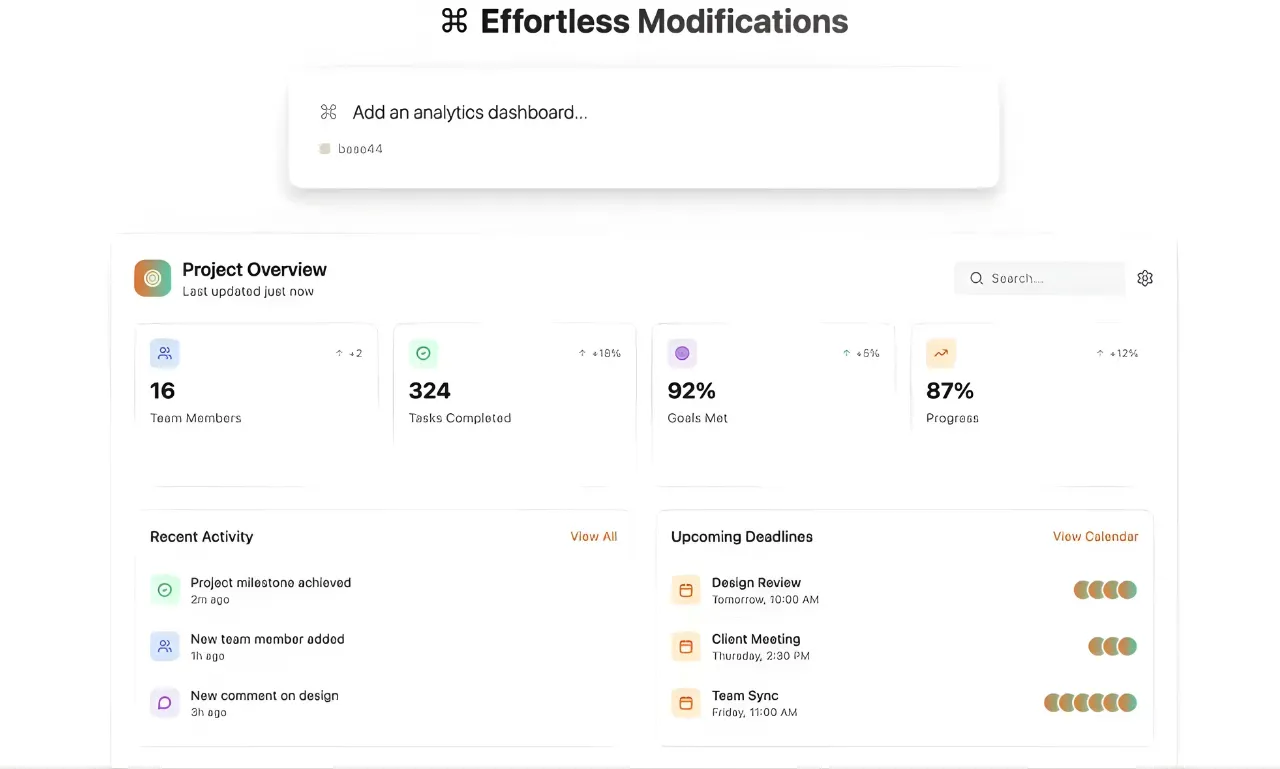
Base44 is an AI app builder with a strong focus on SaaS-style digital products and internal tools. Give it a description of the application you need, and you should get a working version, e.g., a reporting dashboard, an onboarding tracker or a client work portal. It's faster than Replit for common patterns, but less flexible when requirements get unusual. Our Base44 alternatives review gives a useful side-by-side comparison if you're having a tough time deciding between tools in this category.
The best tools for UI design don't force you to choose between moving fast, creating beautiful designs or handing off projects to designers or developers smoothly. Flowstep covers multiple needs throughout the process—describe your product idea in natural language, attach your PRDs, get real, editable UI in seconds, copy it straight to Figma with ⌘C and ⌘V, and export production-ready code when you're ready to ship. No learning curve or blank canvas problem. Whether you're a PM trying to communicate a vision, a founder validating an idea before spending on development, or a designer trying to brainstorm ideas fast, Flowstep gives you a head start. Start building for free.
It depends on what you need, but Flowstep is the strongest, all-around option. Describe what you want, get real UI, edit it manually or with AI and copy it into Figma, all without design expertise. For wireframing specifically, Whimsical and Balsamiq are user-friendly and accessible for anyone who needs to communicate product structure quickly.
Wireframing tools are about structure—screen layout, how user flows connect and what the architecture looks like. They're often deliberately low-fidelity to let you focus on usability, not looks. UI design tools are for idea execution, with tools for polished, visual design, component systems and high-fidelity prototypes. Tools like Figma and Flowstep operate at the design level. Tools like Balsamiq and Whimsical are for wireframing. Some product teams skip the wireframe stage and go straight to AI generation. There's no right or wrong way to work.
Traditionally, through Zeplin or Figma's Dev Mode, where developers inspect spacing, colors, typography and get auto-generated CSS. The cleaner your design system, the smoother the handoff tends to be. Some tools, like Flowstep, skip the handoff problem by generating clean, production-ready React, TypeScript and Tailwind CSS code alongside the visual design. For teams where design-to-dev friction is a recurring issue, that approach is worth exploring.
Mostly to communicate product requirements visually before engineering starts, e.g., generating a mockup to attach to a spec, sketching user flows in a wireframing tool or creating interactive prototypes to validate with real users before a sprint starts. The goal is usually not a pixel-perfect production design, but a visual setup that's clear enough to align the team and move things forward.