
8 Best Tools for Prototyping You Need in 2026
Discover the 8 best tools for prototyping in 2026—from AI-powered speed to high-fidelity interactions. Find the right fit for your team and ship faster.


Your PM just pinged you: "Can we see something by Thursday?" It's Tuesday. You've got a half-formed idea, three tabs open, and a 2 pm meeting that's definitely going to derail your afternoon. Sounds like a common nightmare?
Getting from idea to something clickable used to take days—sometimes a full sprint. In 2026, between AI prototyping tools, smarter collaboration and direct-to-Figma workflows, it doesn't have to. Some of the best tools for prototyping can get you there in a few hours. The great ones? Under ten minutes.
This isn't an ultimate guide that pretends every tool is perfect for everyone. It's an honest breakdown of eight options, what they're actually good at, and where they'll frustrate you. We've covered:
- Flowstep
- Figma
- Framer
- ProtoPie
- Miro
- Balsamiq
- Sketch
- Marvel
How to choose the right prototyping tool
A prototyping tool lets you create interactive, testable representations of a product before anyone writes a line of code. They range from rough, clickable sketches to pixel-perfect animated prototypes with complex logic.
Before you pick one, ask yourself four questions to see which one you need:
- What fidelity do you need? A rough concept for an internal standup doesn't need the same polish as a user test with paying customers. Don't over-engineer your prototyping workflow; low-fidelity can be better for early discovery because stakeholders argue less about button colors and more about the actual idea.
- Who else needs to use it? If your PM, two engineers and a designer all need to jump in, you need a team plan with intuitive collaboration tools, not complexity. There's no point picking a tool that only one person can operate.
- How does it fit your existing workflow? Are you already in Figma? Shipping React components? Make sure your tool fits how your team actually works. "We'll figure it out" is how you waste money on tools that gather dust.
- What's your speed requirement? If you need to validate an idea this week, you need something fast. Build the smallest possible product that will enable user feedback, and improve iteratively based on what you learn. The prototype isn't the destination—the feedback is.
The best prototyping tools in 2026: Brief overview
Here's the quick-reference version before we get into the details.
8 best tools for prototyping breakdown
Let's explore these options in more detail.
Flowstep
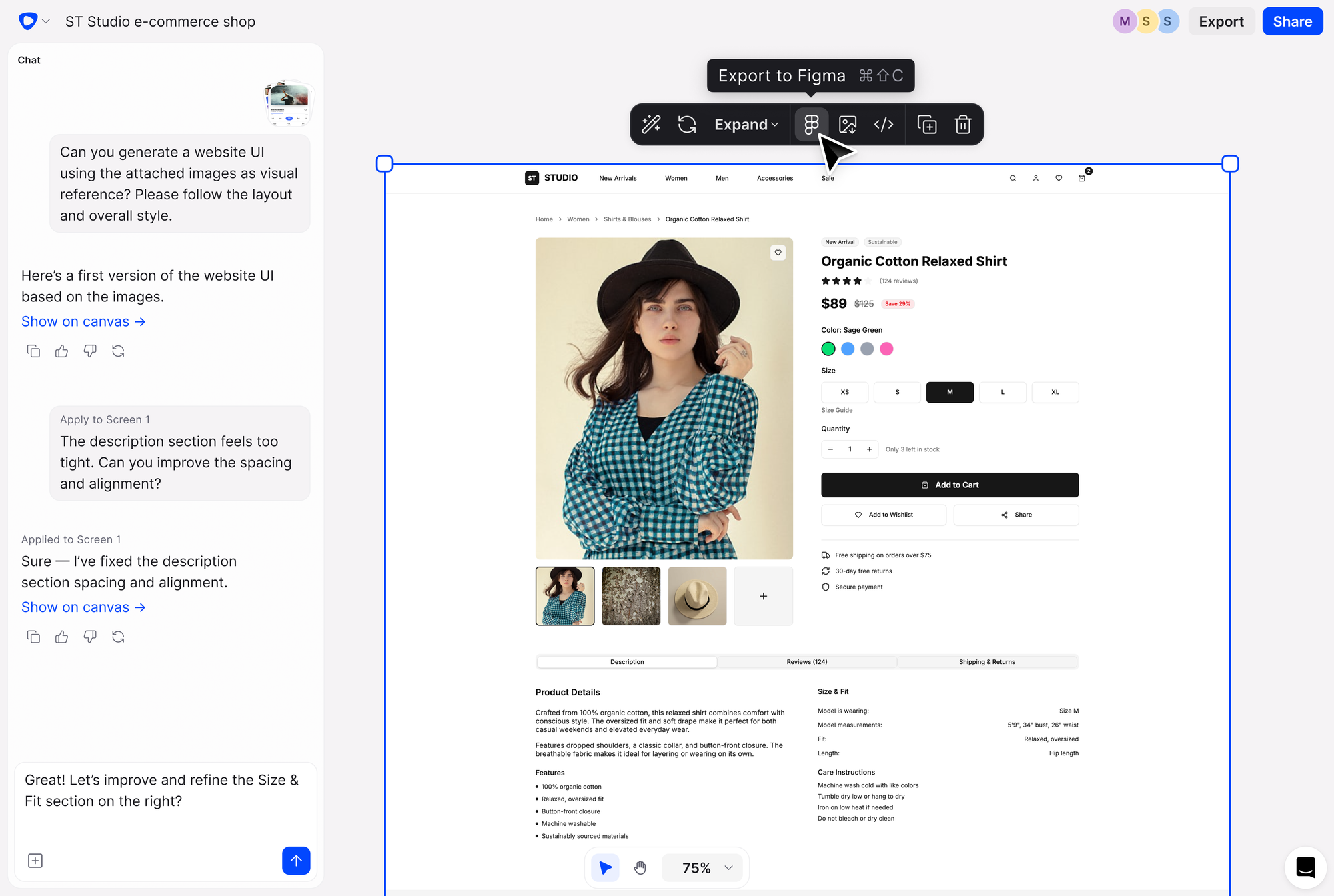
Flowstep is an AI design tool that generates real UI from simple text prompts. Describe what you need, and see it appear on an infinite canvas you can collaborate on with your whole team. Editing is possible with prompts or manually.
What makes it different from other AI tools in this space is the canvas model. Instead of one screen at a time, you're building a full user experience from one prompt. The AI understands context across screens, so you're not re-explaining yourself every time you want the next view. It's built for the product development process, meaning product managers, founders, designers and engineers can all use it without a design degree.
The Figma integration lets you copy any design, paste it into Figma with ⌘C and ⌘V, and it lands with proper auto layout and editable components intact.
The code export is also worth mentioning. Many AI tools generate UI that looks fine but produces unusable code. Flowstep exports React, TypeScript and Tailwind CSS that's production-ready, 1:1 with the design. Your engineers don't have to rewrite it from scratch.
Features
- Generate multiple screens at once: Full user experiences in one go, e.g., login, dashboard, settings, profile. You don't have to prompt separately for each screen, and it handles different screen sizes without additional steps.
- AI and manual editing: Smart suggestions like "next screen" and "error states" keep you iterating without re-prompting. You can also edit everything manually if you want.
- Design using references: Attach PRDs, paste links, or upload images. The AI reads context and generates patterns that match your existing brand without you having to spell out every detail.
- Copy to Figma instantly: Select any design, ⌘C, ⌘V into Figma. Auto layout intact. Components editable.
- Real-time collaboration: Live cursors, synced edits, inline feedback, all on the same canvas. No version control mess.
- 1:1 code export: React, TypeScript, and Tailwind CSS. Clean, structured, actually usable.
Pricing
A free version is available. Paid plans start at $15/month, scaling with usage. Annual billing takes 20% off.
Start generating designs with Flowstep
Figma
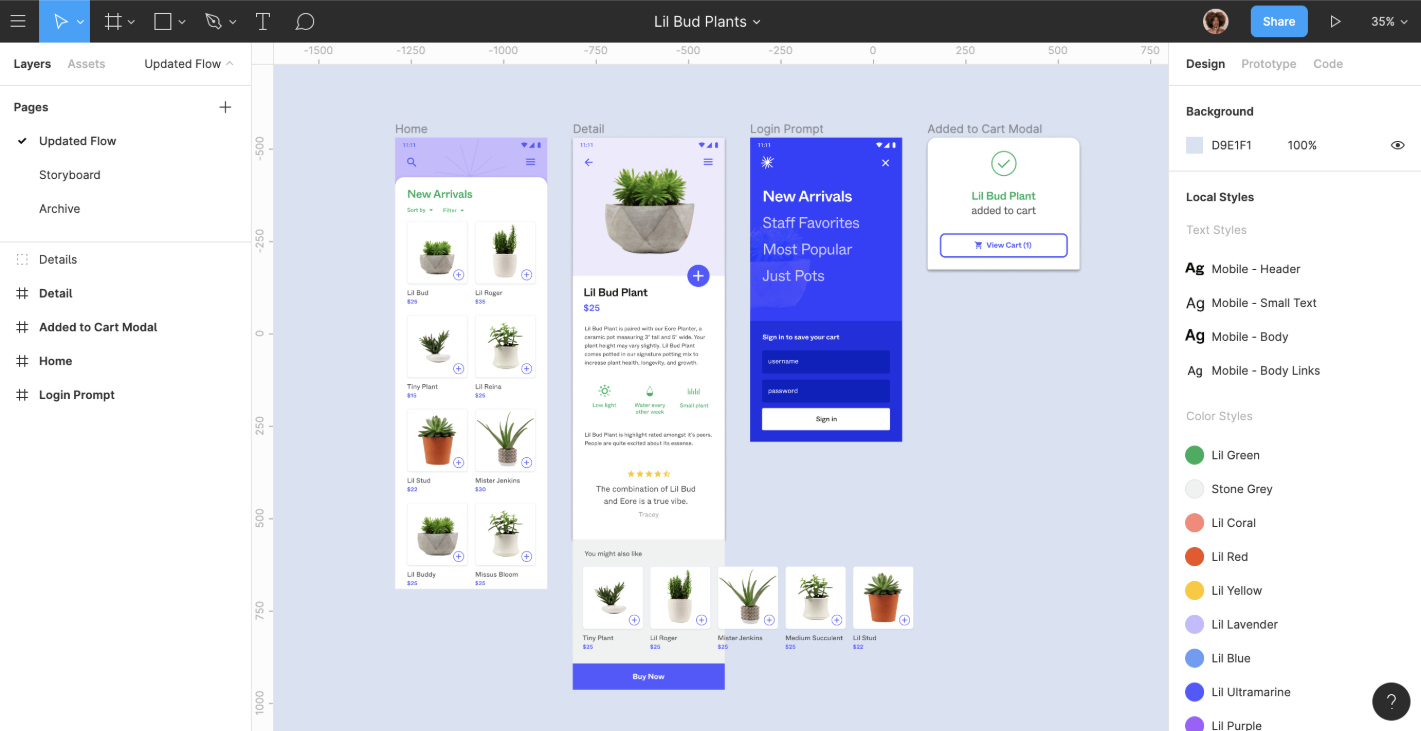
For most product teams, Figma is the default place where design, handoffs and half the company's product decisions get made via comment threads.
It includes real-time collaboration, a plugin ecosystem, Dev Mode, where engineers can inspect designs and get code, and polished design systems.
The AI features are useful but not groundbreaking; you get prototype flow generation from prompts, layer renaming and copy assistance. It's AI as a convenience feature, not AI as the core product. If you're shopping specifically for AI prototyping capabilities, Figma may leave you wanting more.
For more on the Figma product ecosystem, see our Figma Make pricing and best Figma plugins guides, or if you're considering switching, the Figma alternatives article is a good starting point.
Features
- Interactive prototyping: Connect frames, set transitions, add variables, create interactive components with conditional logic.
- Smart Animate: Smooth transitions between design states. It infers the animation automatically.
- Dev Mode: Engineers can inspect designs, access measurements, export assets, and copy code snippets.
- Design systems: Shared component libraries that stay in sync across your team.
- AI features: Layer renaming, prototype interaction generation, copy editing.
- FigJam: The collaborative whiteboard and brainstorming space bundled with paid seats.
Pricing
Framer
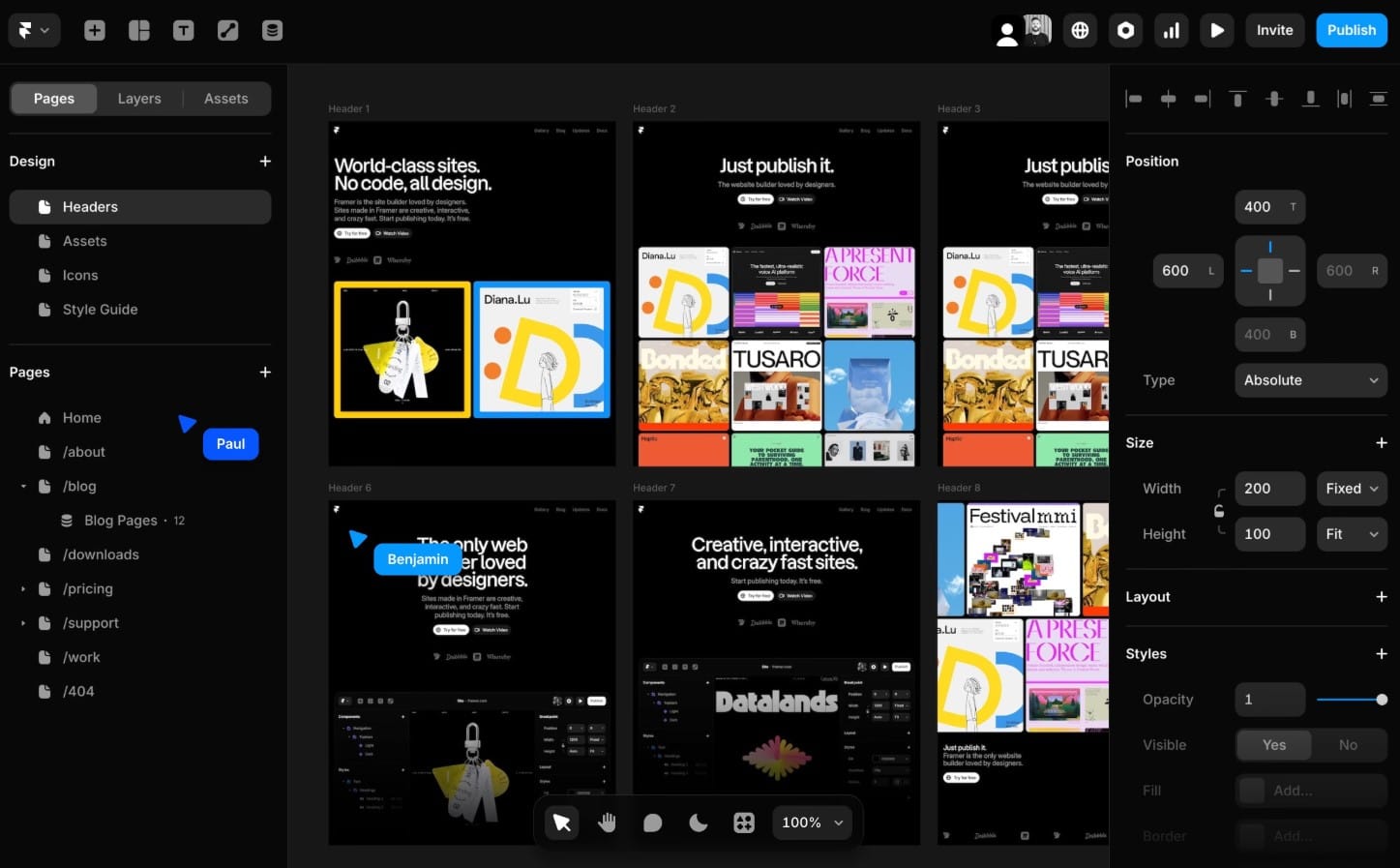
Framer started as a code-directly-in-the-tool prototyping platform—something designers who could write React would use to create interactions that regular tools couldn't handle. Over time, it shifted toward a no-code model and expanded into full website building.
Today, it lets you go from canvas to a live, published site without a developer. It includes animated prototypes with interactions and transitions that feel real. The component library is rich enough that you're not building every new project from scratch.
The downside: it's web-focused and proud of it. Mobile app prototyping hits walls fast. There's no path to the App Store. And while you don't need to write code, some React familiarity helps when things get complex—as they tend to do. There's a real learning curve, and some troubleshooting issues when a layout breaks.
See also: Best vibe coding tools
Features
- Quick prototyping: The insert menu gives instant access to adaptive layouts with components, rich media and interactive elements.
- Advanced animation: Built-in motion tools for scrolling, navigation, pages and transitions. Framer exports usable animation code.
- Direct web publishing: Publish your prototype as a real website with a custom URL.
- Figma plugin: Import Figma designs into Framer and add interaction layers on top of existing work.
- Component library: Includes UI components, landing page UI kits and app design templates.
- Real-time collaboration: Teammates can jump in, comment and review without having expertise.
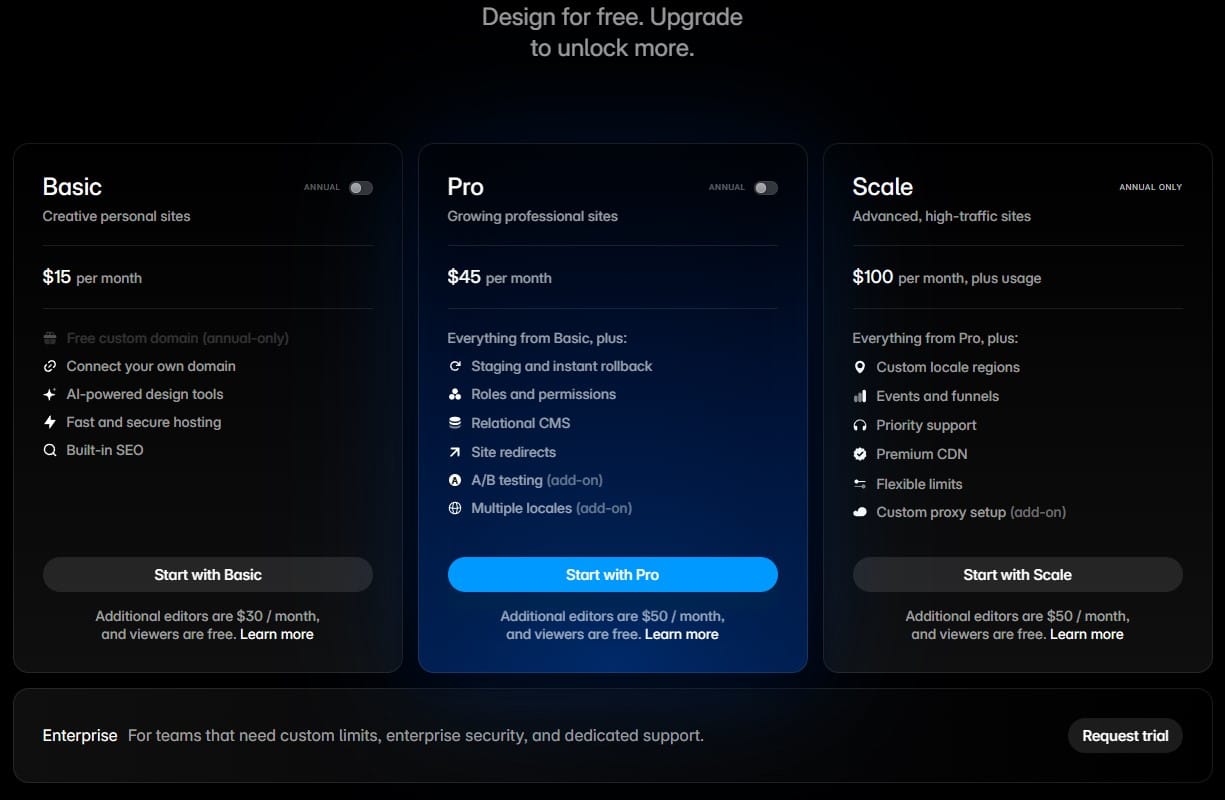
Pricing
ProtoPie
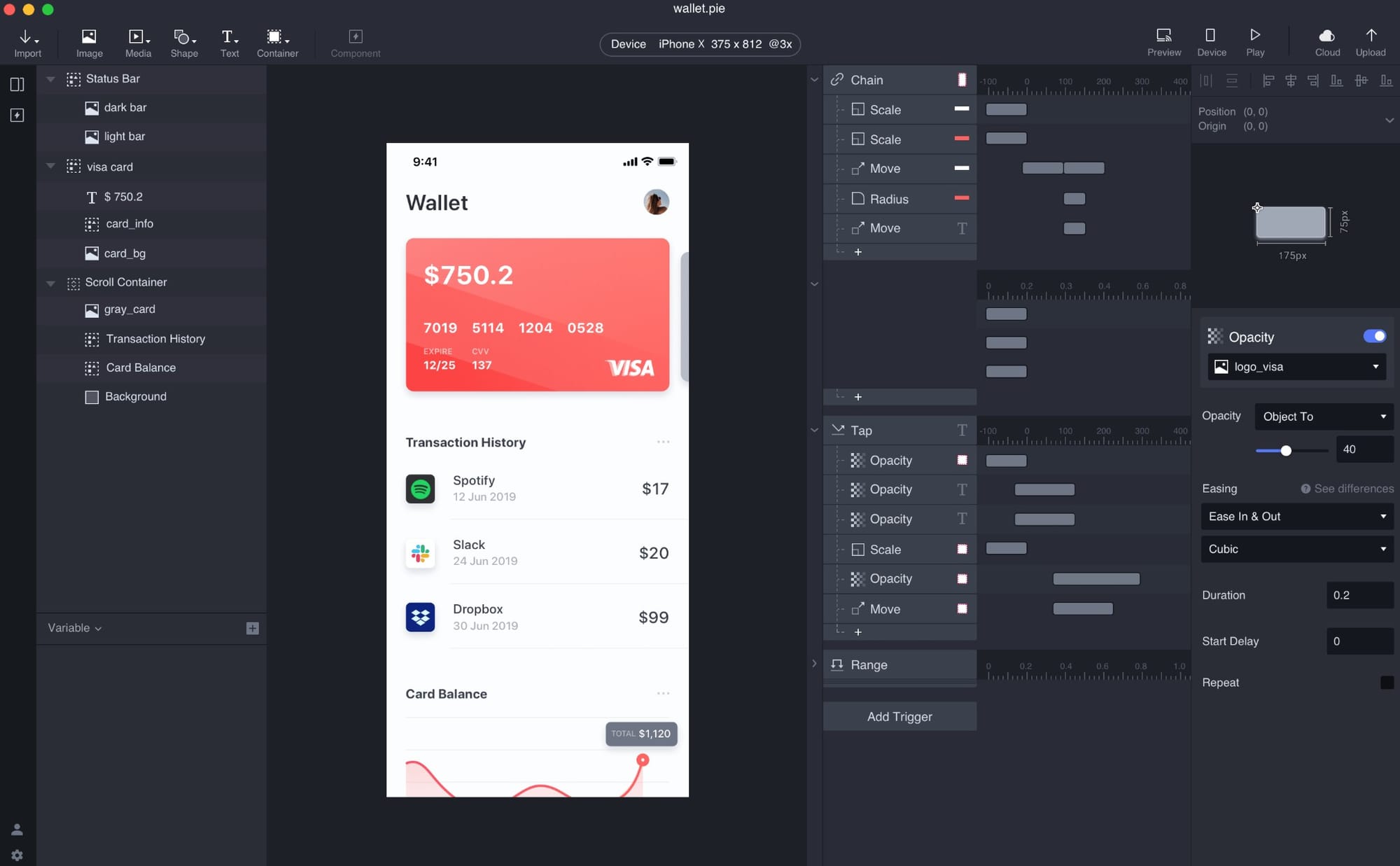
If your prototype needs to respond to voice input, gyroscope tilt, camera access, or communicate between two devices simultaneously, ProtoPie has your back.
Most prototyping tools let you create interactive layouts with basic transitions. ProtoPie lets you build something that behaves like the finished product, complex logic included.
ProtoPie is not a standalone design tool, though. You have to create wireframes and high-fidelity screens elsewhere, then import them into ProtoPie to add the interaction layer. That's fine for experienced UX designers who already have a design tool in their workflow. It's annoying if you're a PM who just wants to move fast.
Features
- Multi-device interactions: Run the same prototype across phone, tablet, TV and smartwatch simultaneously to compare UX across platforms.
- Advanced interaction logic: Conditions, variables and complex logic chains without writing code. You can trigger interactions based on what a user types, says or how they hold the device.
- Sensor-based prototyping: Gyroscope, accelerometer, touch, camera, voice options included.
- ProtoPie Connect: Sync prototypes across multiple physical devices in real time.
- Import from other platforms: Bring in assets from Figma, Sketch and Adobe XD with layer structure and naming intact.
- Collaborative review: Stakeholders and designers can comment and edit the same prototype simultaneously.
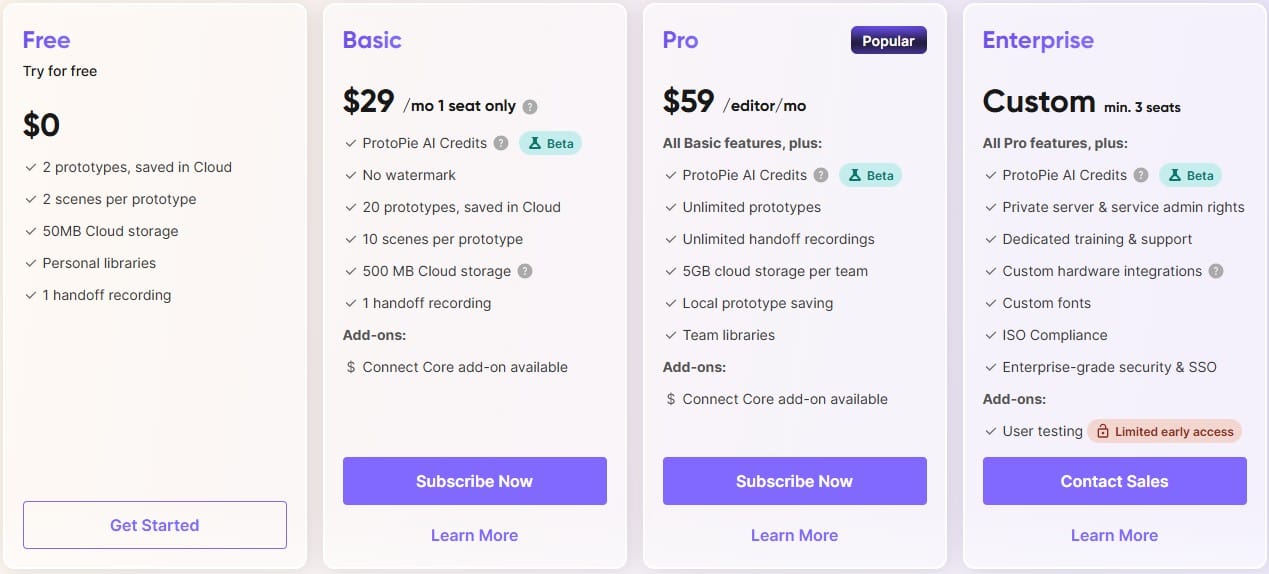
Pricing
Miro
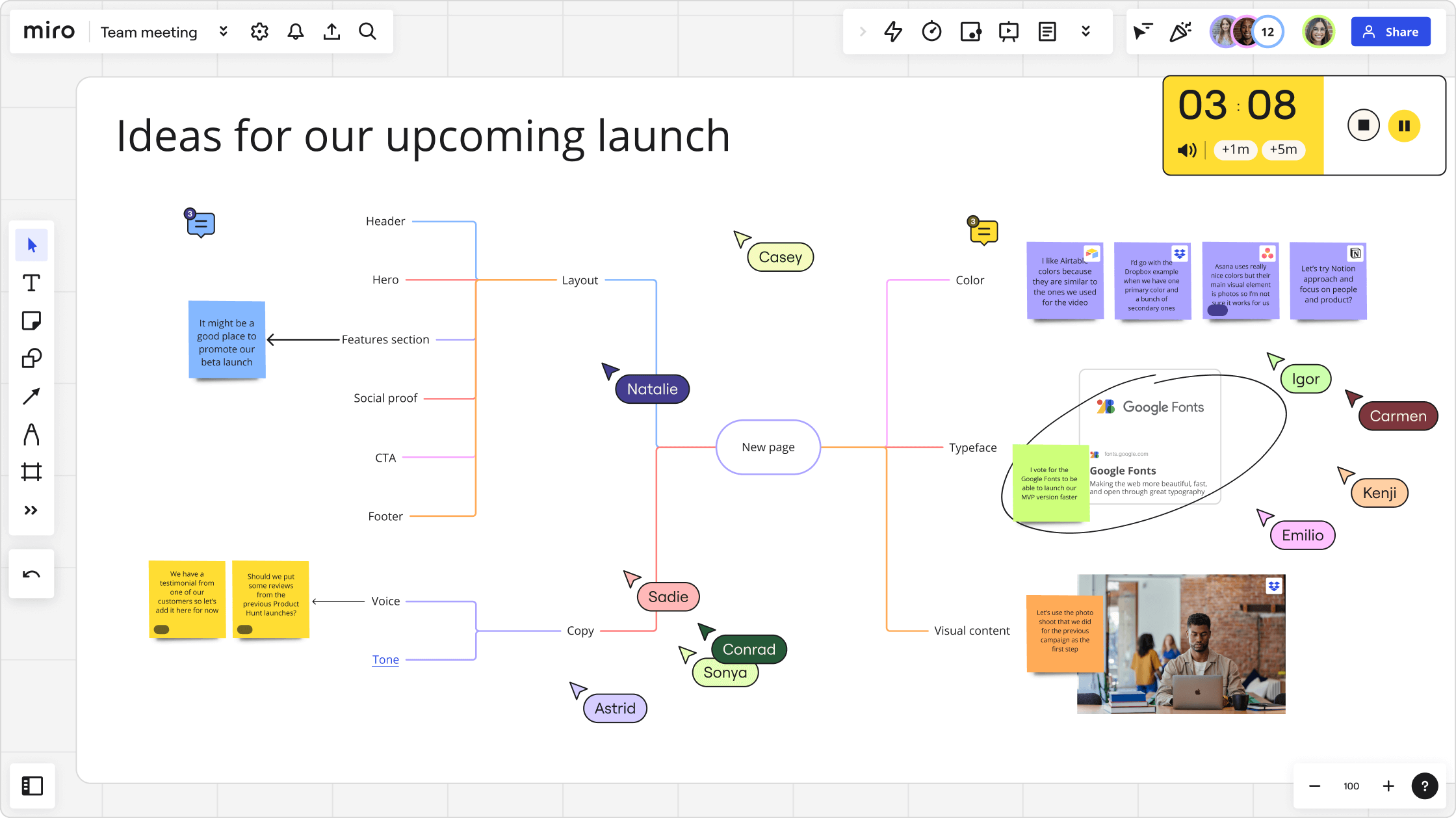
Miro is for the whiteboard phase. It can also produce wireframes based on those conversations.
The AI features are legitimately useful. Miro can generate editable wireframes from selected sticky notes or text prompts. That means your workshop outputs can serve as a visual prototype direction without anyone having to fire up a separate tool.
Miro isn't a high-fidelity design tool, though. For creating wireframes and exploring product direction collaboratively, it's great. For building interactive components and pixel-perfect flows, look elsewhere.
Our AI wireframe generator guide covers this in more depth.
Features
- AI-powered wireframes: Turn sticky notes or text prompts into editable, low-fidelity wireframes.
- Prototype mode: Drag-and-drop interactive components to create click-through flows from wireframes.
- Wireframe component library: Pre-built UI elements, mobile app templates and low-fidelity layout components.
- Real-time collaboration: Live cursors, voting, polls, video calls, async Talktracks.
- Multiple integrations: The list includes Figma, Jira, GitHub, Slack, Confluence, Microsoft 365 and Google Workspace.
- MCP Server: Lets AI agents read your board content to generate more context-aware outputs.
Pricing
Balsamiq
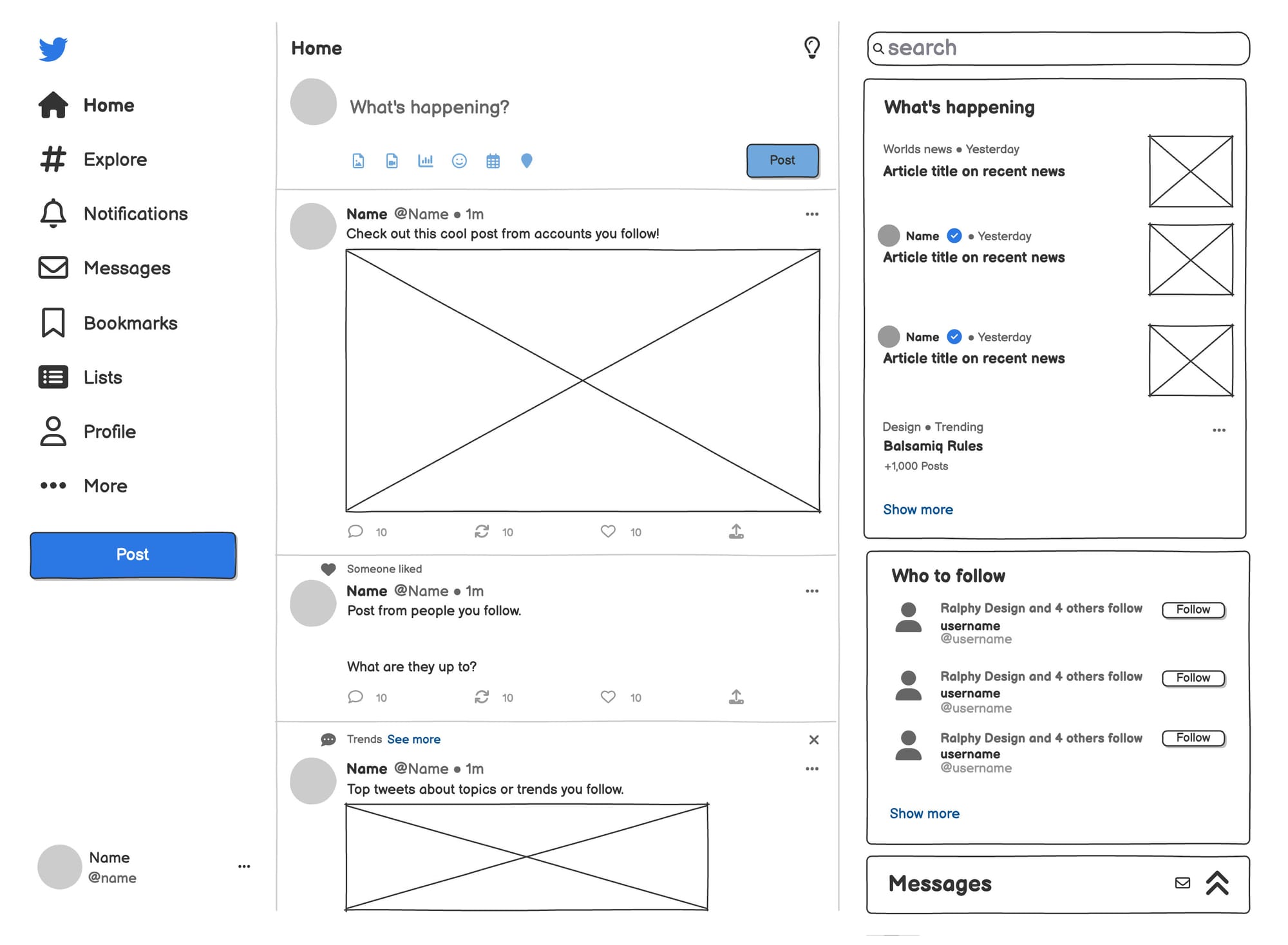
Balsamiq is deliberately ugly. The hand-drawn, sketch-style aesthetic is there to stop you from bikeshedding design decisions before the product direction is clear. When everything looks like a rough sketch, the conversation about usability is more focused, free of design distractions.
The drag-and-drop interface is easy to use. Open a new project, drag components onto a canvas, link screens together and share a URL.
The limitation you'll quickly notice is that Balsamiq doesn't scale well. The collaboration features are functional but not great. There's no high-fidelity mode to move into. Most teams treat it as a phase-one tool: get ideas on screen, get quick feedback, then graduate to something more capable.
For anyone exploring the wireframing side of this further, our wireframing tools guide and how to write effective wireframe AI prompts are worth reading.
Features
- Sketch-style components: Ready-made UI elements to use for sketching ideas.
- Interactive click-throughs: Link screens and share a live click-through prototype via URL.
- Reusable symbols: Build components once and reuse them across your project.
- Integrations: Include Confluence, Jira, Google Drive, Dropbox, Notion.
- AI placeholder content: Generate filler text and images when you just need something to fill a layout without thinking about copy.
- Simple collaboration: Real-time editing and commenting.
Pricing
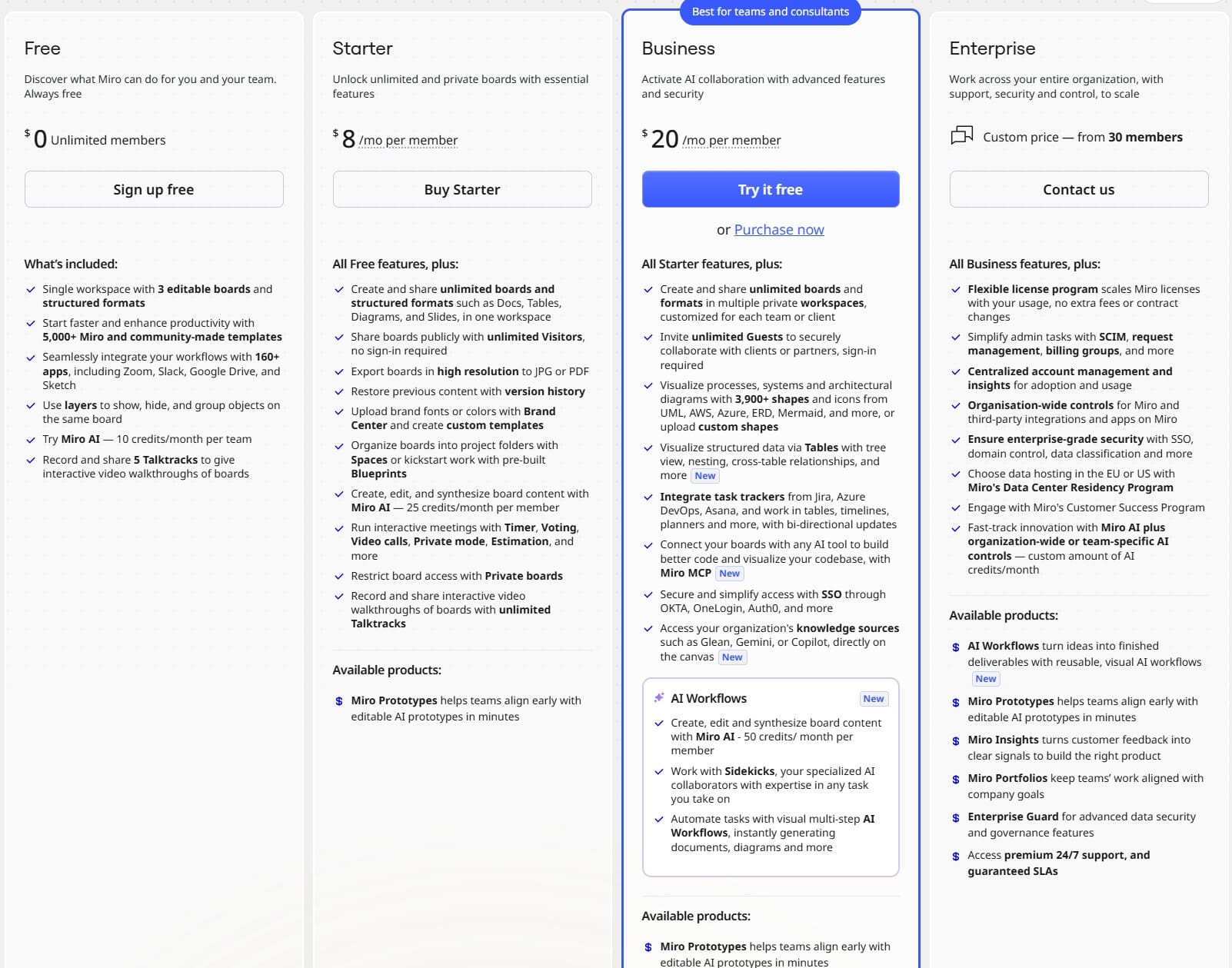
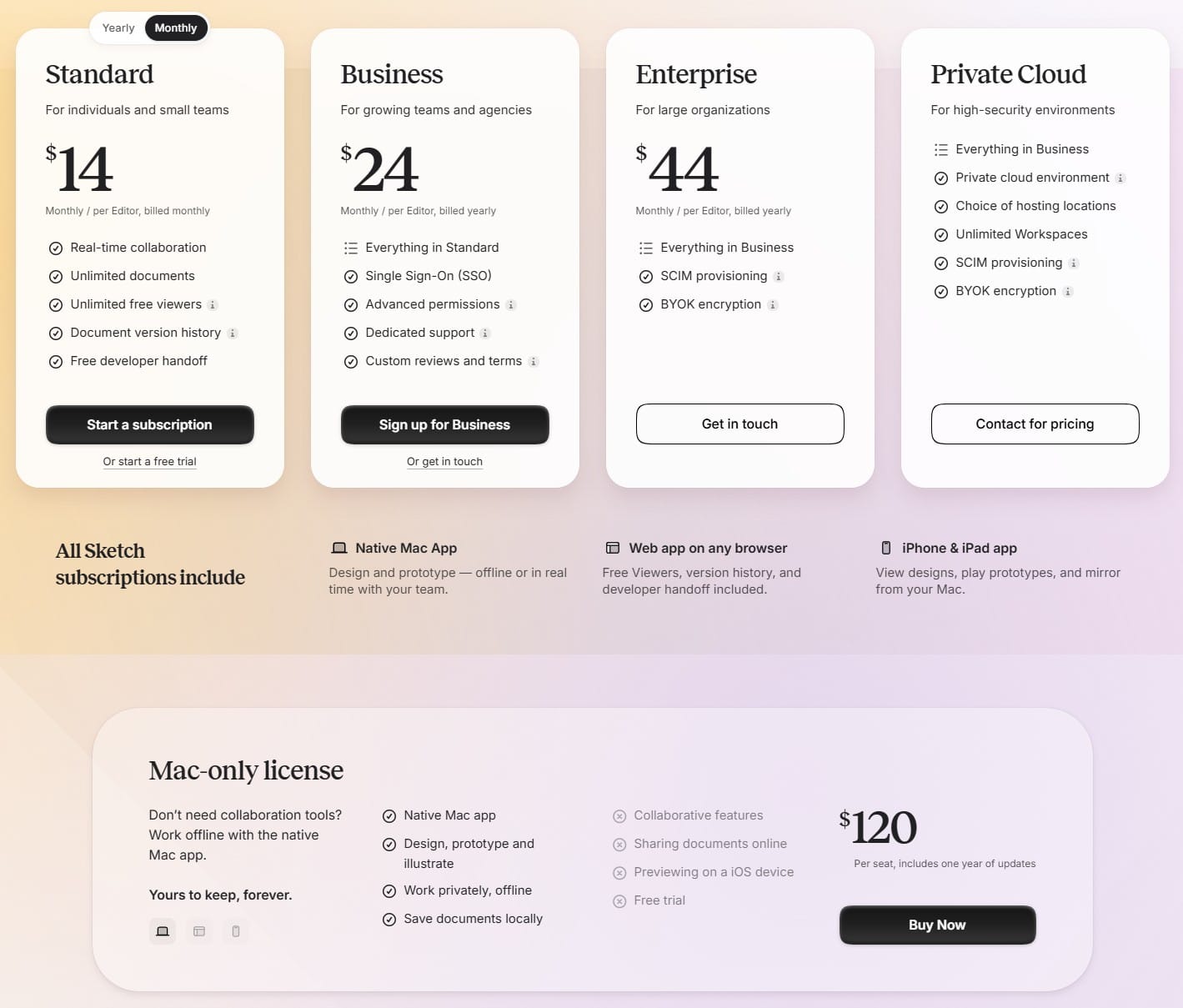
Project-based pricing, starting at $12/month, up to $599 for 400 projects and enterprise needs.
Sketch
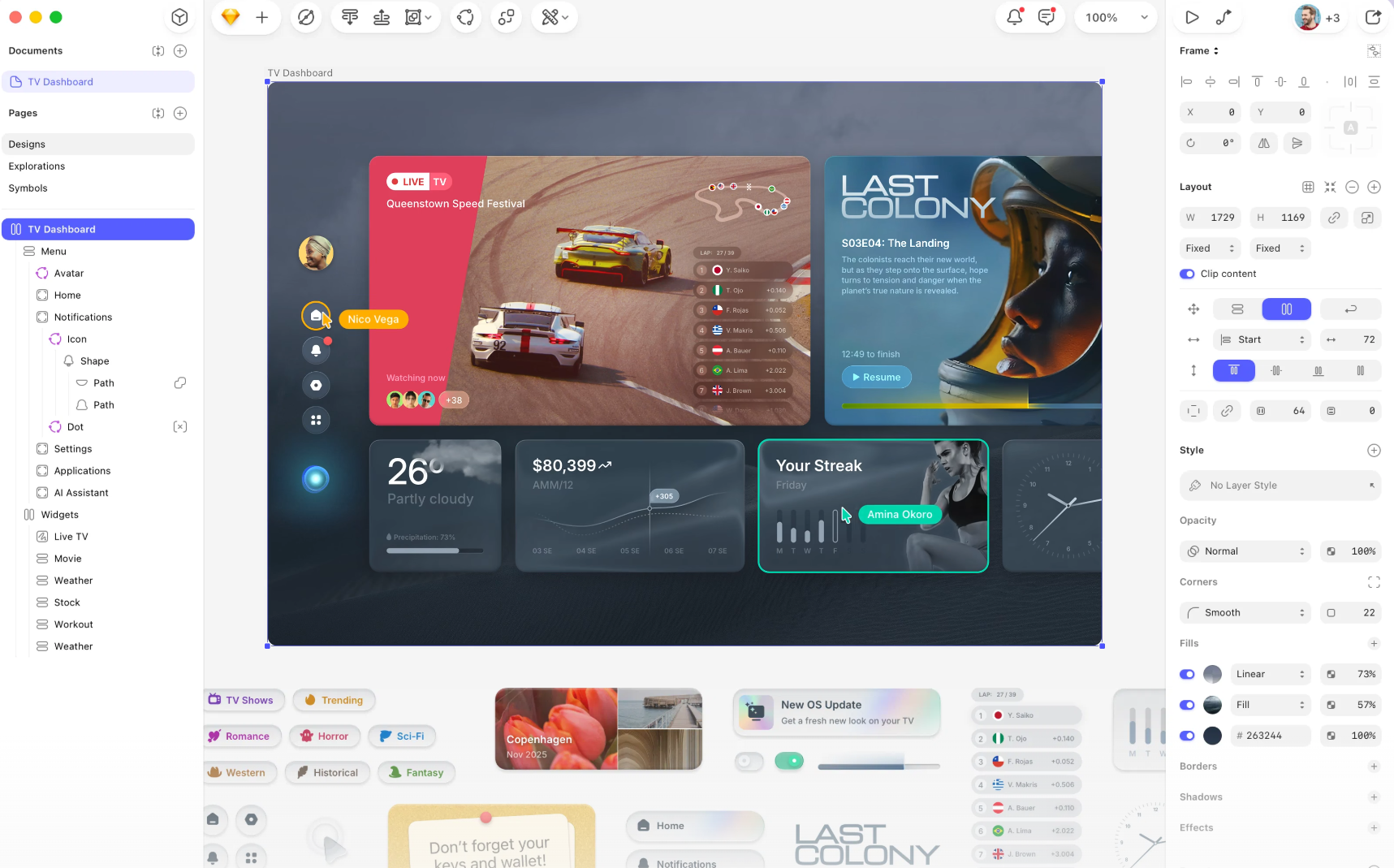
Sketch is for Mac users who prefer an offline, native app experience over a browser-based one. Sketch is macOS only, though. In mixed-OS teams, that's a significant problem—you effectively exclude everyone else from the editing workflow.
The vector editing is precise, the symbol system is well-built, and the plugin ecosystem fills in gaps where native features fall short.
Sketch's native prototyping is functional but basic. You can link artboards, create flows and share them as clickable prototypes, but for anything beyond that, you're reaching for a specialized tool.
See more in our best AI tools for designers guide.
Features
- Vector editing: Precise, with a toolset that covers everything from icon work to full UI layouts.
- Symbols and libraries: Reusable components with overrides.
- Offline Mac app: The license gives you a fully functional app you can use without an internet connection.
- Basic prototyping: Artboard linking, transitions and shareable prototype URLs.
- Plugin ecosystem: Community plugins extend everything from accessibility checks to code export and design token management.
- Cloud workspace: Viewers can inspect, comment and export assets from browsers.
Pricing
Marvel
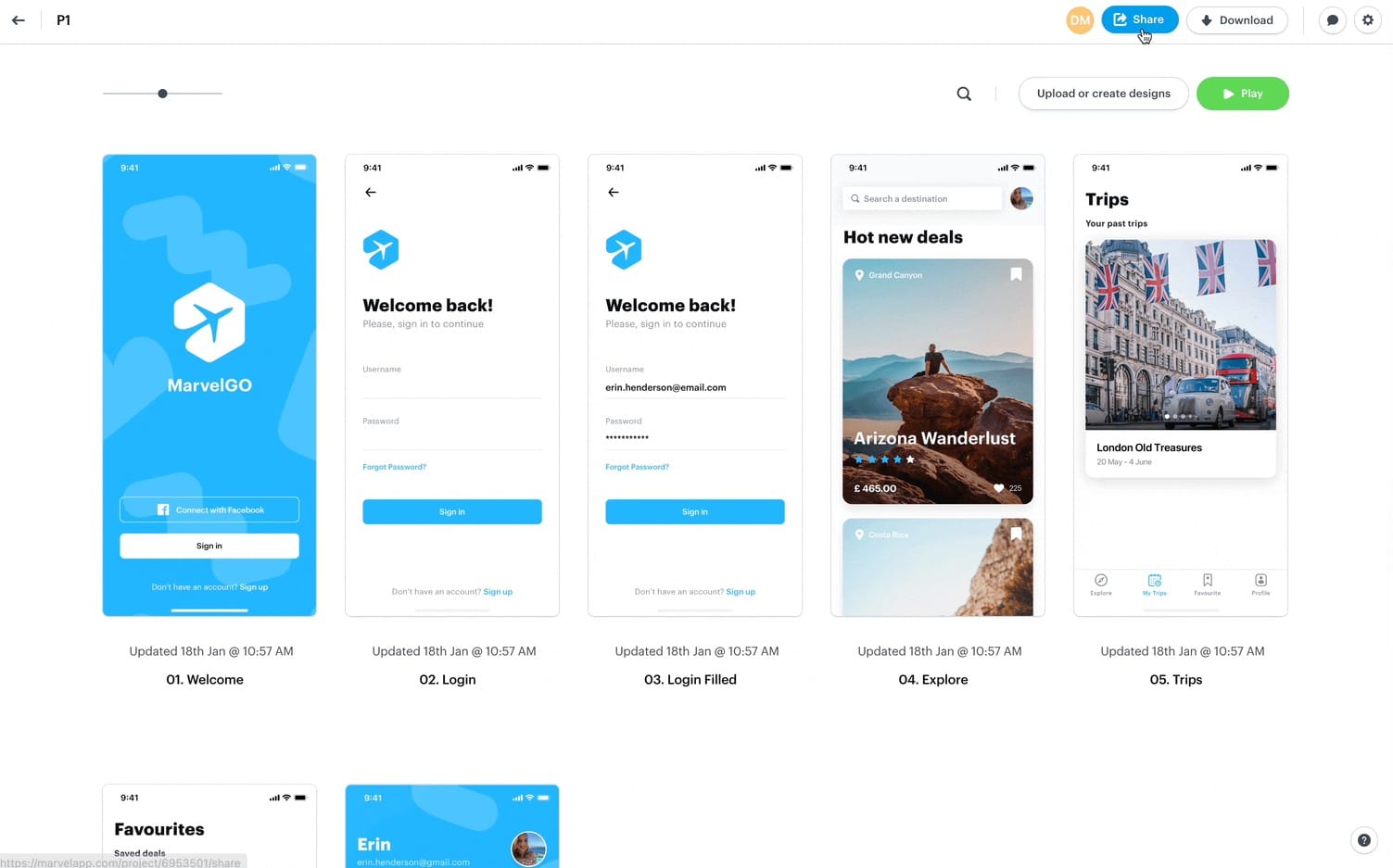
Marvel is easy to start with no-code prototyping. The built-in user testing tools mean you can share your prototype with testers and get annotated feedback without exporting anything, creating a separate account somewhere, or switching tools mid-workflow.
The downside is that it feels a bit static compared to alternatives. It doesn't have serious AI coding tools or smart prototyping features. For complex logic or sensor-based interactions, you've hit the ceiling.
See our best AI tools for product managers article for more context on how tools like this fit the PM workflow.
Features
- No-code prototyping: Link screens with hotspots, add gesture-based interactions, create interactive prototypes without writing code in the drag-and-drop interface.
- Internal tools for wireframing: Quick layout tools for creating basic wireframes before moving to the prototype stage.
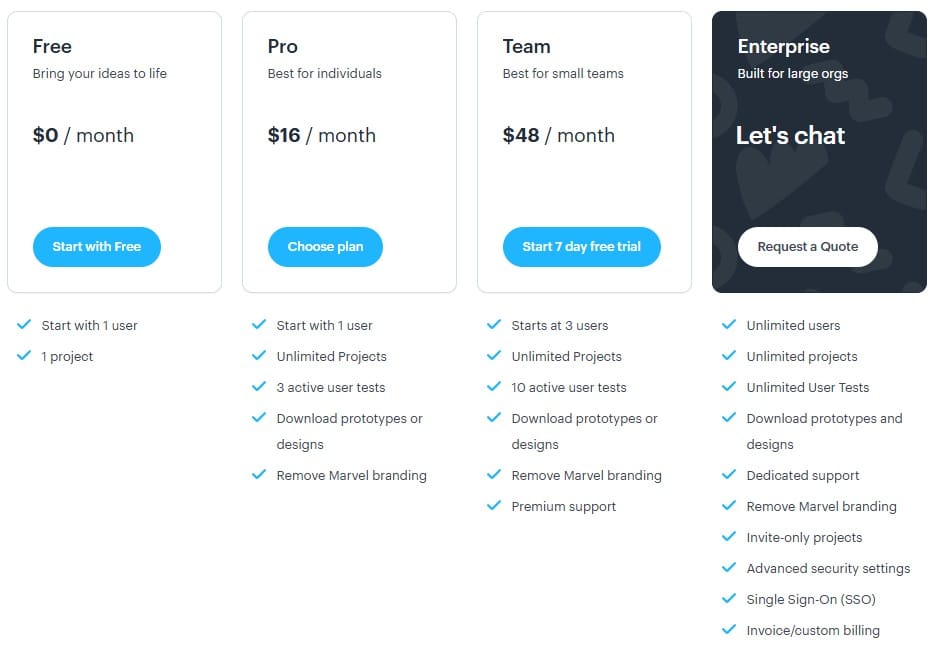
- User testing: Share prototypes with testers, record sessions, and get annotated feedback.
- Developer handoff: Auto-generated CSS, Swift and Android XML from your designs.
- Multi-device support: Prototypes run on desktop, iPhone, iPad, Apple Watch, Apple TV and Android.
- Integrations: Jira, Confluence, Dropbox, Slack, Google Drive, Microsoft Teams.
Pricing
You can prototype faster
The right prototyping tools don't make you a better designer; they get the tedious parts out of the way so you don't have to waste brainpower on those tasks.
If you want to get from idea to testable UI without staring at a blank canvas, Flowstep is the fastest path. Describe what you want, build your full flow on an infinite canvas, copy it into Figma in two clicks, and export production-ready code when you're ready to build.
Sign up for Flowstep and start building
FAQs
What is the difference between a wireframe and a prototype?
A wireframe is a static layout; it shows where elements live on a screen but doesn't do anything. A prototype is interactive. Tap a button, navigate to the next screen, simulate a real user journey. Wireframes help you think through structure. Prototypes help you test whether that structure works.
Do AI prototyping tools export production-ready code?
Depends on the tool. Figma gives you code snippets and specs, not ready to ship. Framer can publish working web code. If production-ready code is the goal, Flowstep goes furthest, exporting React, TypeScript and Tailwind CSS in a 1:1 format.
How long does it take to build a prototype in a design software tool?
A rough wireframe in Balsamiq: 30–45 minutes. A multi-screen interactive flow in Figma: half a day, maybe more. A polished high-fidelity interactive prototype in ProtoPie with complex logic: could be a full day or more, depending on scope. With Flowstep and AI prototyping, a realistic multi-screen flow from a text prompt: under 10 minutes.
What should I look for when choosing a prototyping tool?
Think about four things: fidelity (how polished does it need to be for your current stage?), team access (can everyone who needs to jump in actually use it?), workflow fit (does it connect to the other tools in your stack, or create more friction?), and iteration speed (how fast can you go from "this doesn't work" to an updated version?).