

Base44 Review (2026): Pricing, Features & Pros & Cons
Before you choose Base44, read this. This Base44 review highlights some important things to consider about its strengths, weaknesses, pricing and when a different tool might be a better fit.
Google Stitch Review: Learn how Stitch works, explore its features, pricing, pros and cons, and which alternative may better fit your workflow.
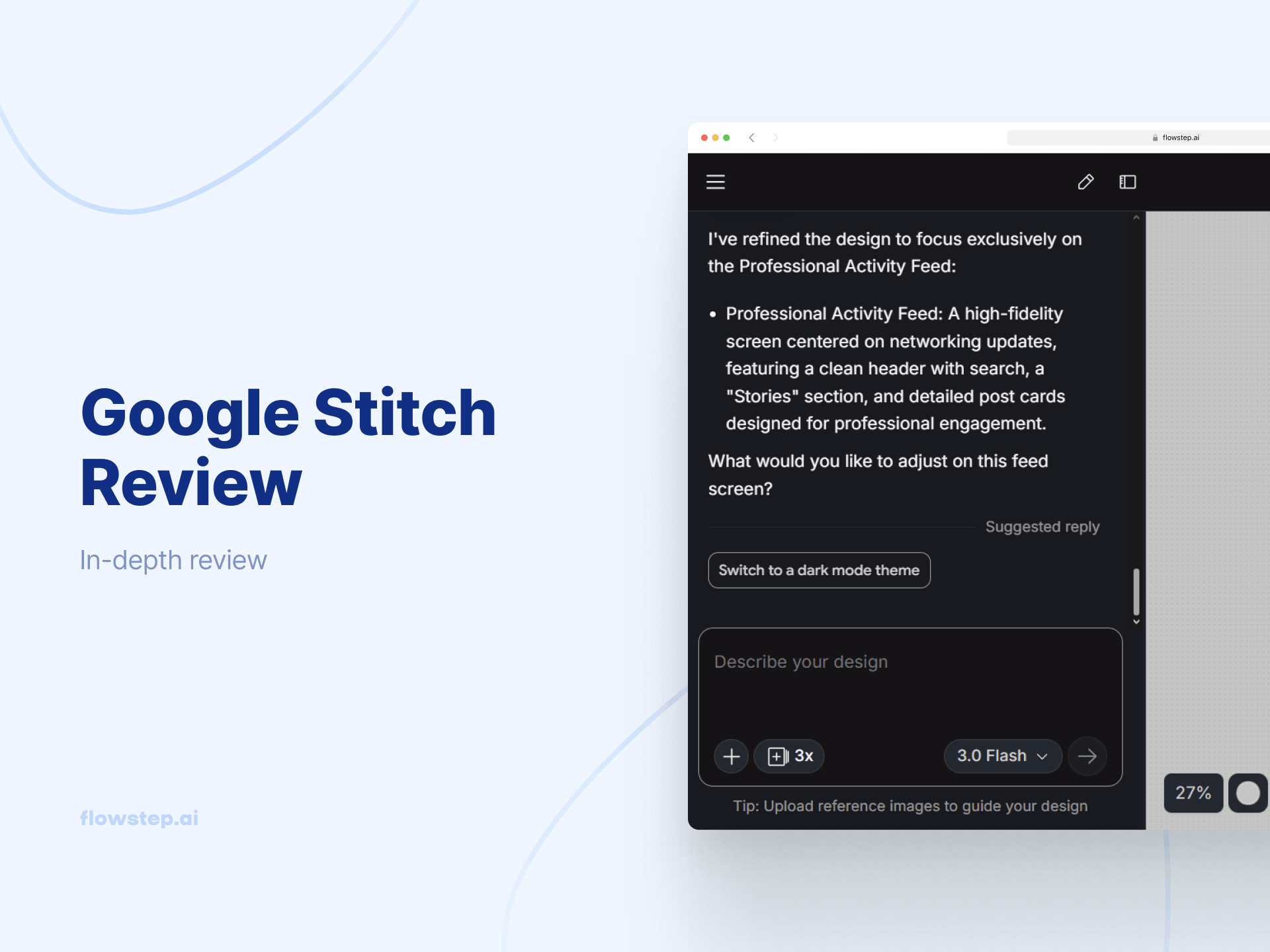
You’re a product manager who needs a quick prototype before a stakeholder meeting. No designer available, no time for wireframes. You type a short prompt into Google Stitch and, within minutes, have a clickable UI to present.
That’s the promise of AI-powered tools like Google Stitch: fast UI from simple prompts. But once projects grow, its limitations start to show—in control, flexibility and output quality.
So how far can it actually take you? In this review, we take a closer look at this tool’s key features, current pricing, and real user feedback on its strengths and weaknesses. Stick around to find an alternative that offers more flexibility and fewer limitations for your team.
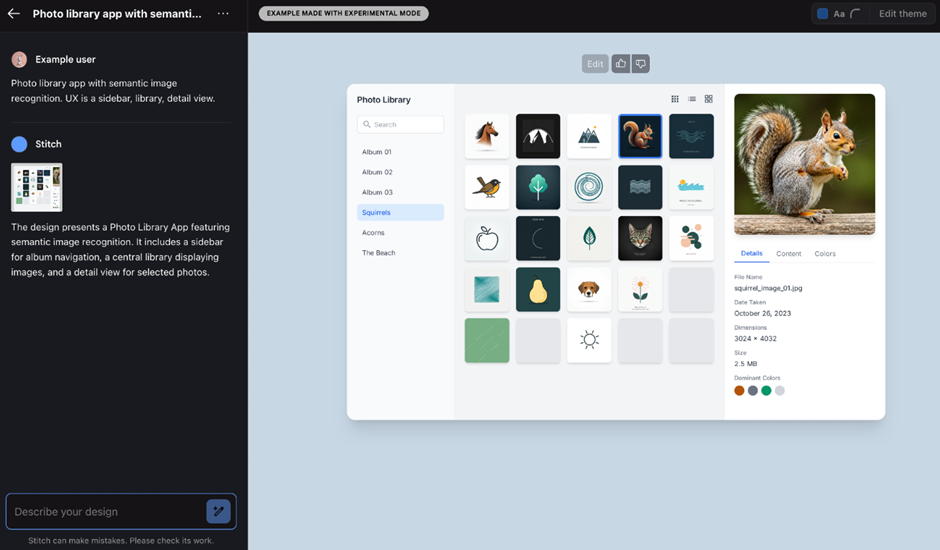
Google Stitch is an AI design tool that turns simple text prompts or pictures into usable UI layouts for simple websites and mobile apps. It started as Galileo AI, a startup Google acquired in 2025 and later integrated into its AI ecosystem. Today, it’s available inside Google Labs for free.
Stitch takes your text or sketch input and processes it with Google Gemini AI, which understands intent and produces structured design output. The tool also lets you refine results with follow-up prompts and generate multiple variations from the same input.
There are two export options. You can download designs as HTML and CSS for development or send them directly to Figma for further editing and collaboration.
Here are the key features that make Google Stitch useful for fast UI generation and early-stage product exploration:
Stitch provides two distinct modes with different generation options and use cases:
At the moment, Google Stitch/Galileo AI pricing is simple: the tool is free, but with usage limits.
Depending on usage and mode, you get a monthly generation allowance: 350 monthly generations in Standard mode and 200 generations in Experimental mode. When you exceed those, your account will just stop generating anything for that month. There is currently no way to increase your limits.
Users appreciate Google Stitch’s speed and simplicity, saying it produces basic yet usable conceptual designs that can be quickly customized without building from scratch.
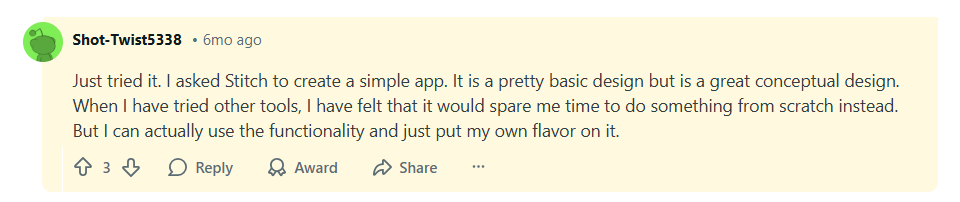
On the other hand, they are also noting limitations in visual refinement, result consistency, and more structured design work, saying that Stitch works well for basic use but lacks deeper integration with existing design systems and structured workflows.
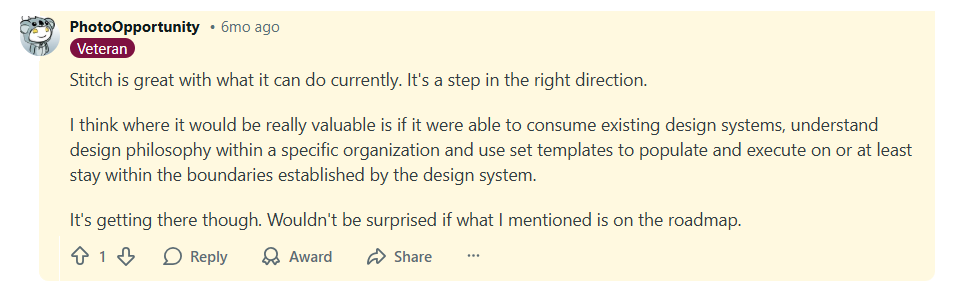
If Google Stitch starts to feel limiting, it’s usually for the same reasons: limited control over layout and structure, similar-looking outputs across variations, generation caps, and designs that still require significant work before they’re ready for real product use.
Because of this, teams often look for AI-powered tools that offer deeper control, more flexibility, and stronger support for building complete product flows.
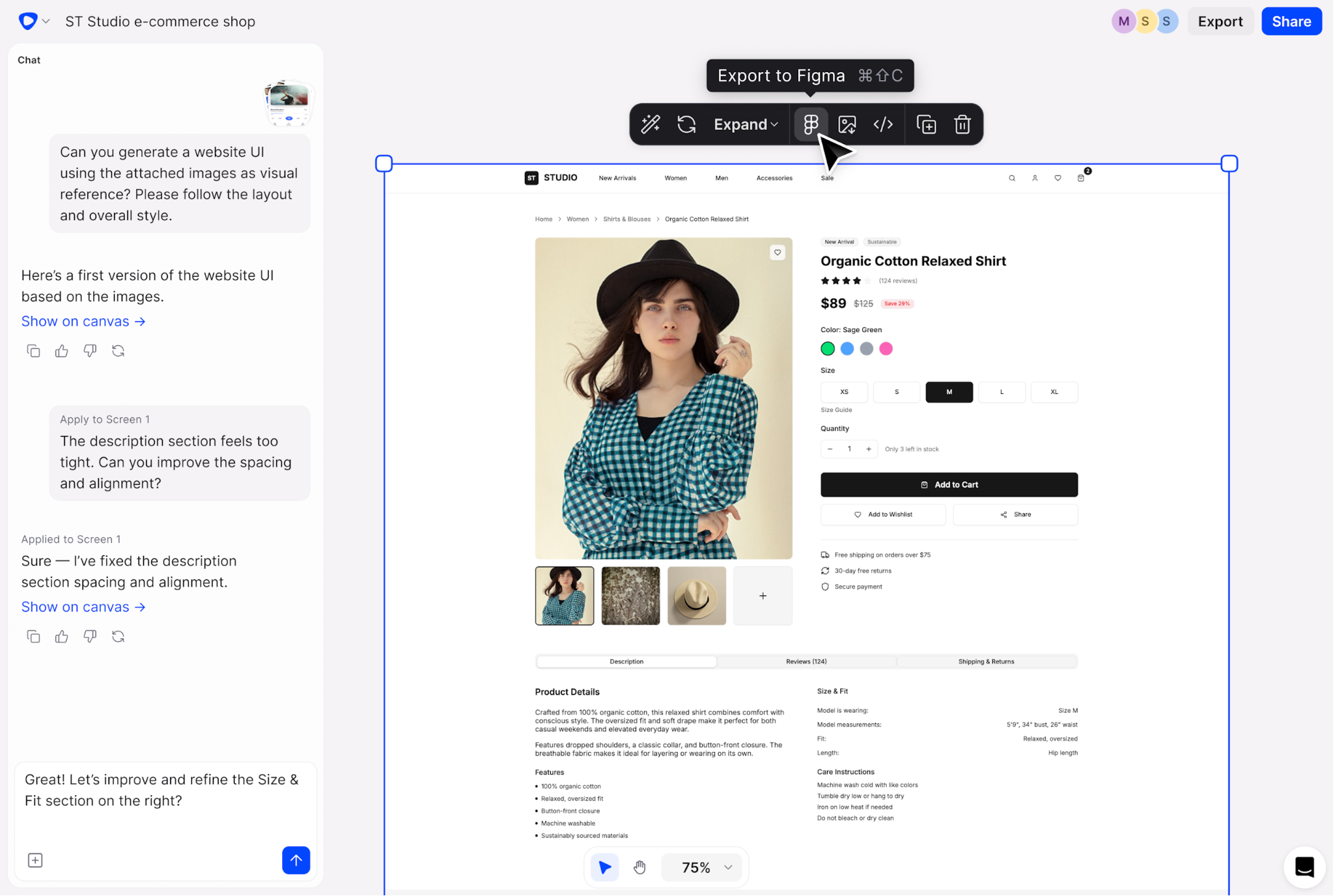
Flowstep is a Google Stitch alternative designed for building complete UI/UX journeys on an infinite canvas. It works well for any professional, including UI designers, product managers, startup founders, engineers, and even beginners with no tech or design experience.
Compared to Stitch, Flowstep focuses more on structured, higher-quality design output, helping teams create clearer multi-screen experiences with more consistent visual refinement.
With Flowstep, designs feel more polished than what you get from Google Stitch. There’s less cleanup, and when you move them into Figma, the structure holds up, so continuing work is much easier.
Go from idea to working UI in seconds with Flowstep
Flowstep offers a Free plan with access to all core features and any number of collaborators, limited only by a daily message number.
The paid Starter plan starts at $15 per month and includes unlimited screens, projects, exports and direct copy-paste into Figma, plus 80 messages.
Higher message tiers are available—all with unlimited users:
We also have a 20% discount on annual billing, and a custom Enterprise plan for larger product teams.
Flowstep and Stitch both produce structured UI design, but they’re not identical. Flowstep is stronger for connected flows, collaboration, precise editing and polished, production-ready designs. Stitch tends to generate more generic designs, while Flowstep gives greater creative flexibility and customization.
If you want to explore more options, check out our guides on AI tools for designers and the best AI tools for product managers.
If you need fast, prompt-based UI drafts to explore ideas and generate a few layouts, Google Stitch AI is fine. But if your work requires more editing and refinement, connected and unlimited multi-screen flows, and real-time collaboration for multiple teammates and editors, Flowstep offers more flexibility.
It produces higher-quality design output that requires less cleanup, and handles more complex screen sets without losing structure. Manual editing happens directly on the canvas, so designs can be refined without constant re-prompting.
Outputs are production-ready, with a polished design and usable interface. Flowstep also supports collaborators and editors across plans, plus gives you a much larger amount of AI usage credits, making it easier for teams to work together as projects grow.
Start collaborating on Flowstep for free
Google Stitch is an AI UI design tool that turns natural language prompts into structured interface layouts for web and mobile apps. It uses Gemini models to generate static screens, refine designs through follow-up prompts, and export designs to Figma or code.
Key features include prompt-to-UI, multiple layout generations, export to HTML/CSS and Figma, and support for both mobile and web design. Flowstep, a Google Stitch alternative, allows you to iterate without re-prompting and supports real-time collaboration on a shared canvas with unlimited users across all plans.
Google Stitch is currently completely free, with no paid plans announced. However, usage is limited by generation allowances depending on the mode you choose (200 or 350 credits). Google Stitch alternative Flowstep also offers a free plan, with affordable, transparent paid tiers starting at $15 per month for unlimited users and screens (up to 1000 credits).
Flowstep is a strong alternative to Google Stitch for teams needing deeper editing, multi-screen projects, and real-time collaboration. It produces more consistent, higher-quality designs that require less cleanup and are closer to production-ready. Unlimited collaborators, on-canvas editing and larger usage limits make it better suited as your product matures and needs grow.