

10 Best AI Tools for Designers: 2026 Top Picks
Discover the best AI tools for designers [2026], including Flowstep, Figma Make and 8 more top picks to speed up your UI/UX workflow and create better designs faster.
Learn how to use AI for the UX design process: from generating UI in seconds to shipping production-ready code. Here are 8 real use cases.
You sit down to work on a new feature. You open your design tool and stare at the blank canvas. Twenty minutes later, you've done nothing except move a rectangle around and question your career choices.
Every product designer has been there. So have most product managers. And founders. And basically anyone who's ever had to turn a half-formed idea into something a real person would use.
What nobody tells you about learning how to use AI for the UX design process is that it's not about replacing your abilities or your taste. It's about getting rid of the friction that sits between you and the first version of something.
Incorporating AI into your daily workflow doesn't fix bad design thinking. But it does remove a lot of grunt work that slows good design work down.
This blog post is a step-by-step guide on how to use AI in design, with real use case examples.
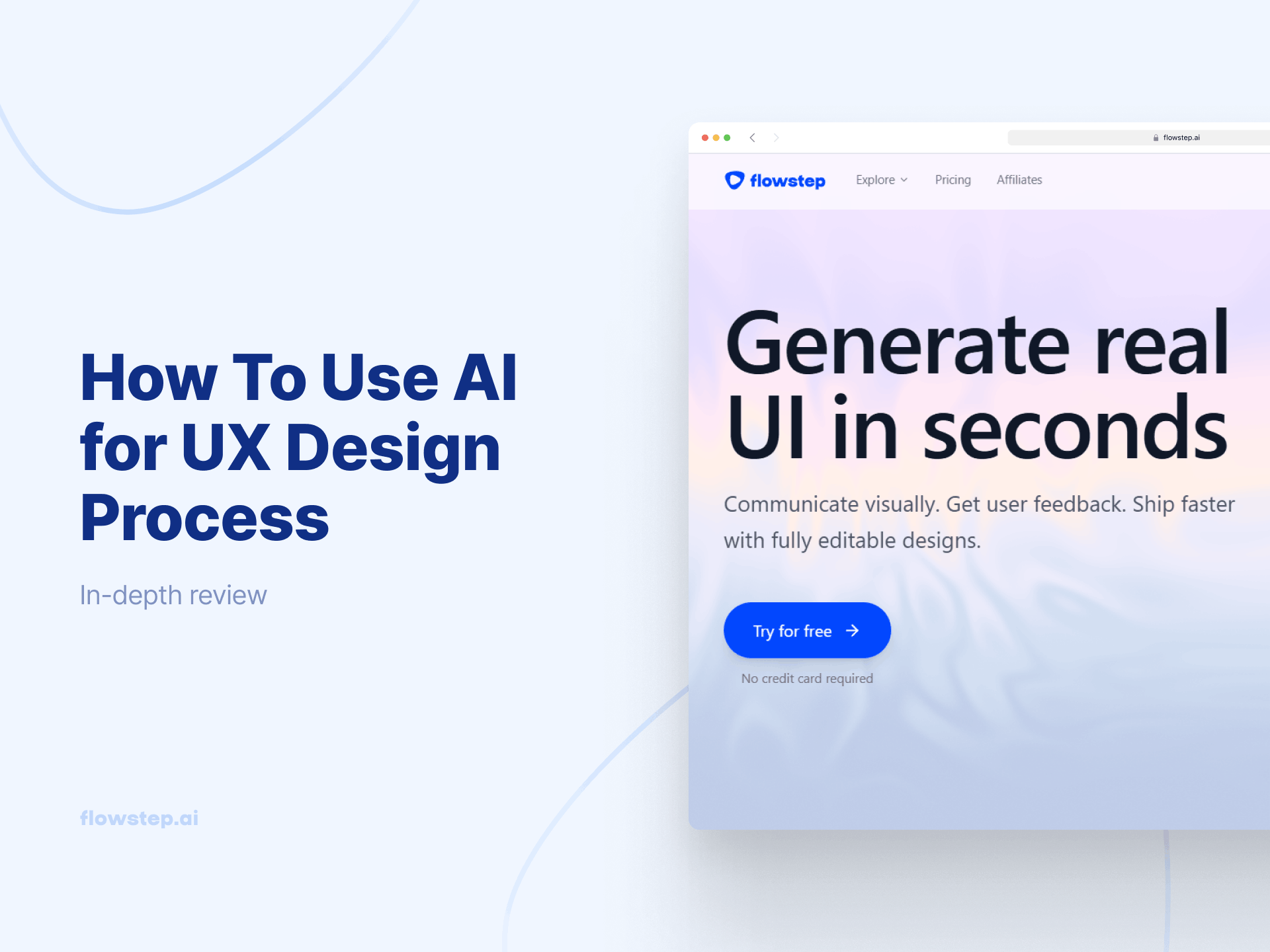
Type a simple prompt ("A mobile onboarding flow for a fitness app, dark theme, three steps, progress bar at the top"), press enter, and real screens appear. Not a mood board. Not a rough sketch. Actual UI with color palettes, icons, typography and layout, multiple screens in seconds, no coding required.
That's what generative AI in design looks like with the right tools. You write plain language and watch a design come to life.
This is what Flowstep does. It's an AI-powered design tool—product managers who need to visualize ideas, founders who want something real to show before they build, designers who want a running start. Describe the UI, get the UI. From there, you can edit manually, refine with AI, or copy the whole thing into Figma with two presses of ⌘C and ⌘V.
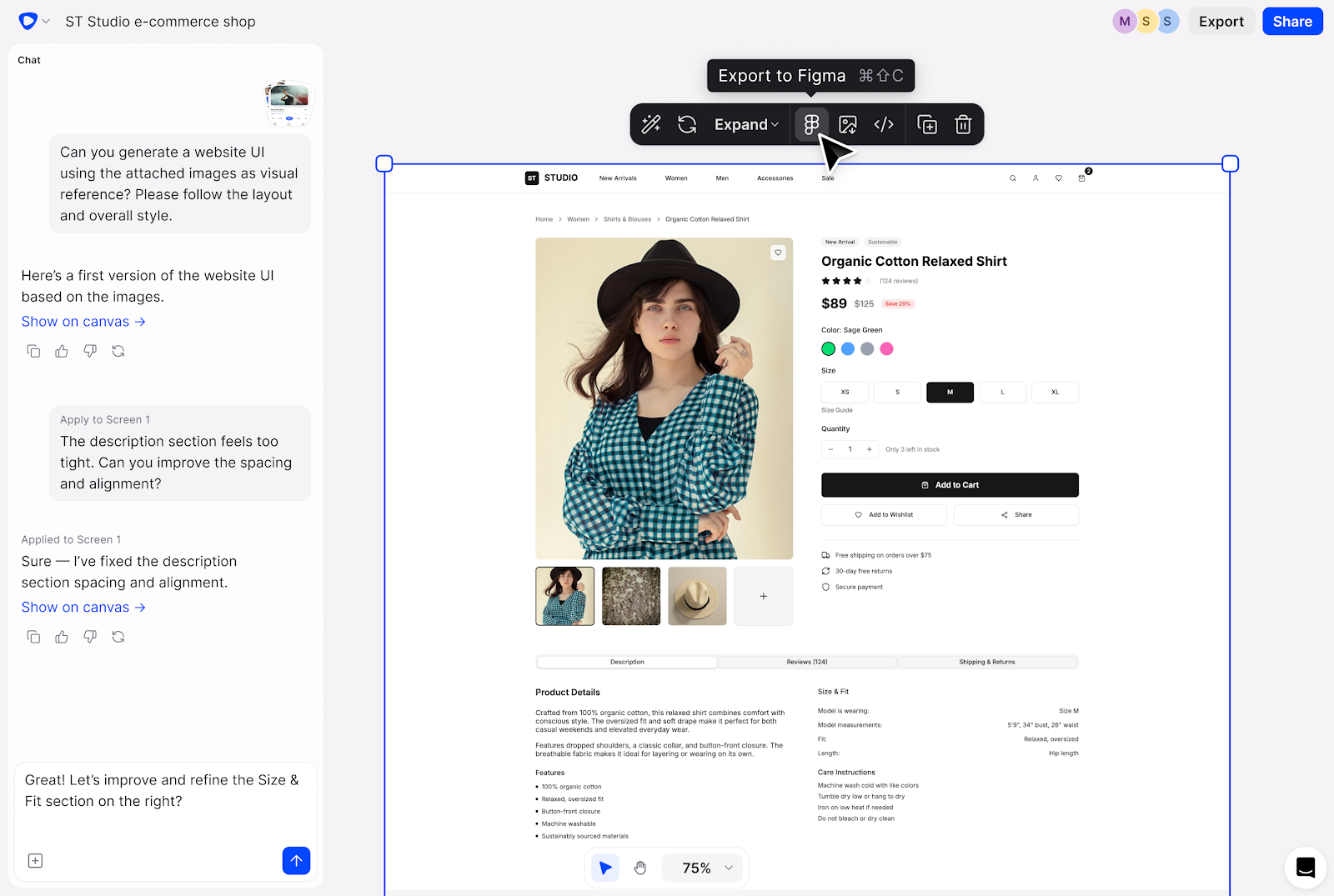
Flowstep generates multiple screens at once, helping you create the full user experience immediately. When you're trying to communicate a product direction or test a concept with users, one screen tells part of the story. A flow tells all of it.
Sign up and start generating UI for free →
For a broader view of what's worth using right now, check out the roundup of best AI UI design tools.
Unpopular opinion: much of wireframing is a waste of time. Not the concept itself, but the way most teams do it. Hours in a lo-fi tool, boxes and arrows everywhere, placeholder text, only to show it to a stakeholder who says, "I don't really get it, can you make it look more like the real thing?"
The problem is that low-fidelity wireframes require a lot of imagination from the person looking at them. Most people aren't great at visualizing a finished product from rough sketches.
AI lets you go straight to something that looks usable in the same time it would've taken you to set up your artboards.
This is also where good prompting starts to matter for your UX design workflow. Our step-by-step guide to AI wireframe generators covers this in detail, and if you want to learn more, check out: how to write effective wireframe AI prompts or creating better AI wireframes.
Feeding interview transcripts into an AI tool to extract key insights and identify patterns across user interactions is much faster than analyzing user data manually. Use it to detect patterns in large volumes of surveys that would take days otherwise. Draft discussion guides for the next round of research in a fraction of the usual time. Generate target personas from a product brief, so UX teams have something concrete to work off before formal research even starts.
The ability to analyze large volumes of qualitative research and surface actionable insights is one of the more underrated applications of artificial intelligence in design—and one of the highest-ROI moves available to teams that are regularly skipping analysis because it's too time-consuming.
Note: AI can help you analyze existing data on user behavior and pull out key points from large volumes of qualitative research, but it cannot replace the actual humans you need to talk to. There's a difference between detecting patterns in transcripts and understanding them. The psychology behind effective UX still requires a human to do the interpreting.
Give the AI direct context—a screenshot of a product whose user interactions you admire, a link to a competitor's interface, your PRD—and the AI generates output that actually reflects those inputs.
The ability to attach references and get output that takes cues from them, rather than defaulting to whatever the model thinks a generic SaaS dashboard looks like, is what separates useful from unique.
In Flowstep, this is built into the core product design process. Paste a link, upload an image, attach your file, and get output that incorporates that context. Perfect if you know what you want but don't know how to say it in a prompt.
This also significantly improves output quality. Specific inputs produce more informed design decisions of the program. Vague prompts are why a lot of people try AI design tools once, get mediocre output, and write them off—when the actual issue was the prompt, not the tool. Better inputs, better outputs.
In most product teams, the review goes something like this: a designer makes something. They share a link. A PM leaves 12 comments. An engineer leaves three more, two of which conflict with the PM's. The designer fixes some of them, marks others as "addressed," and reshares. Someone opens the old version by mistake. A week passes.
Adding even more async tooling on top of a broken process mostly just adds more chaos. What actually helps is giving everyone a shared visual space where designs update in real-time, you can see what your teammates are doing, and incorporating feedback doesn't require a new export cycle.
Flowstep's real-time collaboration does exactly that. Multiple people on the same canvas, cursors visible, edits synced live. This is especially valuable for enabling designers to work more fluidly with other team members.
Check out our article on 10 common UX mistakes and how to avoid them to avoid other friction-inducing patterns.
Design school teaches you to explore before settling on a solution. Then real-world timelines hit you in the face.
AI gives you back the divergent phase. When generating variations takes seconds, you can actually afford to test out five different versions.
How to do this: don't prompt for one output. Prompt for contrast. Ask for versions with: different color palettes, layout approaches and treatments of the same design elements. Then use those variations to drive conversation rather than seeking validation for a decision that's already been made.
On Flowstep's infinite canvas, multiple screens and variants live side by side. You can compare them in context without switching tabs and generate different versions with one prompt.
You probably know the pain of your designs looking great in Figma and in production... well, not. Spacing, a color that's technically the same hex but renders differently, etc.
AI-powered code export changes that. Tools like Flowstep don't just produce visuals, but also clean, production-ready code. Flowstep exports React, TypeScript and Tailwind CSS, 1:1 from the design.
See also: Best vibe coding tools or best tools for prototyping.
Most teams test too late. Six weeks of design, eight weeks of development, and then you put it in front of a real user, and they say, "wait, why is this not intuitive?", and now everyone has a problem.
This is one of the most expensive (and preventable) mistakes in product development. You don't need working code to get useful feedback. You need something that looks real enough for someone to react to.
Generate a few screens in Flowstep, share them, and survey customers on the experience. You'll surface key insights that would've taken a full development cycle to discover—in two days tops and before you've written a single line of code.
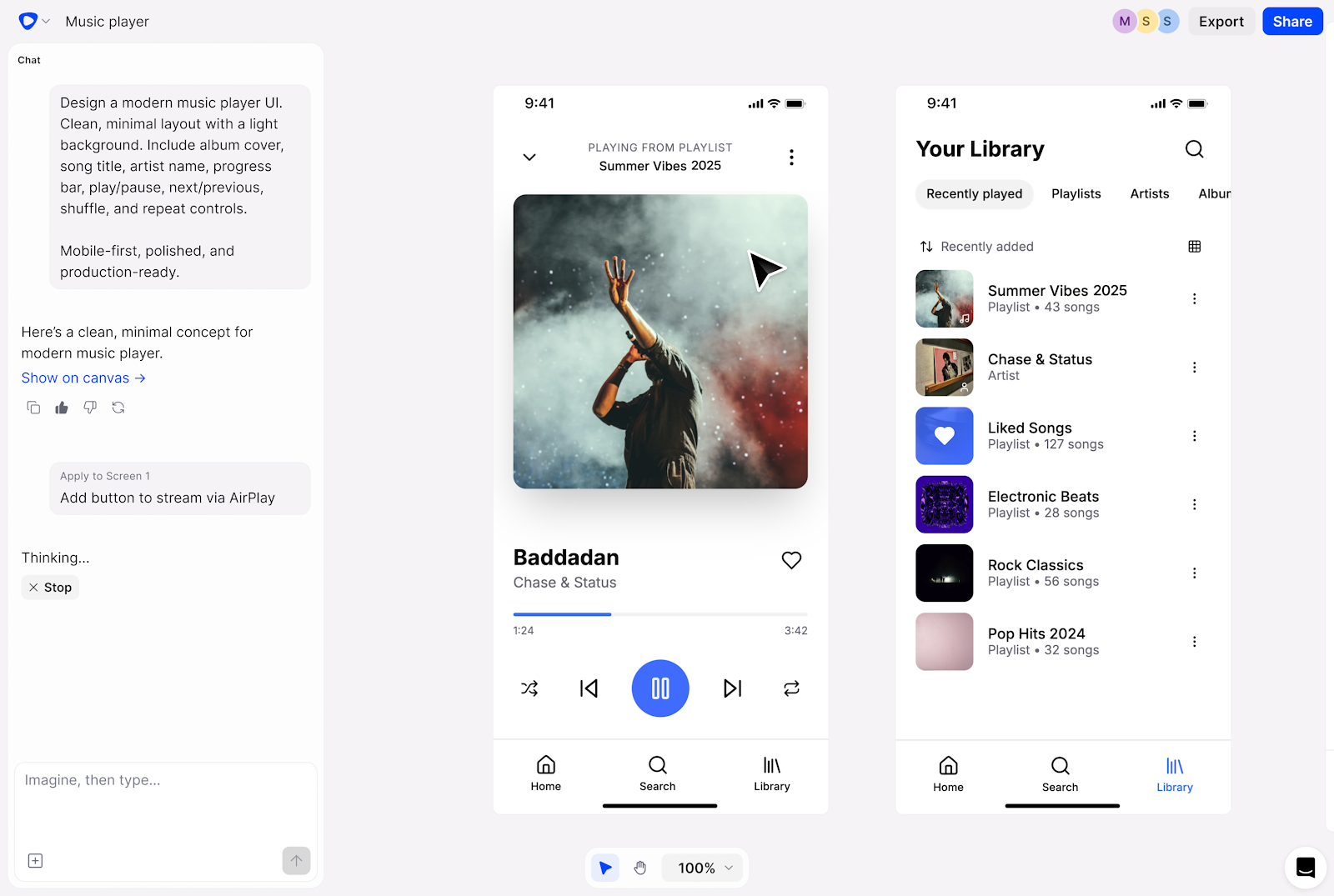
Flowstep designs are fully editable, so when user interactions in testing reveal something isn't working (the onboarding flow is confusing, the navigation logic doesn't hold, the UX copy is saying the wrong thing) you can tweak it immediately, with AI prompts or manually.
See also: Inclusive design principles
For a deeper comparison, best AI tools for designers are worth checking out.
Will AI replace UX designers? Probably not. Here's why:
The how to use AI for UX design process question doesn't have one answer—there are multiple ways to implement it into your workflow. Start with UI generation to get momentum. Add references to get better outputs. Use real-time collaboration to brainstorm better ideas. Export production-ready code with a click. Test early to stop rebuilding after feedback.
Flowstep does it all. It's the most accessible path into AI for product teams that want better design decisions without adding process complexity. Whether you're a product designer tired of blank canvases, a product manager trying to communicate ideas visually, or a founder who needs to test a concept before committing to building it, Flowstep gets you moving in seconds.
Sign up for free and start creating →
Start with wherever you lose the most time: wireframing, early ideation, or the design-to-dev handoff. Flowstep lets you generate real UI from a simple prompt, work on designs with your team in real-time, and export production-ready code, all without deep design or technical skills. The key is giving the AI good context: your PRD, a reference and a clear description of your users and goals.
No. AI handles generation and pattern-matching. It doesn't do empathy, ethical judgment or contextual reasoning. The designers who'll be most in demand are the ones who know how to direct AI work effectively, using it as a force multiplier for their strategic thinking.
Depends on what you're trying to do. For product managers, founders or product designers who want to go from a simple prompt to a real, multi-screen UI quickly, Flowstep is the most complete option, with built-in Figma integration and code export.
Yes—and this is one of the more meaningful shifts AI has made to the product design process. Flowstep works even for people who aren't Figma experts: product managers, founders, engineers or pretty much anyone. No tech skills or coding required. Describe what you want, get a design and start creating.