

9 Best Wireframing Tools in 2026: Tested and Ranked by Use Case
We tested and reviewed 9 best wireframing tools: AI-powered wireframe generators, design platforms, prototyping tools and visual collaboration tools.
Discover the 8 best AI tools for web design in 2026—from full UI generators to color palette creators. Find the right tool for your team and workflow.
Has this ever happened to you? A PM describes a feature they need, a designer nods, an engineer writes it down, and three weeks later everyone's looking at something completely different from what anyone imagined. Miscommunication has a cost.
The best AI tools for web design close that gap fast—by generating real, editable UI you can actually put in front of people. A lot of tools claiming to do AI web design are really just AI website builders: describe your business, get a complete website. Site structure is fine, but what about the design? Generic at best. We're covering tools that generate user interfaces or their elements to help you create websites that are both beautiful and functional, without requiring any tech experience.
The best AI builders help at different points in the workflow: turning rough ideas into UI, refining existing designs, creating visual assets, choosing colors, generating front-end components or preparing work for developer hand-off.
The tools included here were evaluated around four things:
The tools worth using are the ones that remove repetitive work from the design process—blank-canvas paralysis, layout adjustments, color decisions, asset generation or frontend boilerplate—without taking away creative control.
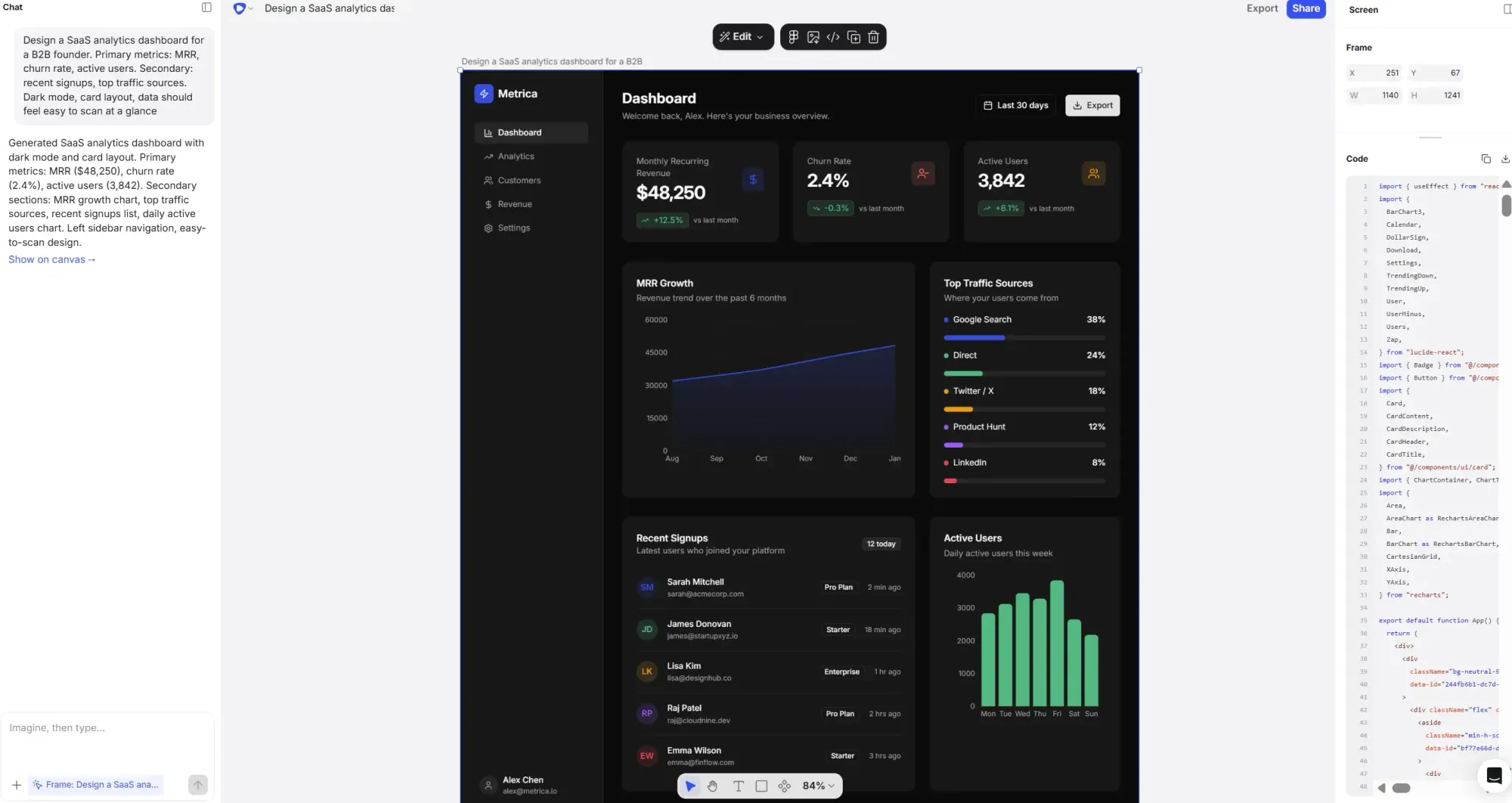
Flowstep is an AI design tool that generates real, editable UI from plain text prompts—not wireframes, not templates, not an AI-generated UI that looks like every other AI-generated UI—actual product screens with proper components and layout that you can keep working with.
Describe what page or pages you want. Flowstep puts it on an infinite canvas in seconds, complete with site flow logic, UI best practices and inclusive design principles. You can attach a PRD, paste a link or upload reference images to guide the output in a specific direction. Get multiple screens or visual direction versions at once, from a single design prompt.
The Figma handoff is super easy. Select anything on the canvas, hit ⌘C, ⌘V in Figma. Done. For engineering handoff, you get clean React, TypeScript and Tailwind CSS, plus you can connect Flowstep with your agents and apps via MCP.
Real-time collaboration is built in from the start. Live cursors, synced edits, one shared canvas and unlimited collaborators. If you're a developer who thought creating beautiful UI designs on your own, complete with code export, was impossible without a design sprint, this is a fundamentally different experience.
Flowstep has a free plan to get started. Paid plans unlock more generations and collaboration features, starting from $15 for 80 messages. Annual discount available. Try Flowstep free.
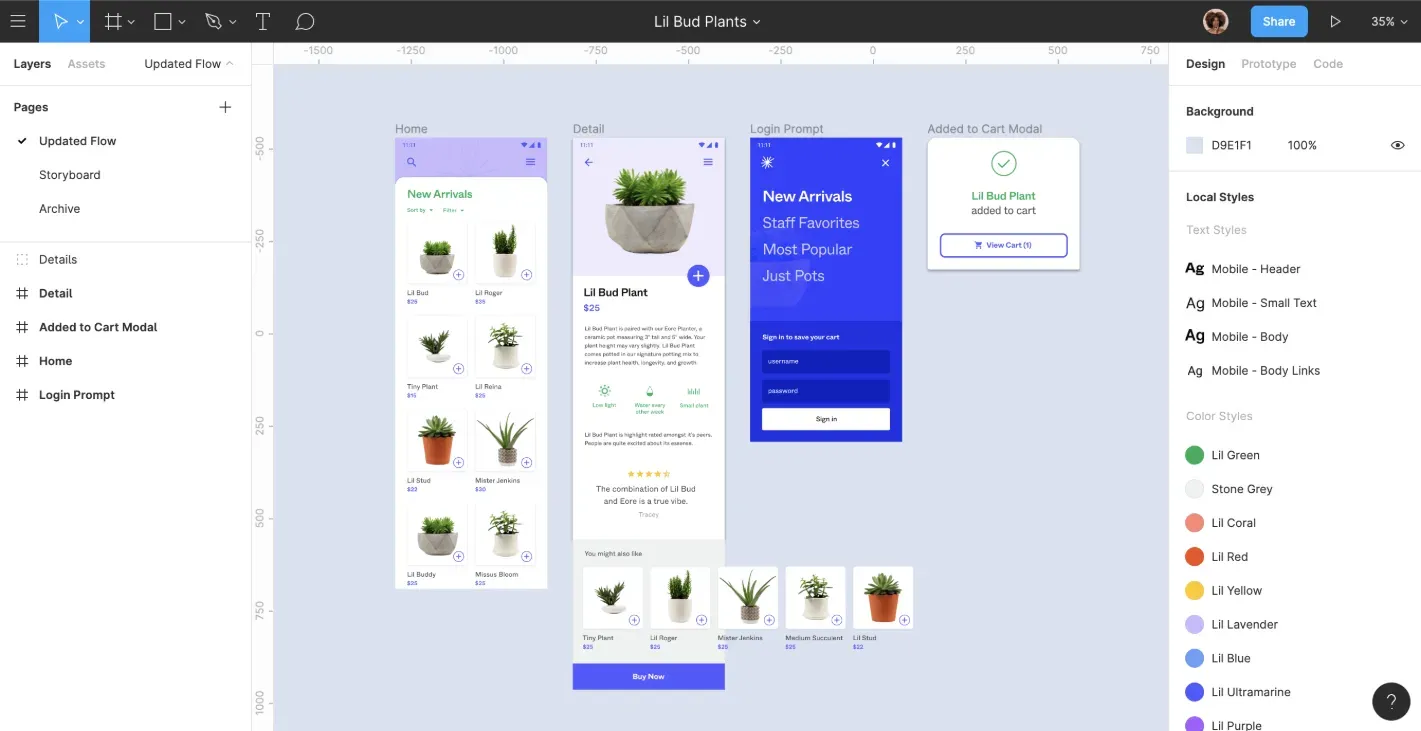
If you're on a product team, you're almost certainly in Figma already.
The main AI feature relevant to the web design workflow is Figma Make—a prompt-to-prototype tool that can generate UI from text or existing designs, iterate visually on the canvas, and stay aligned with your design system. It also connects to tools like Supabase, meaning prototypes can go beyond static screens into functional web app flows. Just note that even though Figma Make is part of Figma’s package, you'll still have to switch contexts between the two because the interfaces are different.
Beyond generation, Figma’s AI features focus on speeding up everyday design work: background removal, auto-renaming layers, layout suggestions, responsive variants and AI-generated copy for UI text. It also supports image generation and editing, translation and diagram creation through FigJam AI.
It’s strongest when you already have something to work with: generating variants, testing responsive behavior, iterating on copy and preparing designs for development using Dev Mode.
See also: Figma alternatives or tools similar to Figma Make if you would rather switch to something else.
Figma’s Starter plan is free and includes limited AI usage (150 credits/day, capped at 500/month).
Paid plans use a seat-based model (Full, Dev, Collab), with pricing starting around $16–$20 per user/month on the Professional plan. AI credits are allocated per seat and plan tier, with additional credit packs available.
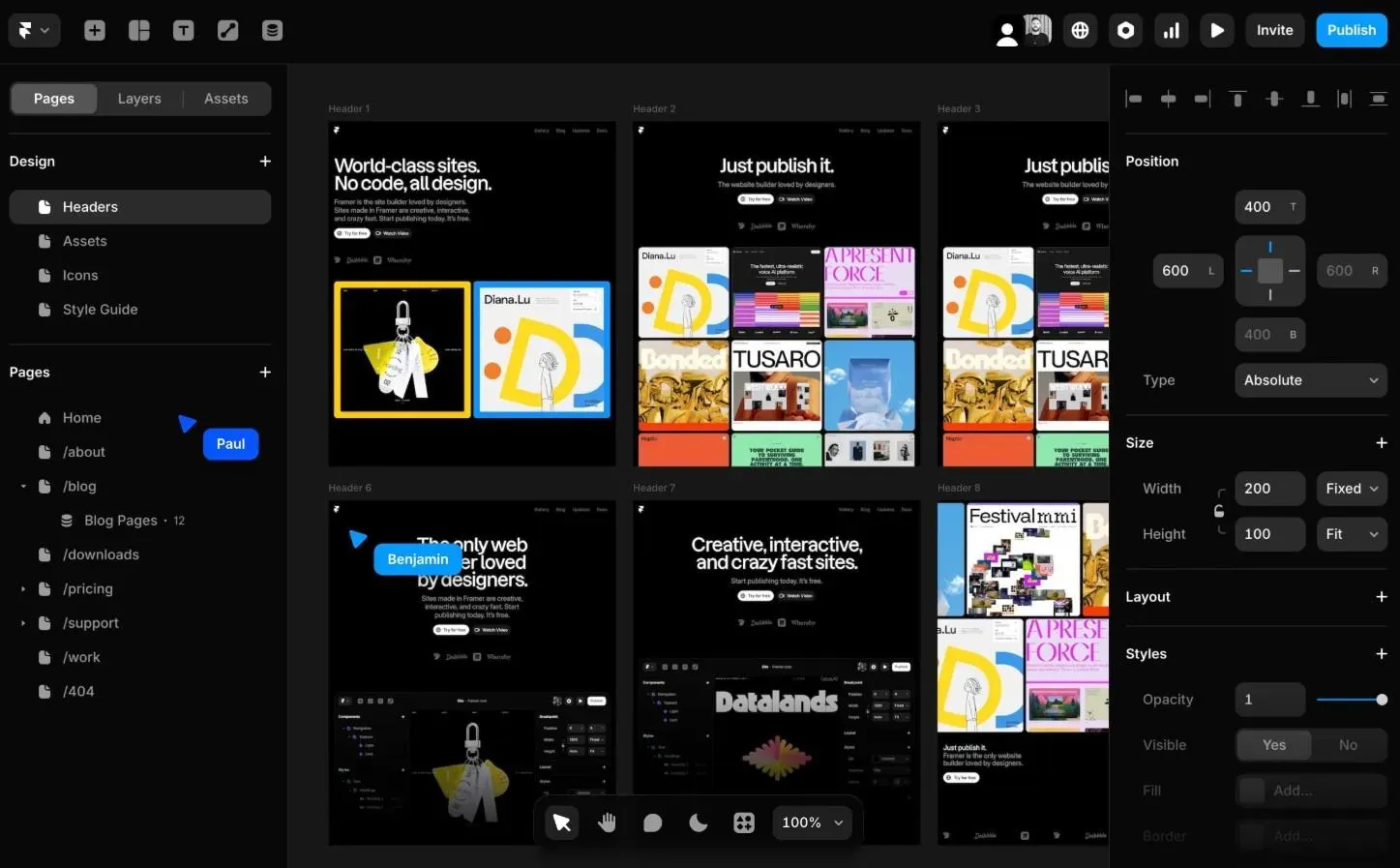
Framer is a visual canvas where you design something and then publish it directly to a global CDN, including animations and custom domain support.
Type a description of what you want, and Framer generates a multi-page site: layout, copy, navigation and responsive breakpoints. The output is a solid starting point that needs customization before it's ready for production. The AI generates it in just a few minutes, and you can edit everything on the canvas. The built-in CMS handles blogs, project pages and team pages.
Our Framer alternatives piece is useful if you're not sure it's the right fit. There's also a deeper Framer review worth reading before committing.
Free plan available for personal projects. Basic at $15/month, Pro at $45/month, Scale at $100/month, Enterprise custom.
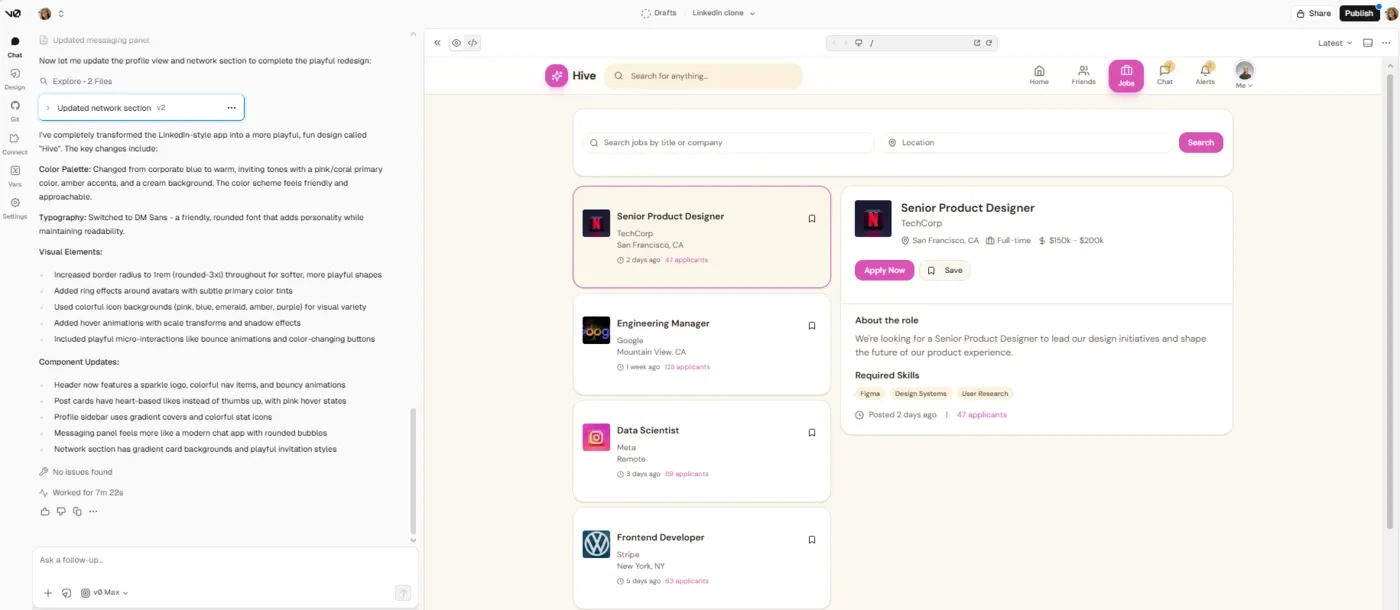
v0 converts natural language prompts into production-ready React and Next.js components using shadcn/ui and Tailwind CSS. The code it generates is accessible, responsive and clean.
Describe a pricing table or a user interface for a dashboard sidebar, and v0 generates it with component structure, Tailwind utility classes and accessibility attributes intact. It includes a VS Code-style editor, GitHub sync, database connectivity and agentic workflows.
It's probably not the entry point for non-technical users trying to build complete web pages with a drag-and-drop editor. It's tied to the Vercel/Next.js ecosystem, which is great if that's your stack and a non-starter if it's not a part of your development process. Note that complex prompts can burn through a monthly allowance fast.
See also our best AI tools for developers comparison.
Free plan includes $5 in monthly credits. Team $30/user/month, Business $100, but both with the same amount of AI usage included.
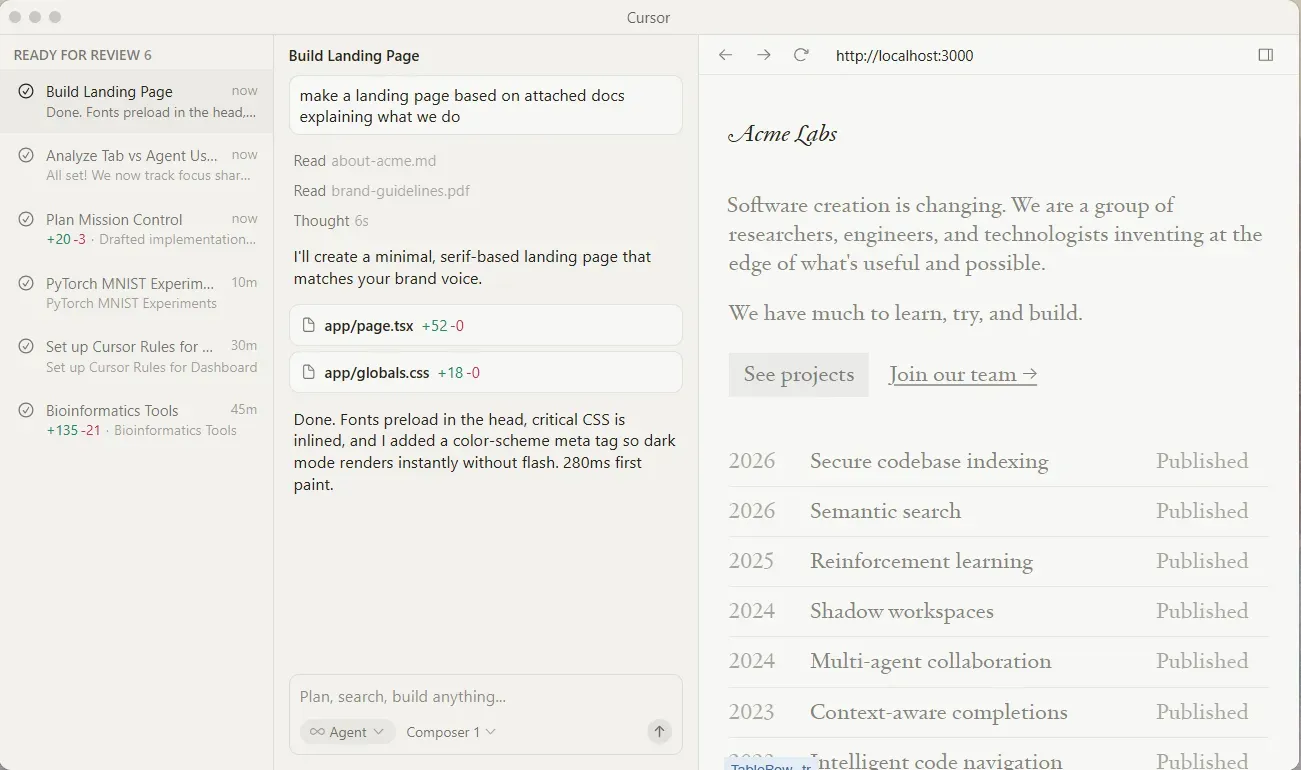
Cursor isn't a design tool; it's a VS Code fork with AI woven through the experience. Agent mode takes a feature description and executes it across multiple files. It has a full codebase indexing that understands your project's architecture before it makes changes. Multi-model support (OpenAI, Claude, Gemini) means you can match the model best suited to each task.
See also: AI for coding options.
Free tier available with limited requests. Pro is $20/month with more fast requests and unlimited slow-model access. Plans go as high as $200; Bugbot is paid separately.
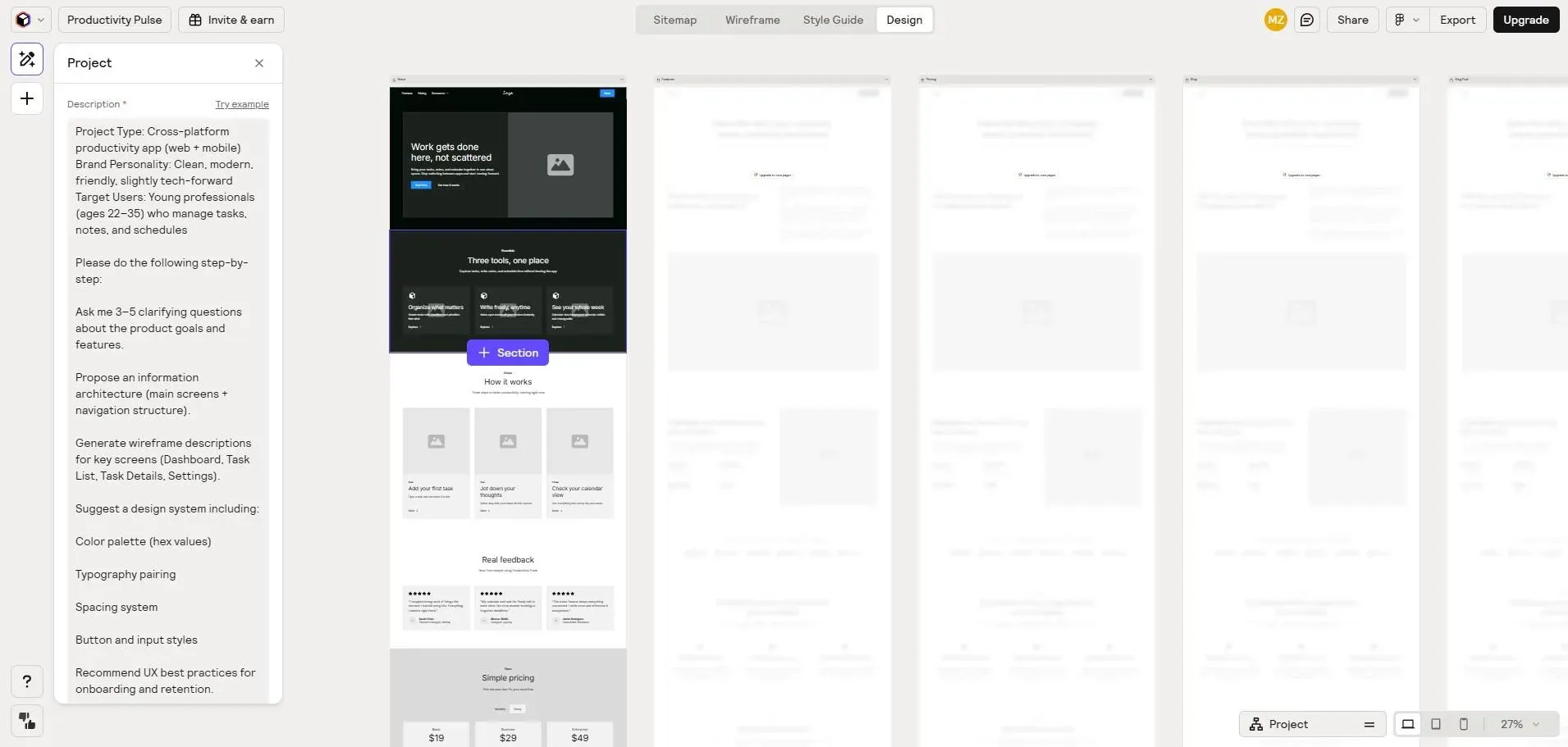
Relume is a wireframing and planning tool for web designers working inside Webflow or Figma, not an AI site builder in the traditional sense. It accelerates the early stages of web design.
Type a short description of your project. Relume generates a complete site structure with page hierarchy. From there, you can convert any page into a wireframe using its library of human-designed components.
While it generates sitemaps and wireframes, it can’t publish a website. It’s a first-draft tool, not a full website builder.
Relume offers a limited free plan for basic use. Paid plans start around $26/user/month (Starter) and scale up to $58/user/month (Pro), with a Team plan for collaboration. Pricing is per user, and you’ll also need a separate Webflow or Figma subscription to actually use the output.
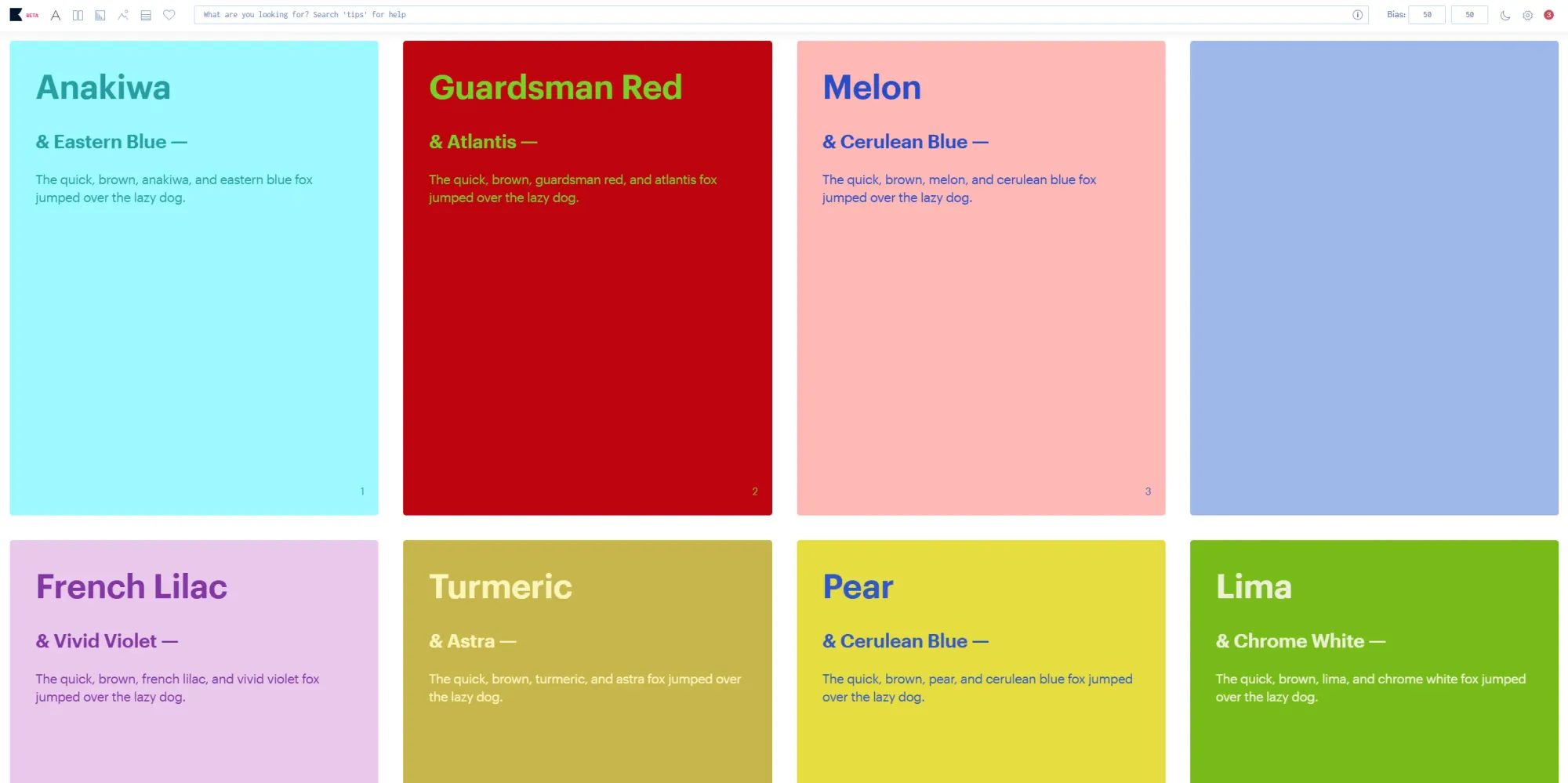
Khroma is an AI-powered tool that makes tailored color palettes. Pick 50 colors you like. Khroma's machine learning algorithms train on those selections and generate personalized palettes, gradients and typography pairings, filtering out combinations you'd never use. Every result comes with hex codes, RGB values, CSS snippets and WCAG accessibility contrast ratings. You can search by hue, tint or value. Save anything to revisit later.
It's not a full design platform. It doesn't generate web pages or build a site theme.
Free.
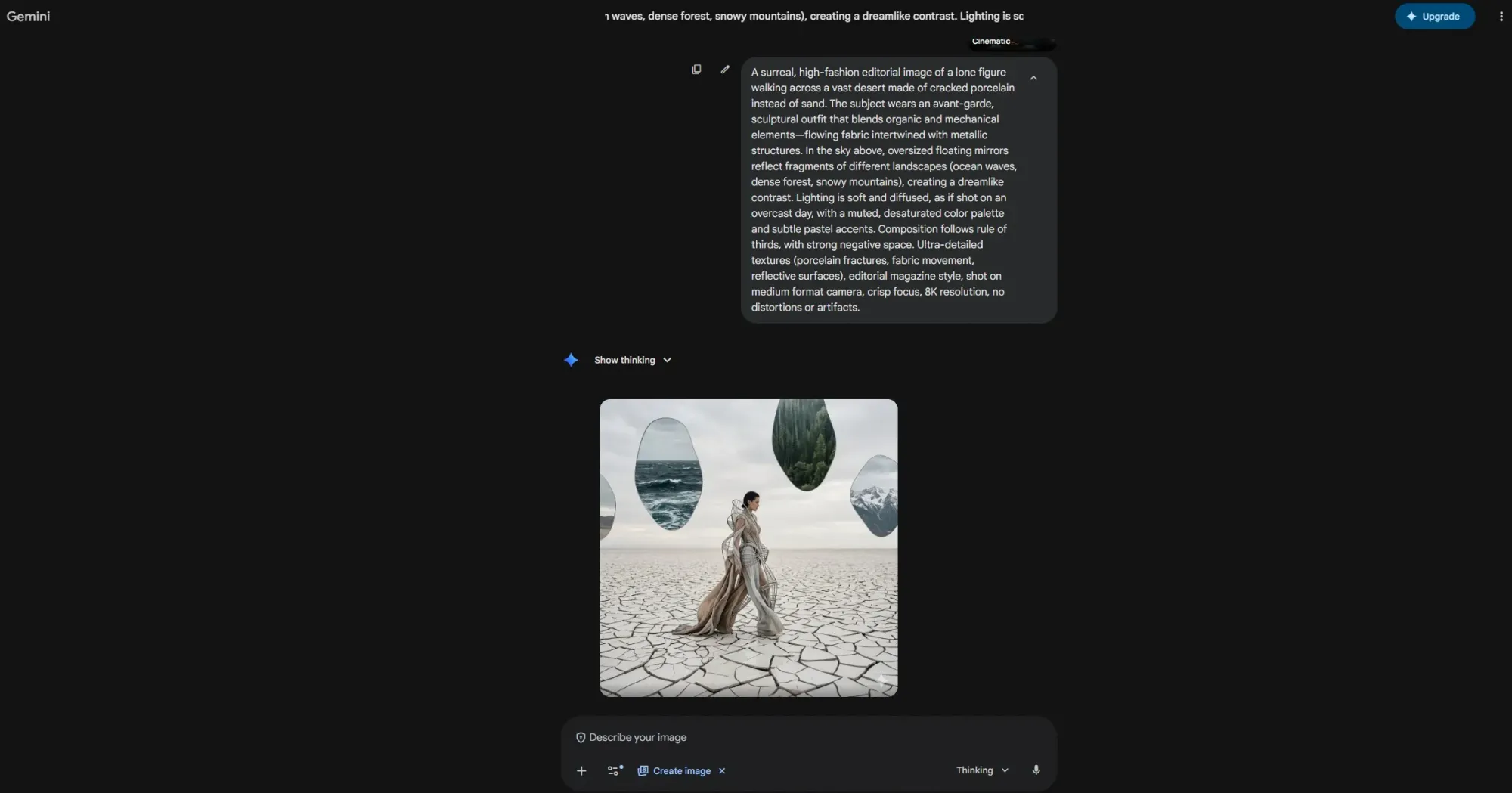
Nano Banana is built on Google's Gemini image models and generates or edits high-resolution visuals from text prompts. Image quality is notably strong. The text rendering accuracy is good, too.
It enables designers' asset creation: product mockups, visual references for new screen concepts, marketing visuals or realistic previews of what a design could look like before committing hours in Figma. It maintains character and style consistency across multiple images.
See our AI design workflow article for more on how tools like this fit into the stack.
Free tier available. Google AI Pro and Ultra plans give you more access. Nano Banana 2 is available at the standard tier; Nano Banana Pro requires higher plans.
Different tools solve different problems; you won't find one tool that does everything. Khroma handles color decisions. Nano Banana generates assets. Relume wireframes for Webflow agencies. v0 and Cursor are developer-facing. Framer publishes polished marketing sites. Figma helps teams refine designs, generate variants, test layouts and handle developer handoff.
But when the question is "where do I start?", when you have an idea and nothing else, the answer is Flowstep. It's the fastest AI-powered path from concept to real, testable, professional-looking UI you can later easily edit. Describe what you're building. Watch it appear. Edit, share, copy into Figma, export as production code; no prior design experience required.
Try Flowstep free—just a few clicks between idea and your own website.
An AI website builder (think Wix ADI, Framer or Squarespace AI) creates a complete, publishable website. Layout, copy, web hosting, own domain support and all. An AI web design tool generates UI screens and designs you can edit, share for feedback, and hand off to a development team. Website builders are for launching a business website; design tools are for creating the product behind it.
Several do, but the quality of that integration varies. Flowstep lets you copy any design directly into Figma with ⌘C and ⌘V. Figma AI is native. Relume exports to Figma via its library plugin. Calling something "Figma integration" when it means "export a PNG and import it" is a different story. Worth checking how the actual handoff works before assuming seamless.
Some can. Flowstep exports React, TypeScript and Tailwind CSS. v0 by Vercel generates clean React components using shadcn/ui. Framer publishes directly to a CDN without a separate web development step. Tools like Relume and Khroma don't generate code—they operate earlier in the workflow.
Yes, across most categories. Flowstep, Figma (Starter plan), Framer, v0 and Khroma all have free options. The free plans differ quite a bit tool to tool. Some give you enough to evaluate the product properly; others give you barely enough to see the interface before the paywall appears. Test before assuming.