

14 Best Mockup Tools in 2026 (Expert-Tested and Compared)
The 14 best mockup tools for designers in 2026, compared by pricing and use case, from Flowstep and Figma to Canva, Placeit, and more.
A deep-dive pencil.dev pricing and review, covering features, real costs, who it's built for, and a simpler alternative for product teams.
You get a Figma link. You spend 20 minutes figuring out the spacing. The font weights aren't documented anywhere. You ping the designer, wait, get a partial answer, go back to your code editor, and by the time you're actually writing CSS, you've forgotten what you were building in the first place. Luckily, we can call that the old way now.
Pencil.dev is one of the tools that popped up in recent years in an attempt to fill that gap. It's a design canvas that lives inside your IDE. Your design files sit in the same repo as your code. Version-controlled, Git-native, readable by AI. The idea is that you never have to leave your code editor to sketch out a UI again.
Before going any further: pencil.dev is not the Pencil Project (the old open-source wireframing tool), and it has nothing to do with trypencil.com (an ad creative platform). We're looking at pencil.dev—the IDE canvas, and how it works in practice, what the pencil.dev pricing looks like, where it comes short, and what to use instead if the setup is too much friction for your team.
See also: Best AI for coding
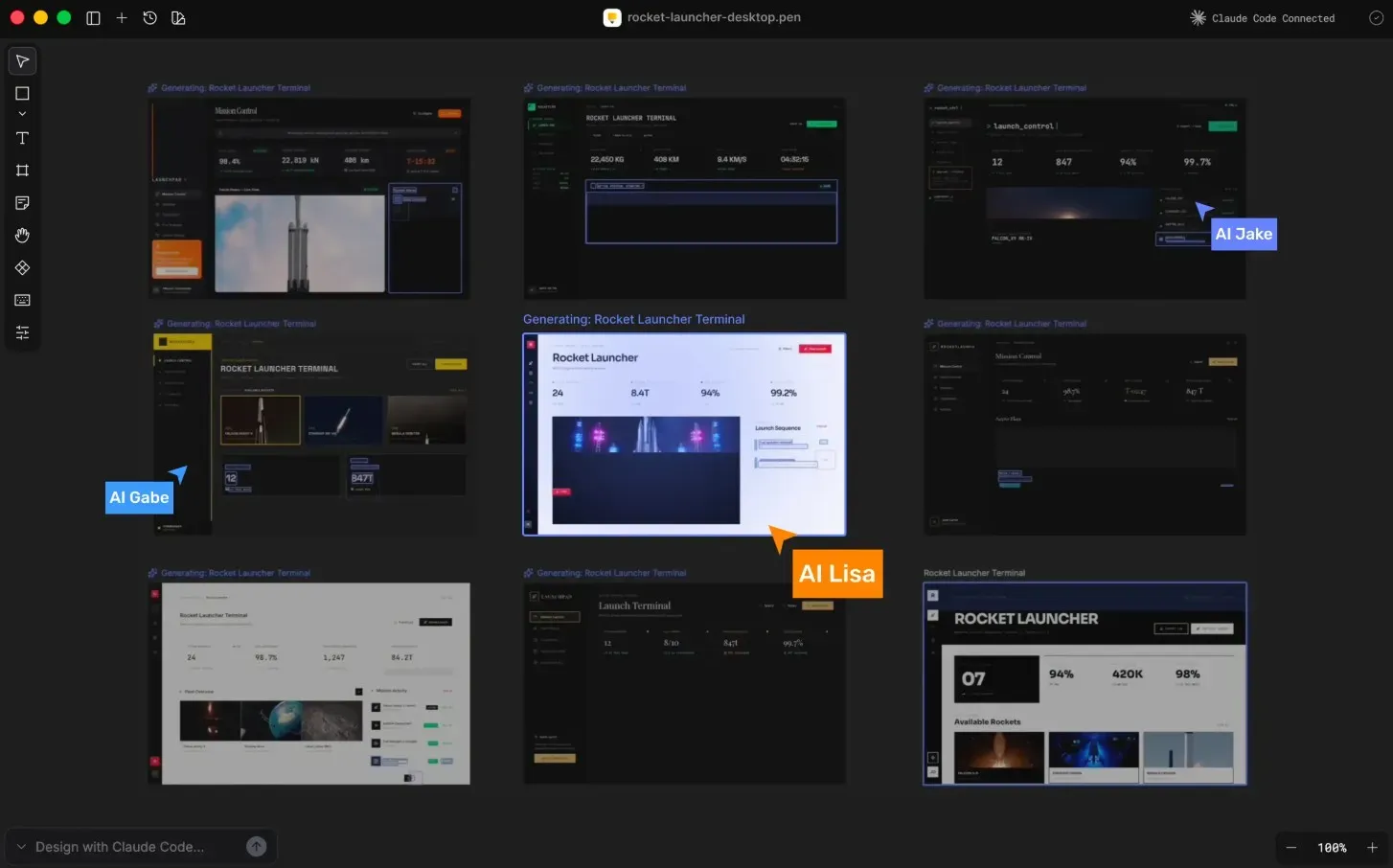
Pencil dev is an AI-powered design canvas that lives inside your development environment. You open a .pen file in your IDE and get an infinite design space right alongside your code. From there, you can prompt the coding agent to create UI, manually adjust layouts, and generate components in code that match what you drew in the same place.
Design files are stored as JSON-based .pen files in your project folder. That means they're version-controlled the same way your code is. You can branch a design, diff it, merge it, roll it back. Anyone who's dealt with the chaos of Figma file versioning will enjoy this cleaner approach.
The target audience is narrow and deliberate: developers who also mingle in design, founders prototyping fast, small teams where one person handles all sides of the product.
To get started with pencil.dev, install the pencil extension from the Cursor, VS Code, Windsurf or Google Antigravity marketplace. There's also a standalone desktop app for macOS, Windows (x64; ARM64 is coming soon) and Linux. If you prefer the terminal, npm install @pencil.dev/cli gets you a CLI version.
There's no browser app yet. Pencil runs locally, which means you need a locally running Claude Code instance to get AI generation working. It also works with other agents, but we found that this one is best supported. You'll also need to configure the MCP integration—a short mcp.json setup that tells Claude Code where to find your canvas context. It takes maybe 15 minutes if you've done something like this before, longer if you haven't.
Once it's connected, the coding agent has full read/write access to your canvas via the model context protocol. This gives you better generation quality—it's reading the actual data of your design: coordinates, tokens, layer structure, everything.
Create a .pen file in your project, open it, and you're in. The layout will feel immediately familiar if you've ever used Figma—layer panel on the left, CSS properties on the right, infinite canvas in the middle. You can describe what you want in plain language (e.g., "generate a hero section with a headline, subhead and two CTA buttons in dark mode"), press enter, and the coding agent builds it for you.
Small tweaks, such as adjusting padding, changing copy or swapping a color, happen directly on the canvas without triggering a full generation.
Multiple agents can work on different screens simultaneously in this design tool. You can watch a dashboard get built in parallel on the same canvas.
When your design is ready, your coding agent reads the exact specs from your .pen file and generates React, HTML or CSS. Because the canvas context comes through the model context protocol, the output tends to land closer to the design intent than most generate-from-image approaches.
Pencil ships with four built-in design systems: Shadian, Halo, Lunarus and Nitro. They come with tokens, patterns and responsive rules already configured. If you want the best results on a tight timeline, start from one of these rather than from scratch.
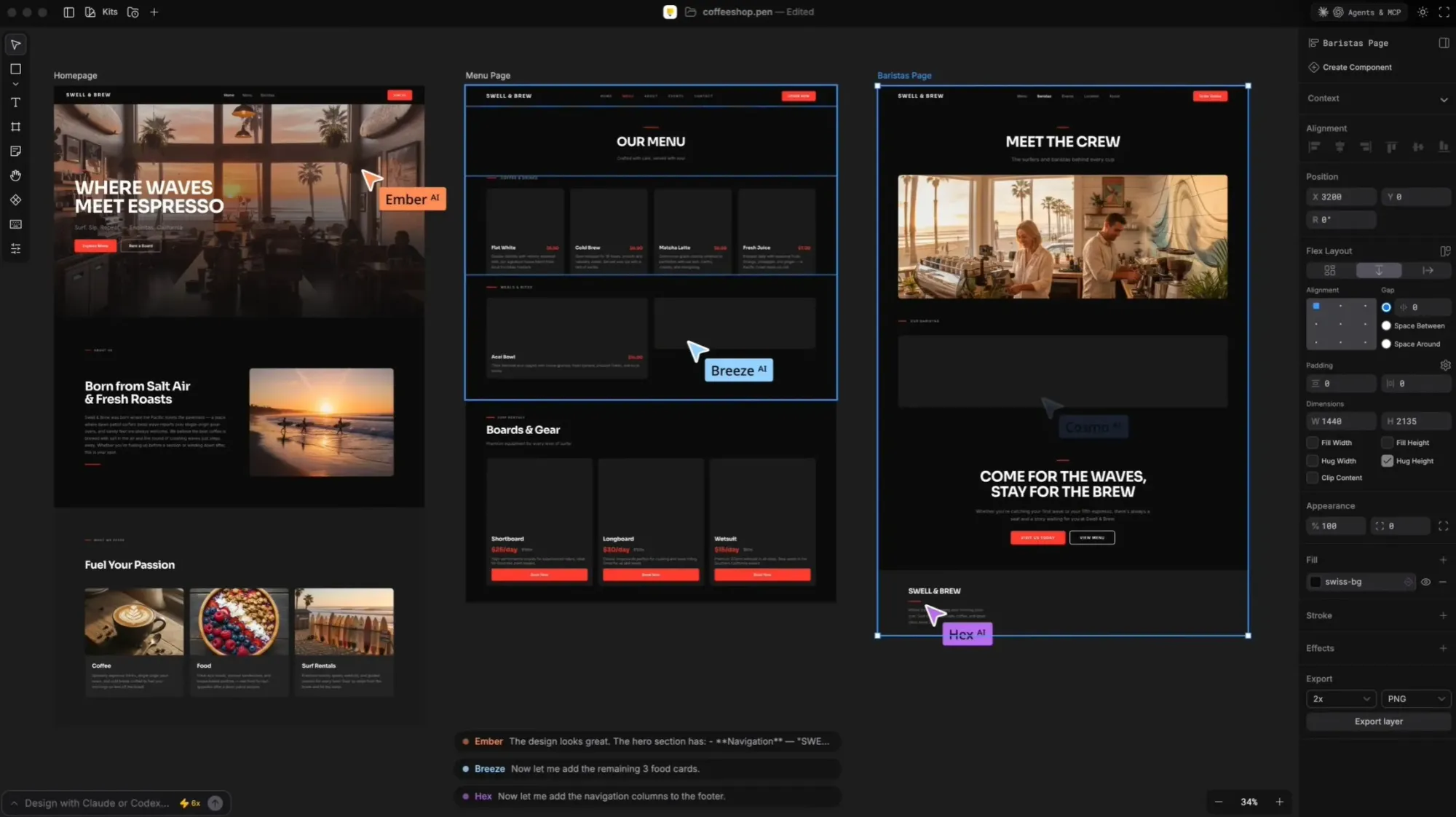
The core is straightforward: describe what you want, press enter, see it appear on the canvas. Coding agents handle generation; pencil dev provides the spatial context that makes the generated output precise. Unlike tools that view image files and guess at dimensions, pencil reads the underlying JSON of your design.
You can also import from Figma via copy-paste. Layers, styles and spacing transfer intact, so if your team has an existing brand and design system in Figma, you're not starting from scratch.
You can place a sticky note on the canvas that says "generate a loading state for this card" and convert it directly into a runnable prompt. This makes it feel like an active workspace where every annotation can become an instruction for your coworkers or the AI.
Layer panel, property editor, direct text manipulation and element resizing. If you know Figma, you know this canvas. The AI integration is the only new thing to learn. Manual edits, like CSS adjustments, copy changes or layout nudges, happen directly on the canvas without you having to touch coding, which keeps the workflow fast for small iterations.
The Model Context Protocol server separates pencil.dev from a standard canvas tool. Your development tools can receive the exact design context and use it when generating code.
At this moment, pencil.dev is completely free.
That doesn't mean you won't encounter costs upstream, though. Pencil dev generates nothing on its own. You’ll need an IDE (like VS Code or Cursor) and an AI coding agent (like Claude Code or Codex) to power generation. Claude Code is currently the primary and most reliable way to power AI in pencil.dev, so that's the one we'll focus on.
It starts at $20/month (monthly billing). If you're a heavy user running lots of generation sessions, Claude API costs accumulate separately, billed directly by Anthropic. A similar structure applies to other coding agents.
For more context on what Claude Code actually costs as your usage scales, our Claude Code review covers the pricing mechanics in detail. See our article on other top AI tools for developers if you want more coding help.
Pencil.dev founders don't shy away from the possibility of charging their users in the future. Free is not a business model, so build your workflows with that in mind.
Pros:
Cons:
If you're a developer who uses Cursor daily, already pays for Claude Code, and wants your design files living inside your repo rather than floating in a separate app, pencil dev makes sense. It slots into an existing workflow without requiring a new platform, account or subscription. The setup is fast enough, and after that, you have a canvas that's synced with your codebase and readable by your AI coding tools.
The lack of a browser version and auto-save is a pretty big limitation that can disrupt your workflow and make collaborating difficult. It doesn't give you the design tools or flexibility of Figma or similar alternatives. You may also find the pricing surprisingly high, once you see how much AI usage it takes to get a working prototype.
Flowstep does everything pencil.dev does (generate UI from a prompt, infinite design canvas, code generation), but in a browser, no setup, no external subscription, and no local install required.
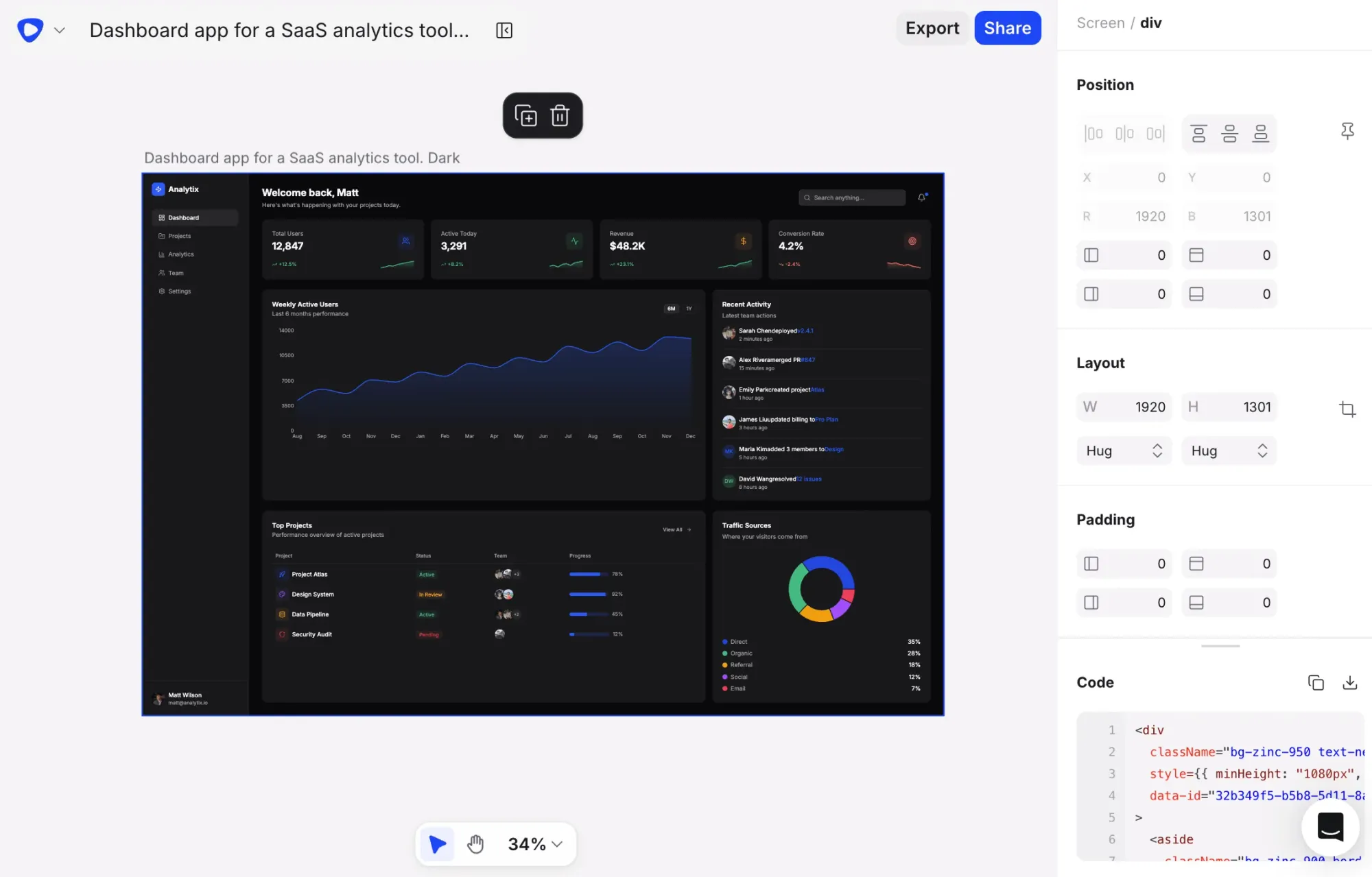
Open it, describe what you want, and press enter. Real UI appears. No difficult MCP configuration, no .pen file in your repo, no waiting on a local instance to spin up. Editing is easy (with AI or manually), and collaboration is supported in real-time, with unlimited users. Multiple people can work on the same canvas, with cursors visible, edits synced live.
Flowstep is built for the whole product team, from product managers to designers and engineers. It exports clean, production-ready designs in React, TypeScript and Tailwind CSS. You can also copy any design straight into Figma with two clicks of ⌘C + ⌘V.
Attach a PRD as context, upload reference images or paste a website link for Flowstep to use for guidelines on what the generation should look like.
If you're exploring the best AI design tools for your production stack, or looking specifically at AI tools for product managers who need to communicate visually with their teams, Flowstep is one of the most practical options.
If you're a developer already living in Cursor, comfortable with Claude Code, and you like the idea of design living next to your code, pencil.dev makes a lot of sense. It’s fast once set up, the MCP integration is solid, and version-controlled design files are a cleaner system than what most solo builders use today.
But pencil.dev assumes that design happens inside engineering, with the canvas locked inside an IDE, behind setup and an AI agent configuration.
If your team needs to align on flows, test ideas and iterate designs quickly with multiple people before development, then you need something like Flowstep. It takes the same core idea—generating UI from a prompt—but removes the environment entirely. No setup, no external dependencies, no entry barriers. You open a browser, describe what you want, and everyone on the team can see and edit designs immediately.
Yes, pencil.dev is completely free for early access. No paid tiers exist yet. The cost you'll actually pay is for coding agents, like Claude Code, which starts at $20/month, plus any Claude API usage.
Practically speaking, no. There's no browser version. Using pencil.dev requires a local development setup, an IDE connection, and an MCP configuration. Anyone without a working dev environment will find it too much work for too few benefits. Some designers also find that it doesn't give you enough flexibility for customization.
Flowstep is the most accessible option for cross-functional teams—it runs in the browser, requires zero CLI setup, supports real-time collaboration, and exports production-ready React/TypeScript/Tailwind CSS code. Generated UI is polished and detailed, in line with your uploaded brand guidelines. Flowstep's own interface is intuitive to use for anyone.
Yes. The downloads page currently lists Windows support for Intel/AMD x64. ARM64 for Windows is listed as coming soon. macOS (Apple Silicon and Intel) and Linux are both fully supported.